Create a Virtual Machine on your laptop for free

Create a Virtual Machine on your laptop for free

The post “Create a Virtual Machine on your laptop for free” takes you through a step by step process of creating a virtual machine on your laptop while not touching the existing host operating system. In recent times I’ve got plenty of questions from various blog followers on how to set up a VM with less or no cost. Microsoft lovers merely tend to deal with Windows OS and we never try to explore options around Linux. But sometimes we may need to perform POC’s that require opensource support. Now, we’ll see how to set up a VM on your local machine with Ubuntu 18.4 Operating System.

There are multiple ways to set up a VM:

  1. Use AWS / Azure one-year free tier
  2. Host a shared Linux VM on a datacenter just with the price of a caramel chocolate
  3. Use Oracle Virtual Box and create a virtual machine on your laptop for free
  4. Other options: VMWare Workstation, Windows 10 Hyper-V

Considering the limitations and feasibility, I vote for the third option. We are going to create our own VM on a local machine using the product Oracle Virtual Box.

Recommended resources for VM:

  1. Host OS (OS on your laptop/system): Windows 10 Operating System
  2. Available RAM: 1/2 GB
  3. Available Space: 5/10 GB
  4. Guest OS: CentOS / Ubuntu ISO image
  5. Administrator access on the Host system

Oracle Virtual Box:

Virtual Box is a virtualization product that absolutely supports both an individual and an enterprise user. Few things I really liked are “it’s an opensource”, “Optimized”, “Lightweight” and “OS support”. If you have a proper host machine (Laptop/Desktop), you can configure multiple VM’s with different OS and it is very handy to perform the POC’s for your business requirements.

Note: VM supports various OS (Ex: Linux, Windows, Mac, etc). For a quick POC I am going to create a VM with Ubuntu Desktop OS.

Now, we are going to start creating a VM on my local machine:

  • Install Oracle Virtual box
  • Download Ubuntu 18.4 OS software
  • Create a new VM the OS Ubuntu

Install Oracle Virtual Box:

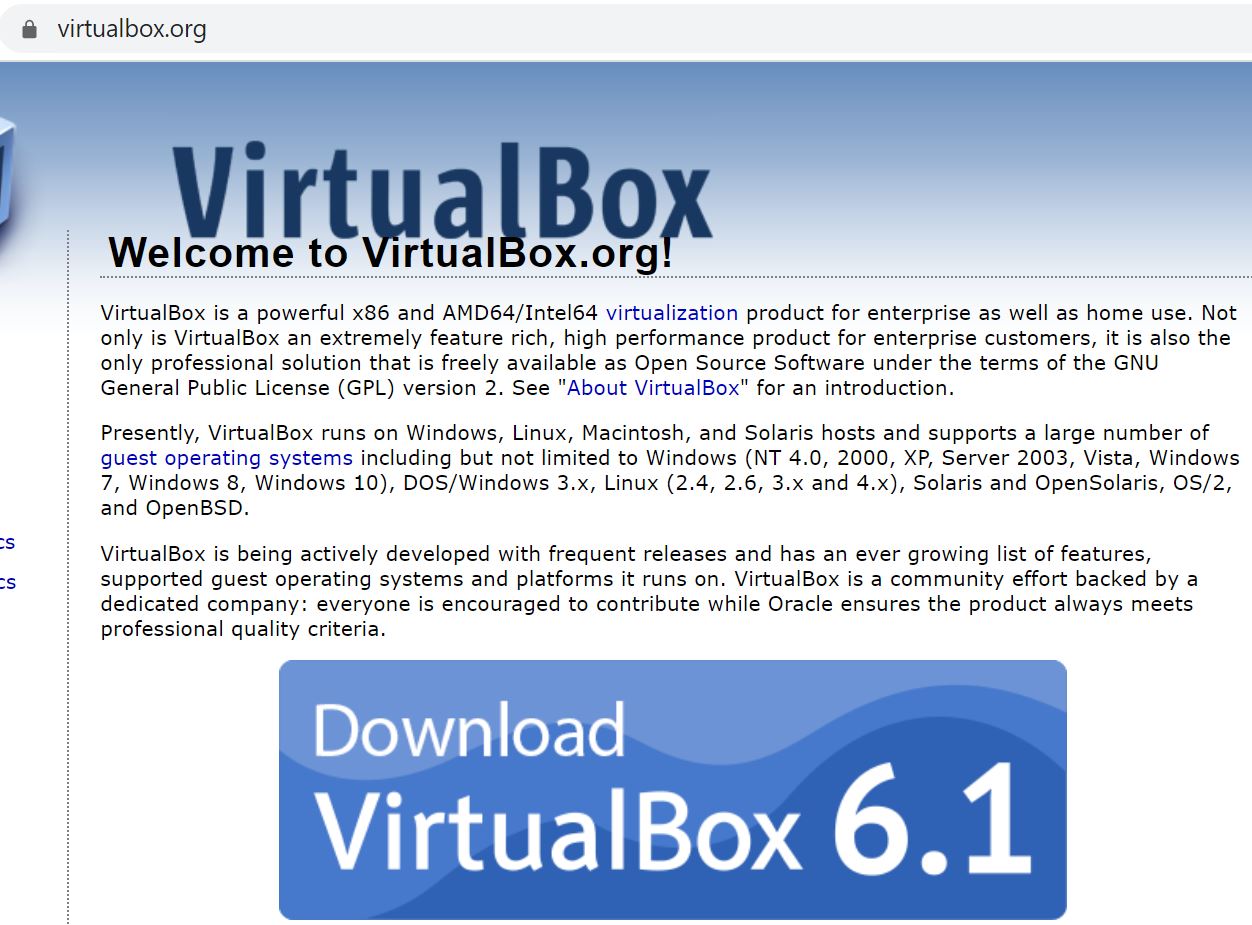
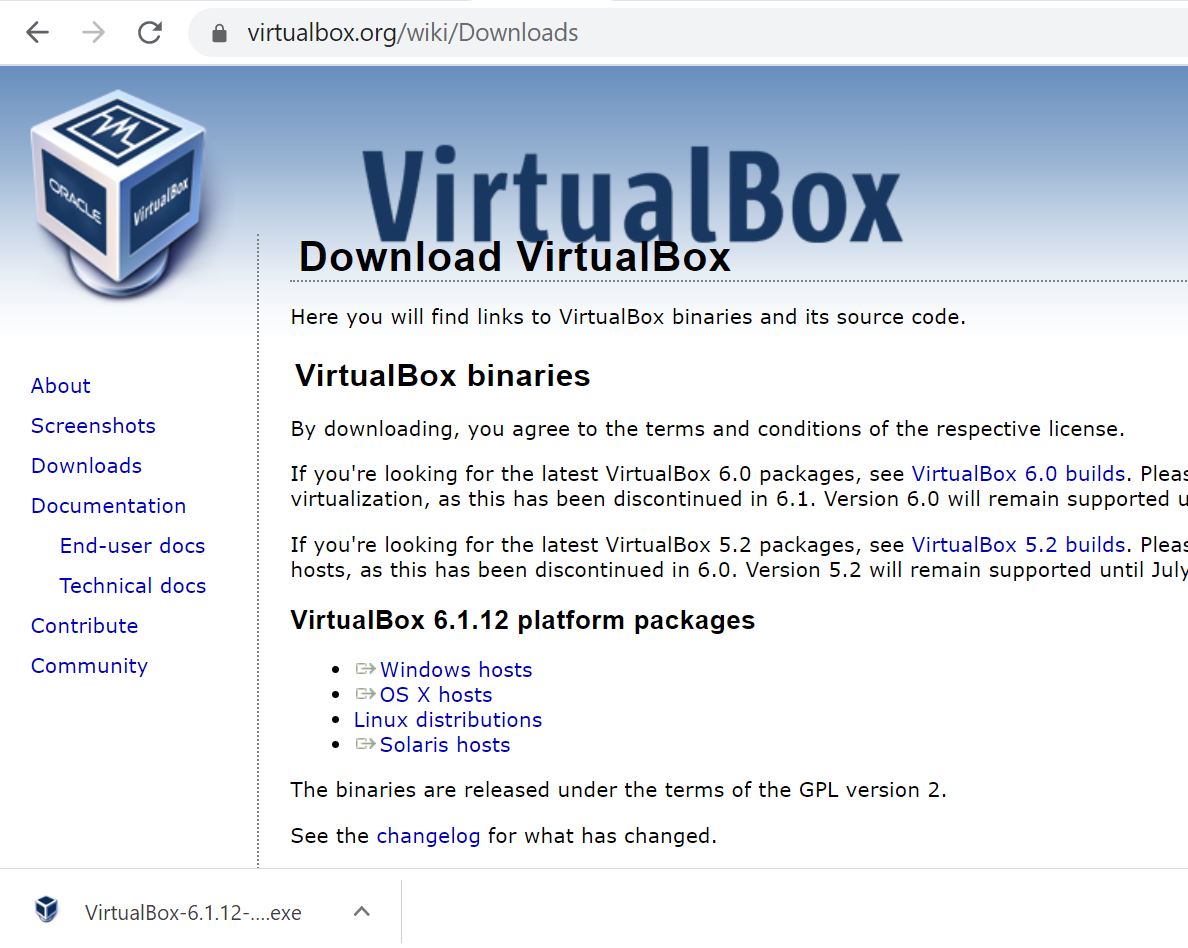
It is the easiest task in the given list. Just download the Oracle Virtual Box from here. Since it is an opensource, it is licensed under the General Public License. From the given link, just click on the image “Download VirtualBox 6.1” and it redirects you to next page from where you can download the installation package by clicking on “Windows Hosts”. It downloads a VirtualBox-6.1.12-139181-Win.exe file sized 103 MB.
Create a Virtual Machine on your laptop for free Create a Virtual Machine on your laptop for free

I am going to install Virtual Box from downloaded “.exe” file and I would like to take the defaults:

Continue reading

Posted in Miscellaneous | Tagged , , , , | 6 Comments

SQL Server Health Check HTML Report

SQL Server Health Check HTML Report

Report Overview

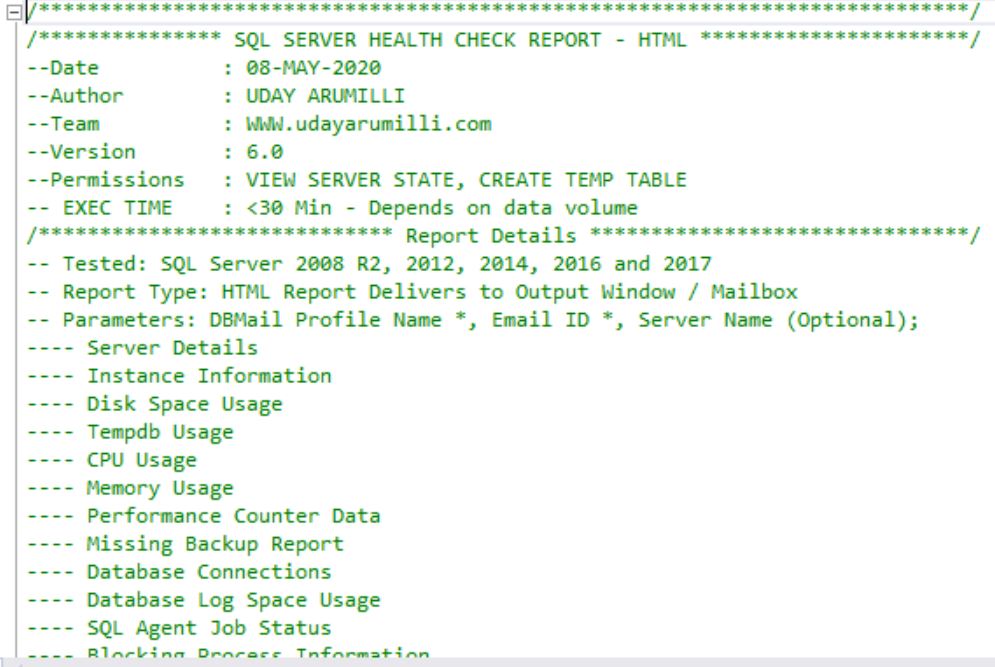
SQL Server Health Check HTML Report is the improved version of the old report and it can help you to quickly monitor the health of a given SQL Server instance. This report fetches and process the data from system tables and dynamic management views. It reports the crucial factors that showcase the current database instance performance. It’s been written using T-SQL script. We can run it on any SQL Server instance starting from 2008 R2 to 2019. Save the result as .HTML format and the same can be viewed through any web browser. We neither tested it on Azure nor RDS instances, thereof we may need to do some code changes for cloud instances. Script download is available at the end of this post.

Report Parts

Report contains below parts:

  • SERVER DETAILS
  • INSTANCE INFORMATION
  • DISK SPACE USAGE
  • TEMPDB USAGE
  • CPU USAGE
  • MEMORY USAGE
  • PERFORMANCE COUNTER DATA
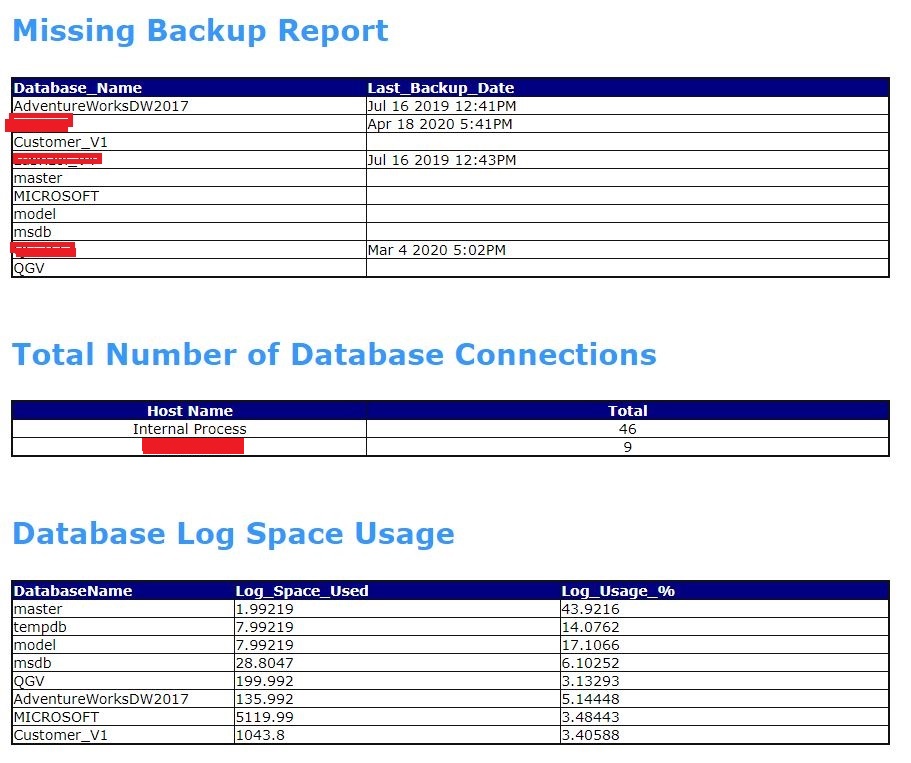
  • MISSING BACKUP REPORT
  • DATABASE CONNECTIONS
  • DATABASE LOG SPACE USAGE
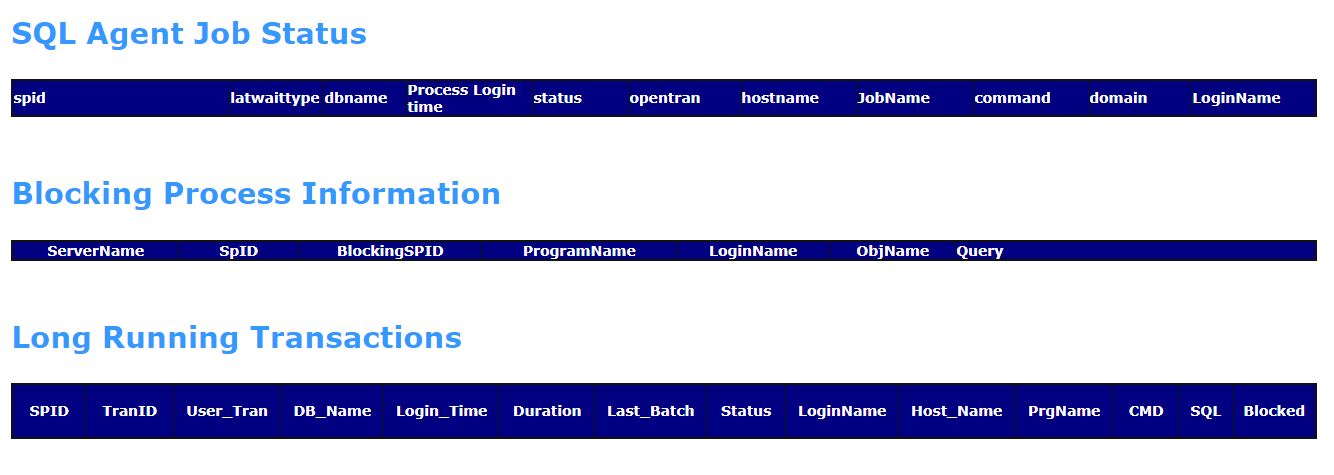
  • SQL AGENT JOB STATUS
  • BLOCKING PROCESS INFORMATION
  • LONG RUNNING TRANSACTIONS
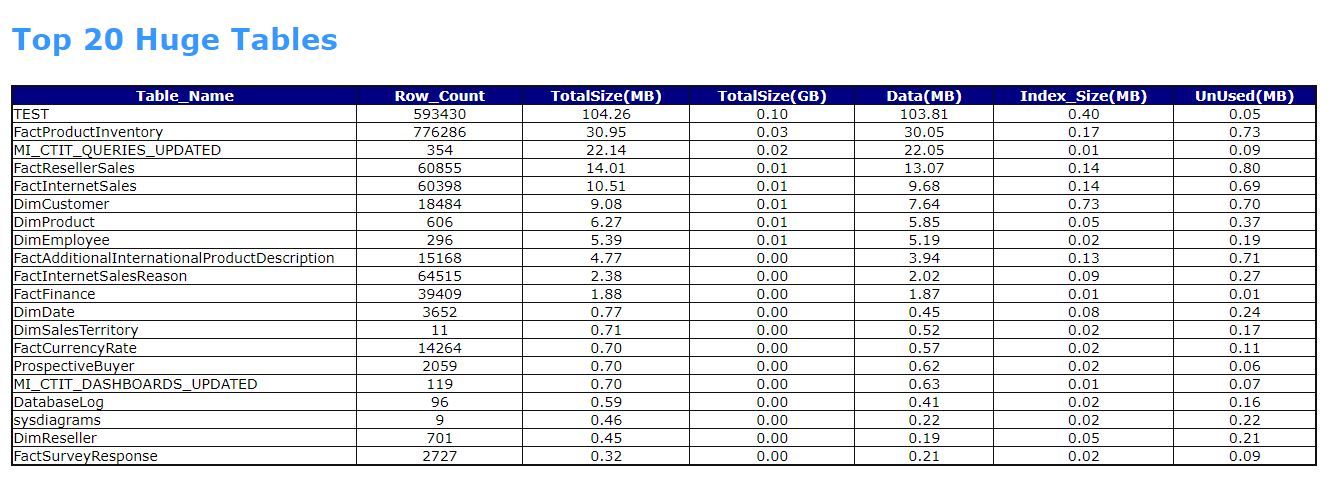
  • TOP 20 TABLES
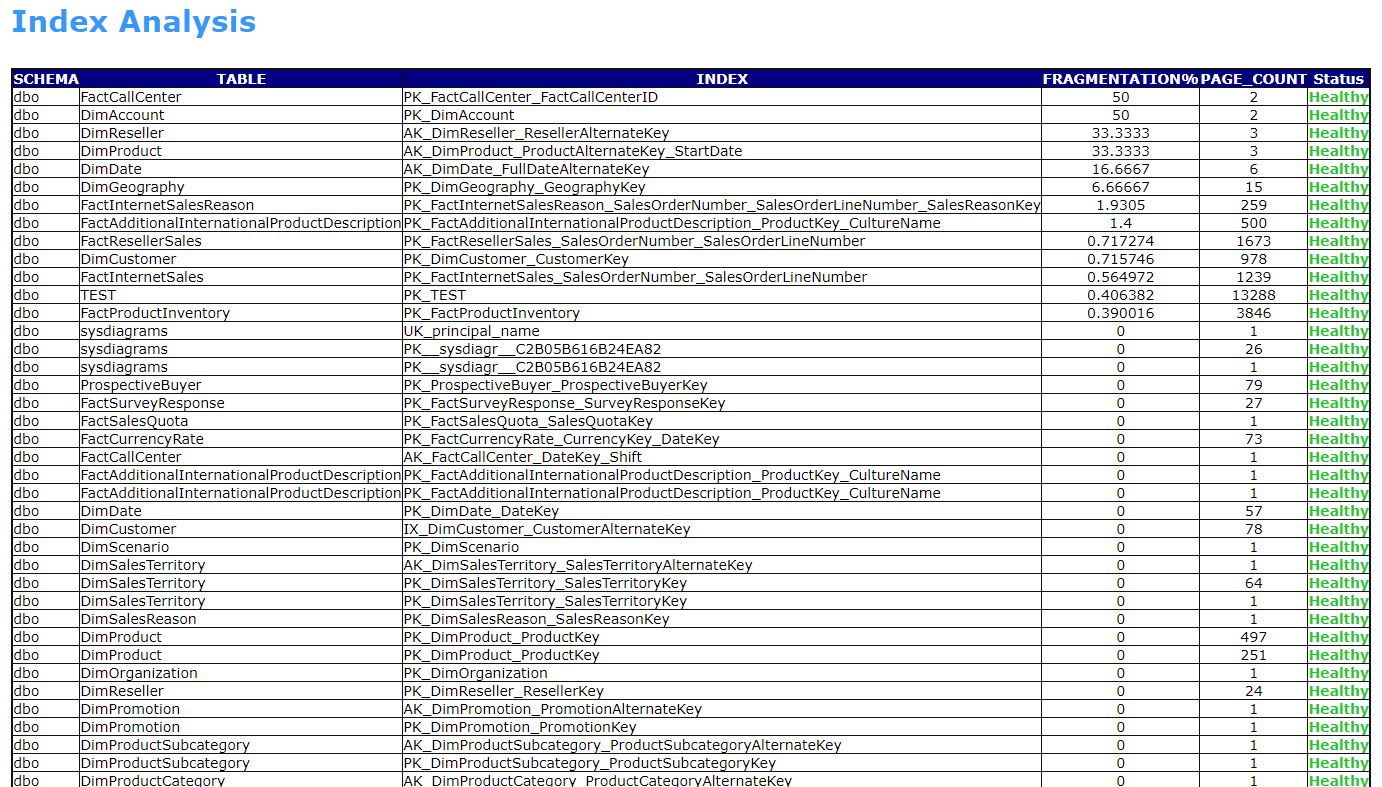
  • INDEX ANALYSIS
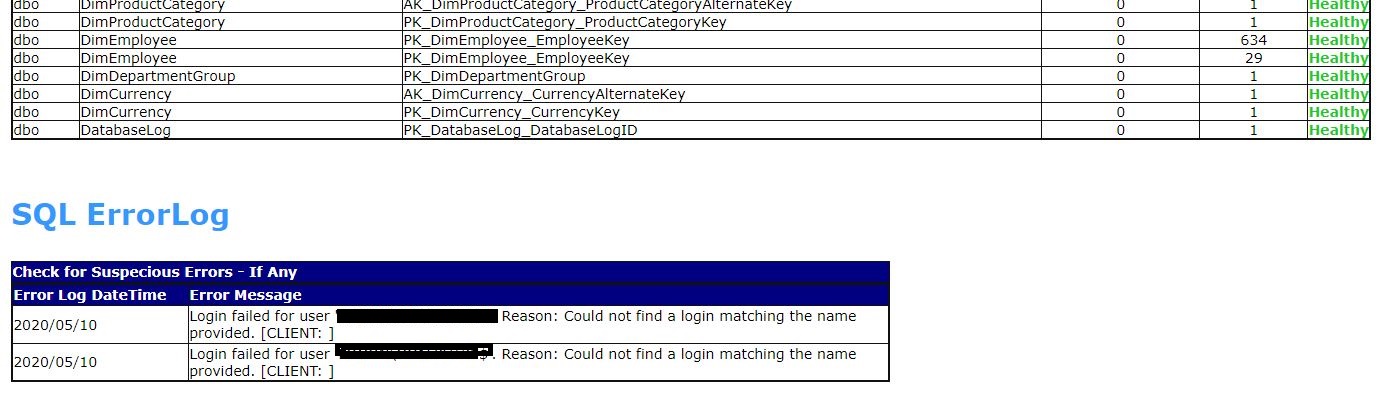
  • SQL ERRORLOG

Execution Procedure

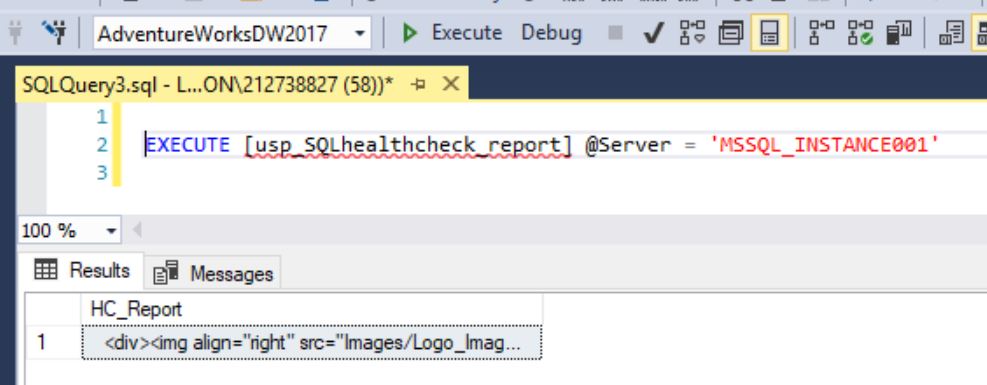
  1. Create the stored procedure “[usp_SQLhealthcheck_report]”
  2. Execute the procedure Ex: EXECUTE [usp_SQLhealthcheck_report];
  3. Pass Mail profile and Email details @MailProfile, @MailID. Not mandatory
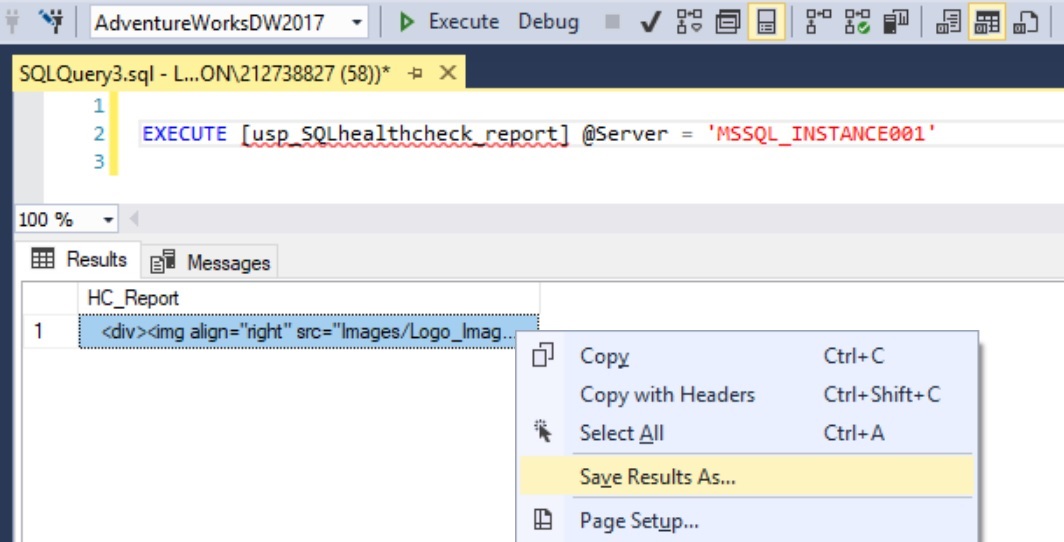
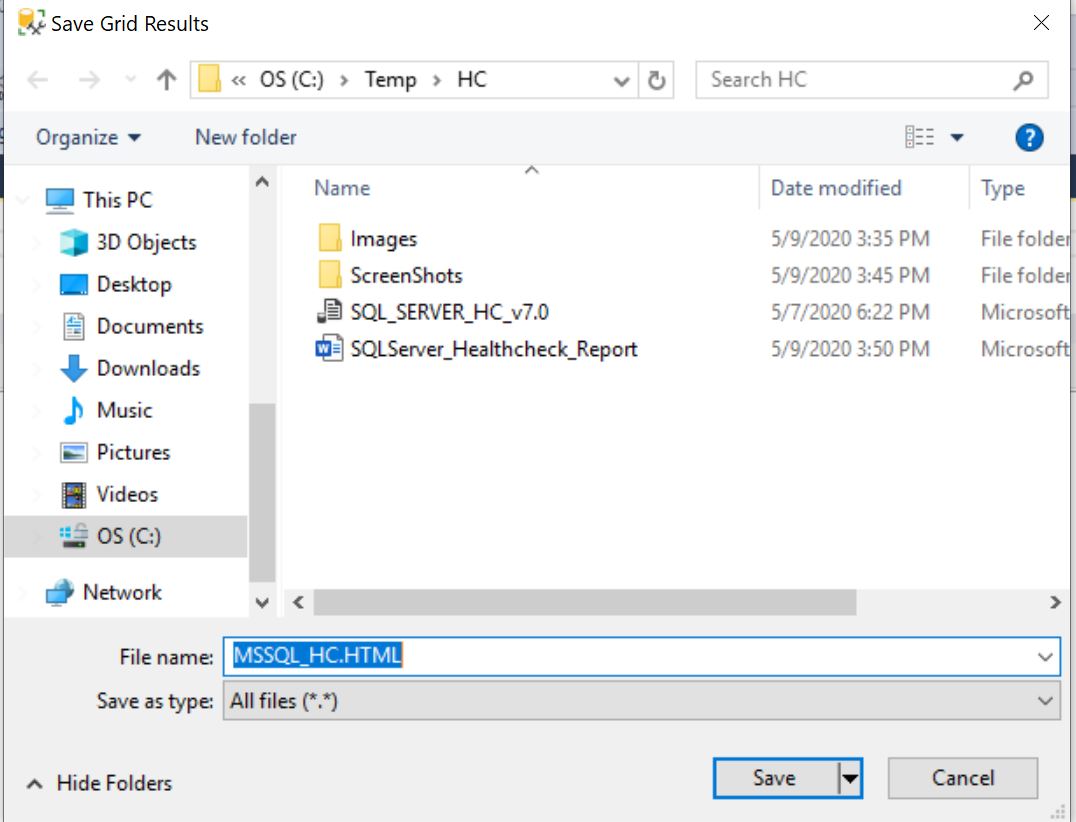
  4. Save Result As: Save output as .HTML on your local
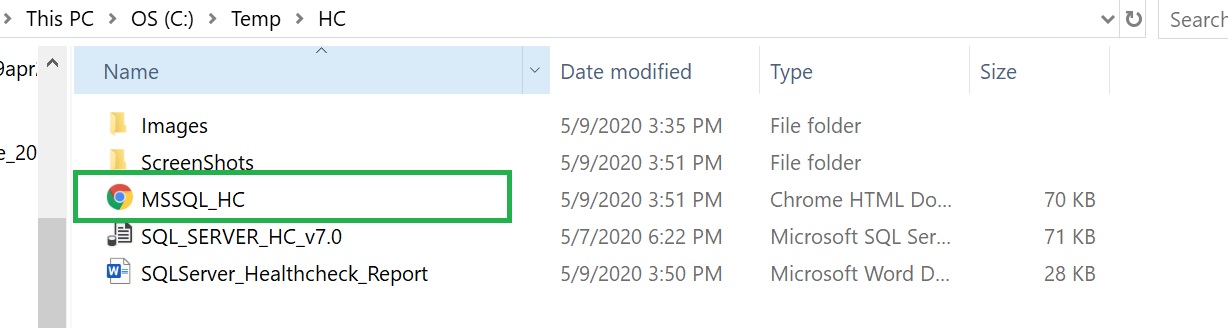
  5. Make sure that the saved report is on the same folder where Images folder exists. So that we can see the LOGO at right corner.

Output Format

  1. Direct HTML report
  2. Send email with HTML as an attachment

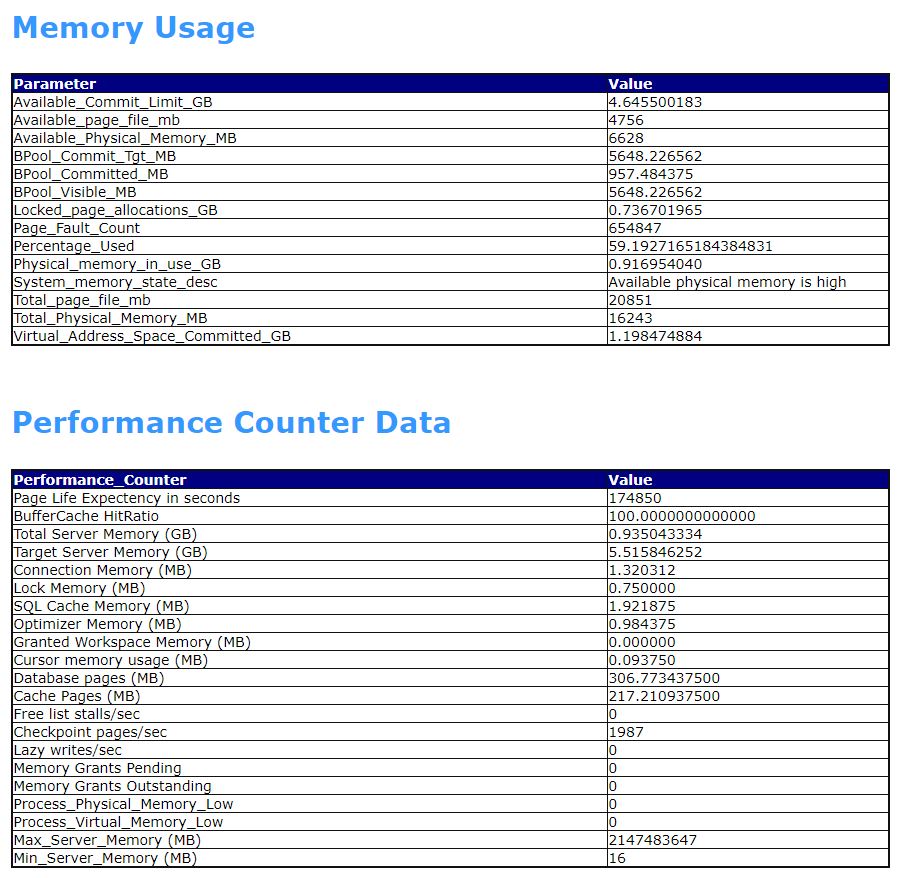
Critical Performance Counter Data

This section captures the critical performance counters from management views. Some of those counters plays the vital role in system performance evaluation.

Page Life Expectancy (PLE): How many seconds a page is being available in Memory.

Buffer Cache Hit Ratio (BHR): What is the percentage of database calls reaching Buffer Cache instead of Disk storage.

Grants Pending: If any Memory requests pending from OS

Memory Low Alerts: 0 indicates no such alerts registered.

Recommendation for Continues Monitoring

If we want to design performance trends, then I would recommend the below parameters for monitoring on continues basis:

CPU Usage

  • SQL Process Utilization
  • System Idle

Memory Usage

  • Total_Physical_Memory_MB
  • Physical_memory_in_use_GB

Performance Counter Data

  • Page Life Expectancy
  • Buffer Cache Hit Ratio
  • Memory Grants Pending
  • Memory Grants Outstanding
  • Process_Physical_Memory_Low
  • Process_Virtual_Memory_Low

Blocking Process Information

Sample Screenshots from HTML Report:

Create procedure on the required database:

Execute the procedure. I don’t need to send email rather just need a HTML report

SQL Server Health Check HTML Report

Store the output as in HTML report

SQL Server Health Check HTML Report SQL Server Health Check HTML Report SQL Server Health Check HTML Report

Create Images folder and create the required company logo and name it as Logo_Image.jpg

SQL Server Health Check HTML Report

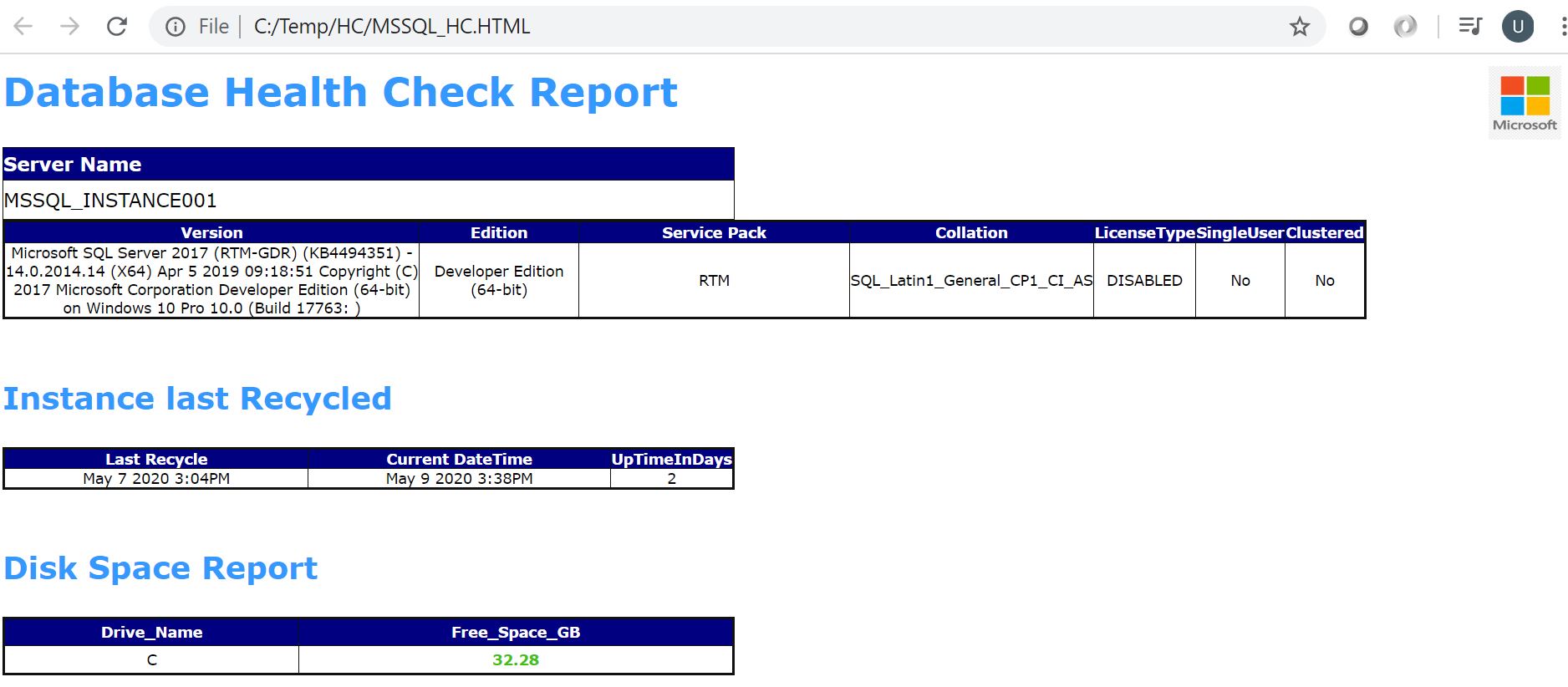
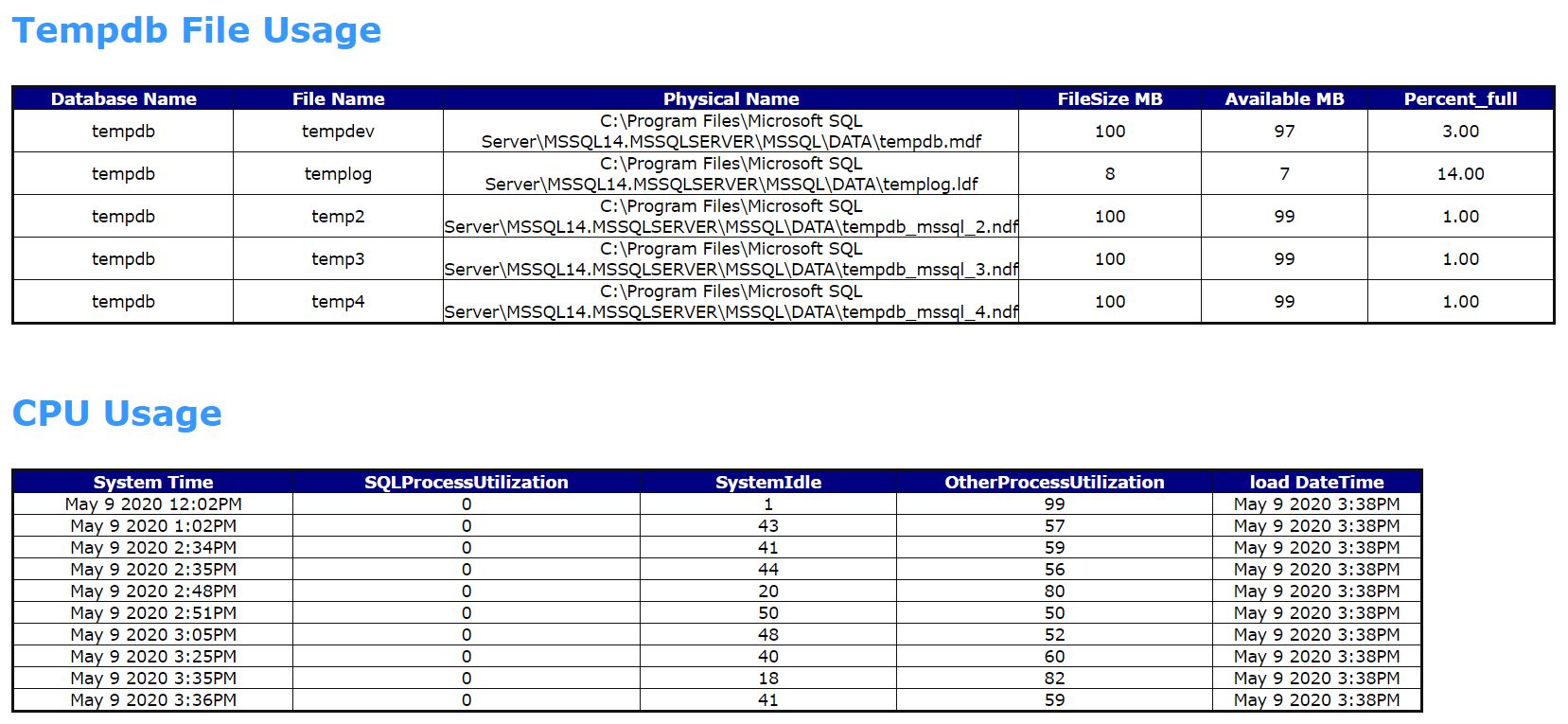
Open the report in a web browser, Sample Screenshots

SQL Server Health Check HTML Report SQL Server Health Check HTML Report SQL Server Health Check HTML ReportSQL Server Health Check HTML ReportSQL Server Health Check HTML Report SQL Server Health Check HTML Report SQL Server Health Check HTML Report SQL Server Health Check HTML Report

Summary:

SQL Server Health Check HTML Report is useful to quickly get the performance snapshot of a database instance. After going through the overall system parameters, except the minor issues we can clearly state that the both instances are optimally performing. Index maintenance and the database log file maintenance are the critical activities to be considered. Please make note that the HC report tool is not reporting the SQL code issues and its scope is restricted to the database system level performance.

Note:

  1. Always test the script on Pre-Production environment
  2. Top 20 Tables may take some time for VLDB
  3. You can customize the script based on requirement

SQL Server Health Check HTML Report

Posted in Performance Tuning, SQL Scripts, SQL Server DBA | Tagged , , , , , | 55 Comments

Filtered Index on NULL values is still doing a Key Lookup

Filtered Index on NULL values is still doing a Key Lookup

Filtered Index on NULL values is still doing a Key Lookup takes you through a strange behavior of filtered index in SQL Server. Here, we’ve discussed how a filtered index can help to improve the performance of your query. When I was working with one of the customer, in their critical production environment I’ve seen they created a filtered index on NULL values to cover more frequently used queries. But, when we are checking through the long running procedures we could see that Filtered Index on NULL values is still doing a Key Lookup. Let me explain it with an example.

Note: I am using AdventureWorks2016 database.

Here is the query:

SELECT SalesOrderID,

               OrderQty,

               UnitPrice

FROM    SALES.SalesOrderDetail

WHERE OrderQty>1 AND

                ProductID = 877 AND

                CarrierTrackingNumber IS NULL;

Why we need a covering index for the above query:

  • As per the business requirement, majority of our focus is on product number 877.
  • 90% of the cases we are fetching data based on the same predicate (OrderQty>N AND ProductID = 877 AND CarrierTrackingNumber IS NULL).
  • OrderQty is a variable (1 to N).
  • We are using the same condition/predicate in 8 different procedures. On and average this condition hits 10 times per minute.

How to determine the index columns?

OrderQty: As per the requirement, it’s a variable passed at runtime. Value is between 1 to N. Since it’s a predicate/where/condition we should keep it in Key columns.

ProductID: Since 90% of the queries are fetching data only for the product 877, we can have a filtered index that cover this particular scenario.

CarrierTrackingNumber: Like ProductID, we can have a filtered index on this column.

SalesOrderID: Since it’s part of the PRIMARY KEY we need not fetch it separately. Primary key columns are available in all non-clustered indexes by default. Thereof, no need to get it separately.

UnitPrice: This is the only column where we are not covering either in index key or in filter. Hence we need to add this column to index. Since we do not have any predicate on it and we are just fetching data, we can add it to INCLUDED list.

We are covering all columns for the above given query. Now, let’s create the index:

CREATE NONCLUSTERED INDEX

Custom_NIX_SALES_SalesOrderDetail_OrderQty_ProductID_877_CarrierTrackingNumber_ISNULL

ON SALES.SalesOrderDetail (OrderQty)

INCLUDE (UnitPrice)

WHERE ProductID = 877 AND

CarrierTrackingNumber IS NULL;

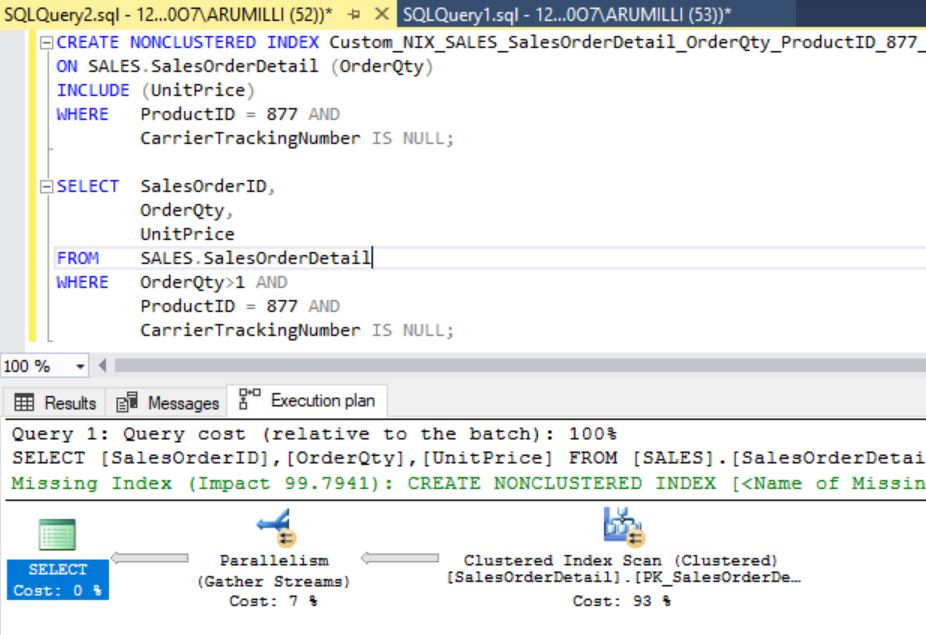
Create the above index, execute the query and see what will happen:

Filtered Index on NULL values is still doing a Key Lookup

Results:

Surprising, you are covering all columns from the given query. But, still it’s doing the clustered index scan. We’ll force it to use the newly created index, then only we’ll come to know the reason.

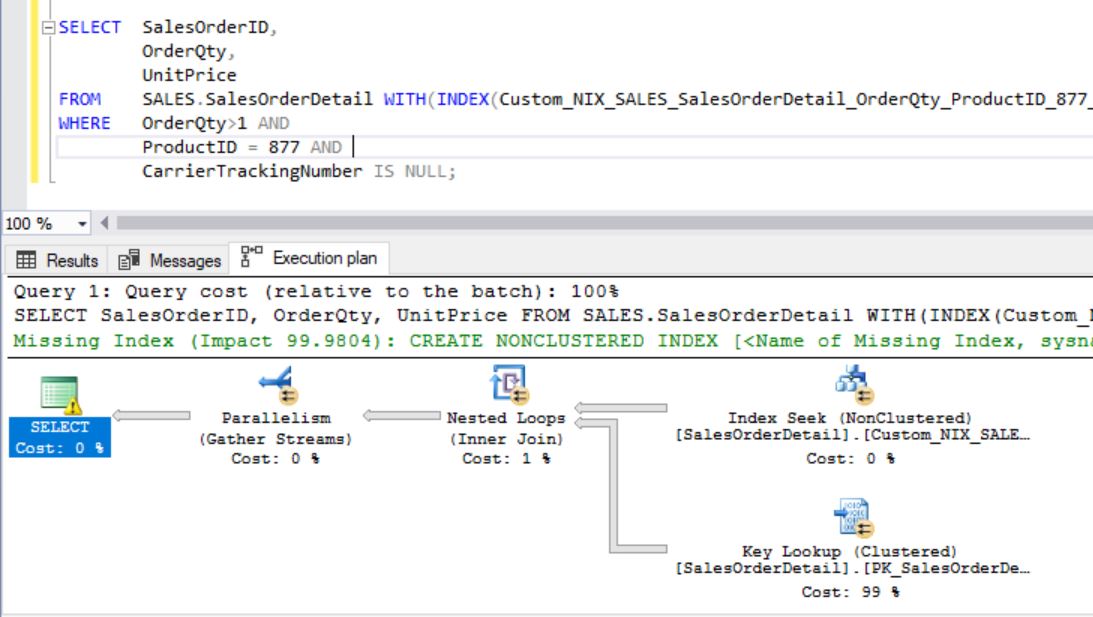
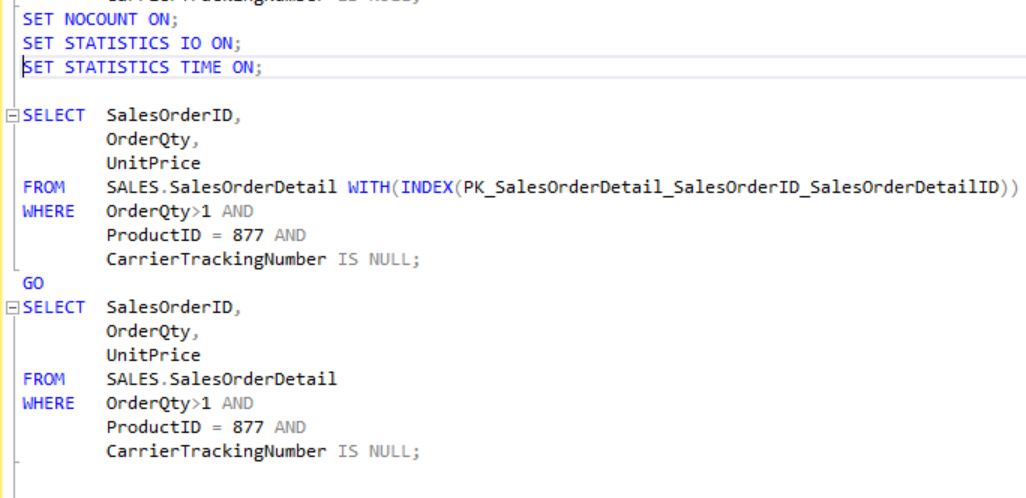
Force the query to use the covering index:

Filtered Index on NULL values is still doing a Key Lookup

Filtered Index on NULL values is still doing a Key Lookup

Results:

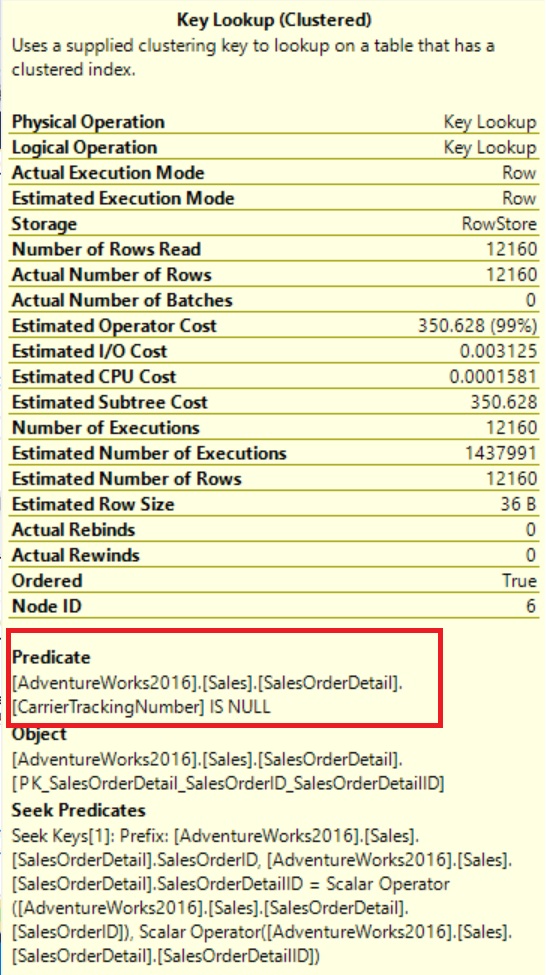
  • Even we are covering all columns, you can see that it’s doing the Key Lookup.
  • When you check it, the Key Lookup is happening to get the matching values for the predicate “CarrierTrackingNumber IS NULL”
  • Covering index that we’ve created is already having the filter “CarrierTrackingNumber IS NULL”. But, why it’s not using that index?

Why a Filtered Index on NULL values is still doing a Key Lookup?

  • When we are creating the filtered index on a value (ProductID = 877), it’s working fine. But, when are doing the same with “IS NULL” it’s not working.
  • I am still unable to find the root cause.
  • But, boss (Microsoft) is saying it doesn’t work, also suggested the resolution.
  • Here, you can find Microsoft take on this issue.
  • Microsoft is suggesting the below resolution:

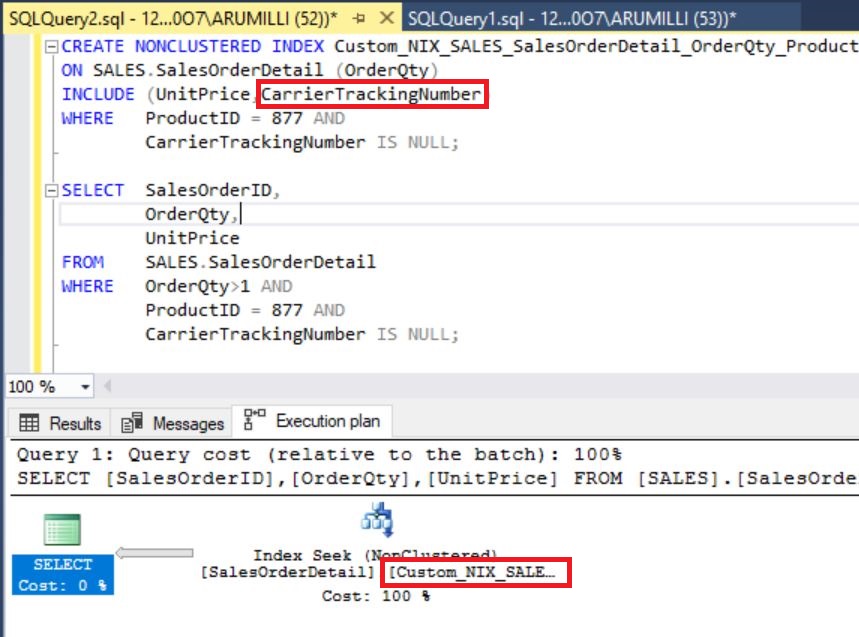
To resolve this issue, include the column that is tested as NULL in the returned columns. Or, add this column as include columns in the index

Resolution:

  • Add the column in include columns.
  • Drop and recreate the index by adding this column in INCLUDE columns list and rerun the query.

Filtered Index on NULL values is still doing a Key Lookup

Results:

You can clearly see that, by default the query started using the covering filtered index without any key lookup.

Performance test:

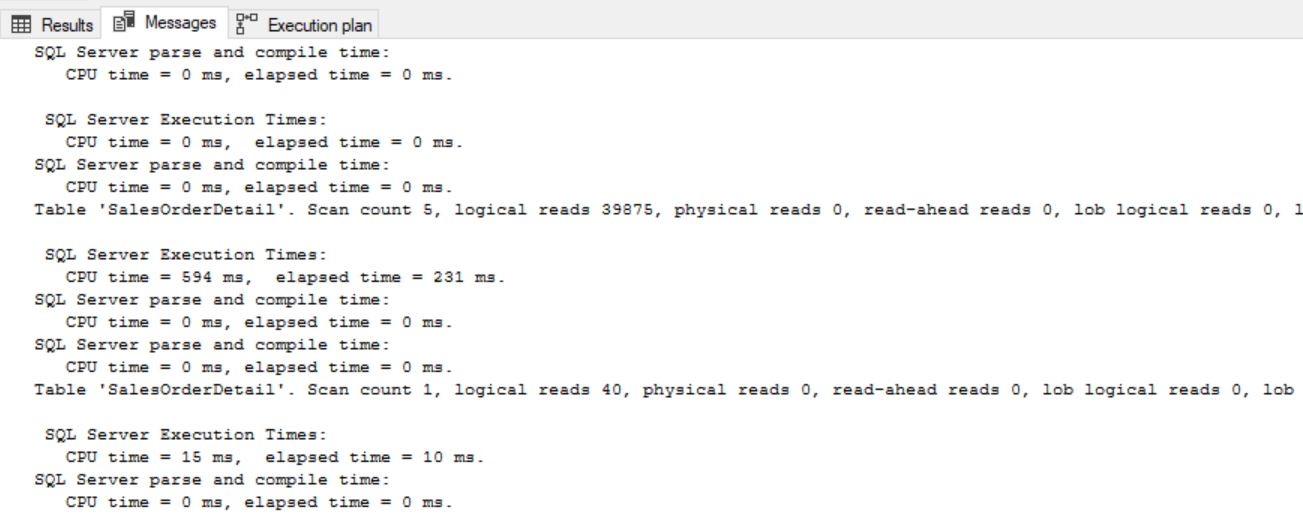
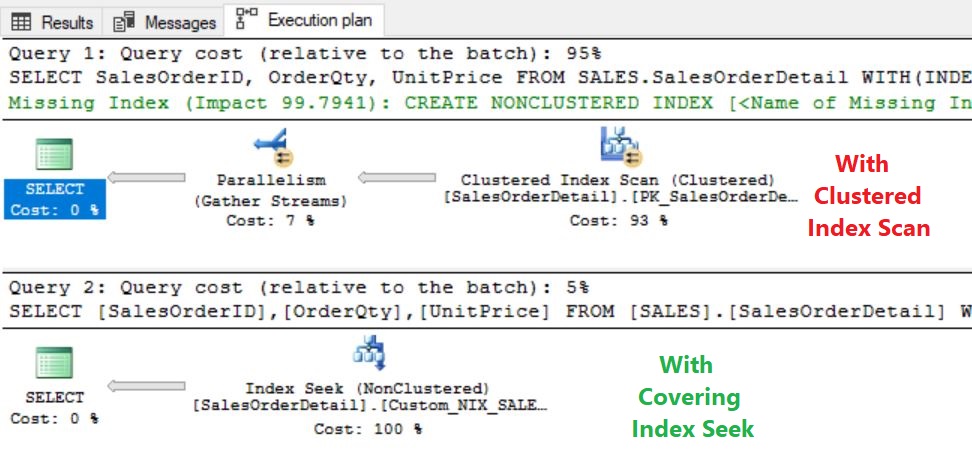
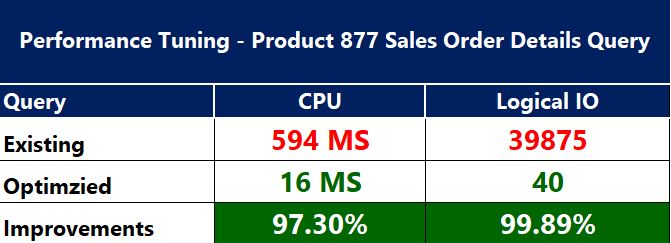
We’ll test the performance of the query by comparing with CLUSTERED INDEX SCAN and the covering NON-CLUSTERED INDEX seek.

Filtered Index on NULL values is still doing a Key Lookup

Filtered Index on NULL values is still doing a Key Lookup

Filtered Index on NULL values is still doing a Key Lookup

Performance Improvements:

Filtered Index on NULL values is still doing a Key Lookup

Summary:

  • “Filtered index” is really useful when you want to customize and narrow down the data usage and it works like a magic with the minimized index maintenance cost.
  • When you are creating a filtered index on IS NULL condition, be aware that we need to include the same column.
  • Filtered Indexes in SQL Server is an awesome feature. But, Terms and Conditions applied.
  • Below are the few interesting articles that describes more side effects of Filtered Indexes

An Unexpected Side-Effect of Adding a Filtered Index by Paul White

A-Z of Filtered Indexes with examples in Sql Server by Basavaraj Biradar

What You Can (and Can’t) Do With Filtered Indexes by Brent Ozar

Posted in Performance Tuning, SQL Development | Tagged , | 3 Comments