A Practical Path to AI for SQL Developers, DBAs, Data Engineers & Data Analysts
You’ve mastered databases. You speak fluent SQL. You can deal with Bigdata and build data pipelines in your sleep. But what if the next edge isn’t about writing better queries — it’s about making your data… intelligent?
Why This Blog Series? Why Now?
The world of data is changing — fast.
AI is no longer just a buzzword. It’s baked into the tools you’re already using:
Azure AI & Copilot Integrations (SQL Server Management Studio, VS Code, Power BI, Microsoft Fabric Notebooks, etc.)
Intelligent Query Recommendations
Automated data preparation pipelines
AI based Data Governance
Powerful AI tools are transforming the way SQL Developers, DBAs, Python Developers, and Data Engineers write code — helping them code faster, smarter, and with fewer errors. These include intelligent code assistants like GitHub Copilot, Copilot with Azure SQL, OpenAI Codex, Anthropic Claude Code, Cursor AI, Kite, and AI2SQL etc.
Soon, understanding AI won’t be optional — it will be expected.
But here’s the problem:
Most AI courses are built for data scientists, ML engineers, or Python-first developers. They’re full of math, jargon, and abstract theory.
What about us?
The SQL Developers, DBAs, Data Engineers, and Data analysts who already understand data better than most?
That’s exactly why I created “AI The One” — an AI learning path made for people like us.
What Is “AI The One”?
A practical, blog-style course that teaches AI and Agentic AI from your perspective as a data professional.
No fluff.
No heavy math.
Just clean, structured, step-by-step learning — grounded in the world you already know: Data, SQL, data modelling, indexes, pipelines, storage, and logic.
What You’ll Learn — Without Getting Overwhelmed
The real-world meaning of AI, ML, LLMs, Gen AI, and Agentic AI
How AI systems relate to what you already know in SQL & Data Management
Simple hands-on examples with your data
Python for SQL minds — just what’s needed, nothing more
Concepts like vectors, embeddings, and prompt engineering
How tools like LangChain, LangGraph, AutoGen, and Copilots will reshape your daily work
And how you can go from data expert → AI-empowered professional
Who Should Follow This?
SQL Developers who want to future-proof their skills
SQL DBAs who want to understand what AI is doing to their data landscape
Data Engineers who want to extend their pipelines into intelligent automation
Data Analysts who want to elevate their insights using AI-powered data exploration
Anyone from the data world who has zero AI experience but big curiosity
Why You’ll Love It
It speaks your language (SQL, tables, indexes, functions, pipelines, execution plans)
Every concept connects to your existing knowledge
No need to be a Python ninja or statistics wizard
You’ll learn not just how, but why and where AI fits in
It’s fun, practical, and focused on real impact in your daily work
Coming Up Next…
Stay tuned for the first blog in the series, where we’ll explore:
Your First AI Experiment: Run It Locally, Hassle-Free – Part 2 – Workflow Implementation
Don’t Worry About the Code
If you’re thinking, “I’m a SQL Developer or a DBA — how will I ever understand Python or Streamlit configurations?” — don’t worry. The code is intentionally kept very simple with line-by-line comments to guide you. Once you walk through it, you’ll realize how easy it actually is. You don’t need to memorize anything; just sit with it, focus for a little while, and everything will make sense.
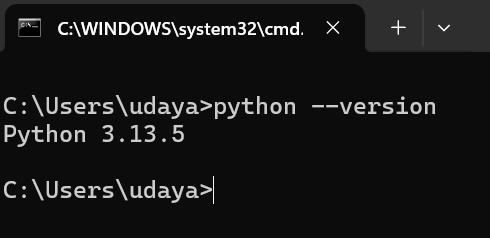
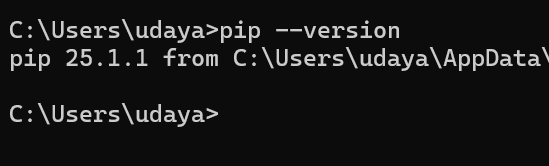
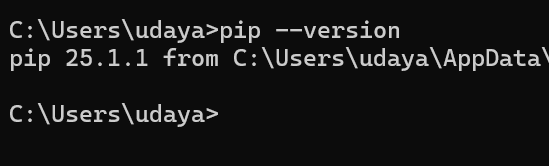
Usually installed with Python automatically. To confirm:
pip –version
If it shows a version, you’re good. If not, reinstall Python and make sure “Add to PATH” is checked.
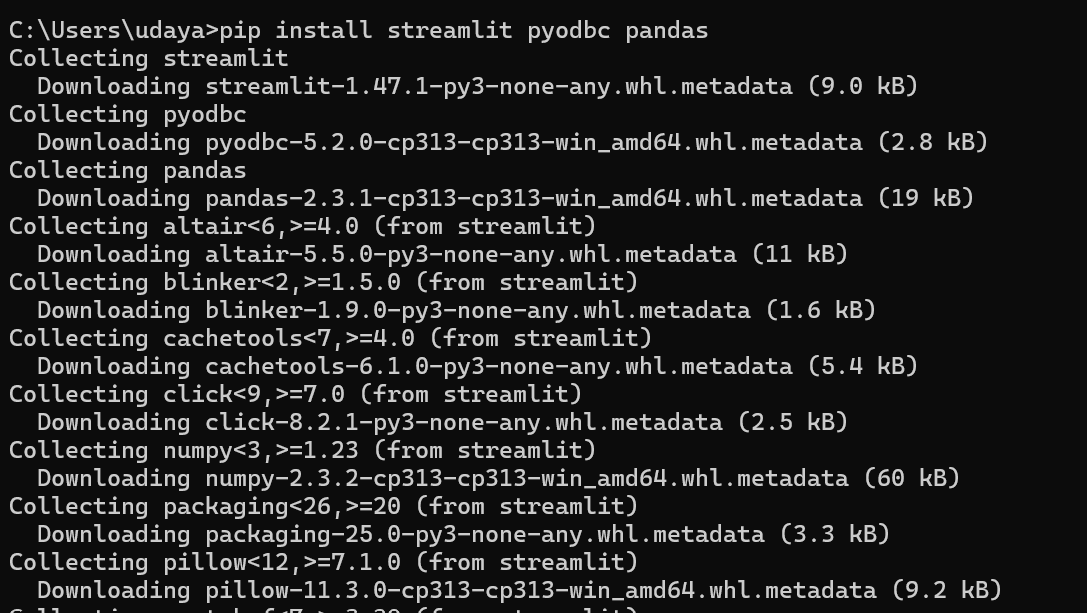
🔹 Step 3: Install Streamlit and Required Packages
Open Command Prompt and run:
pip install streamlit pyodbc pandas
✅ This installs:
streamlit for building the web UI
pyodbc to connect to a database server (SQL Server)
pandas to display tables nicely
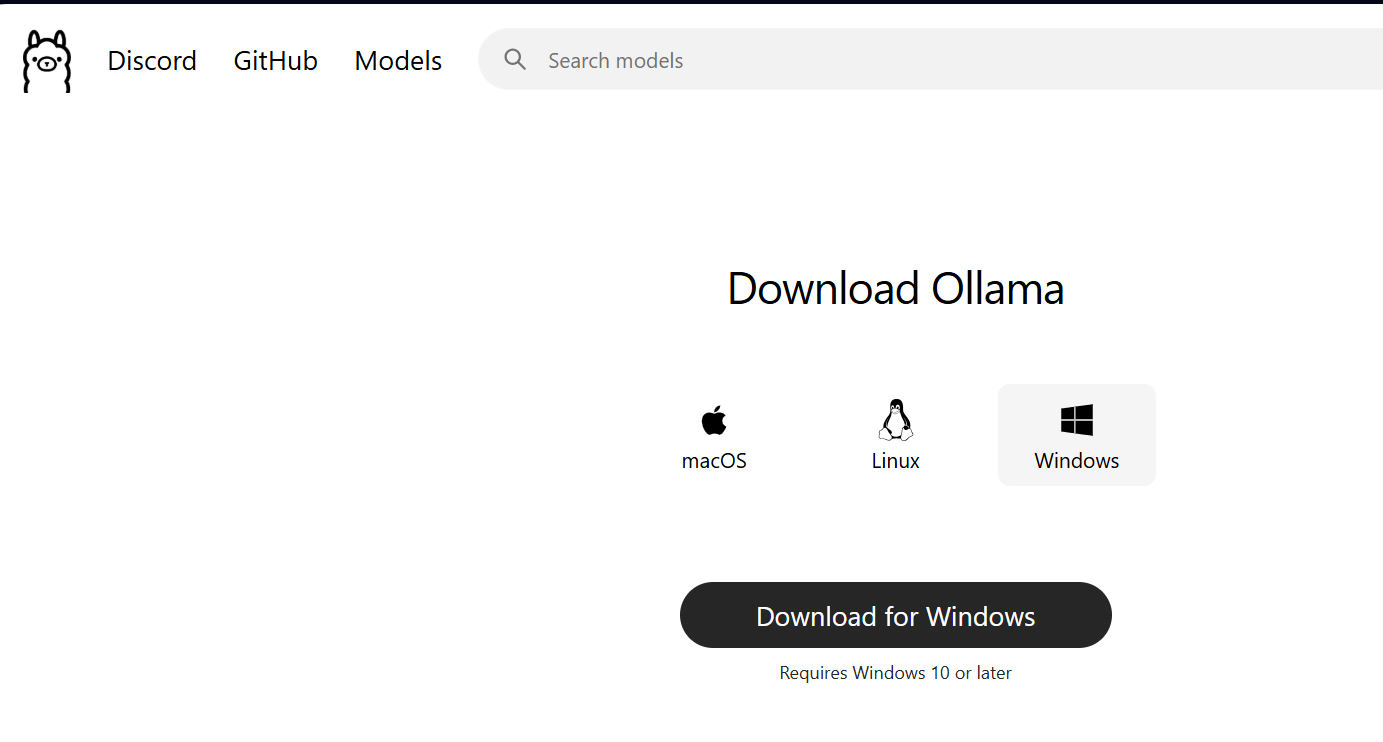
🔹 Step 4: Install Ollama and Pull LLM
Go to: https://ollama.ai/download
Download the Windows version and install.
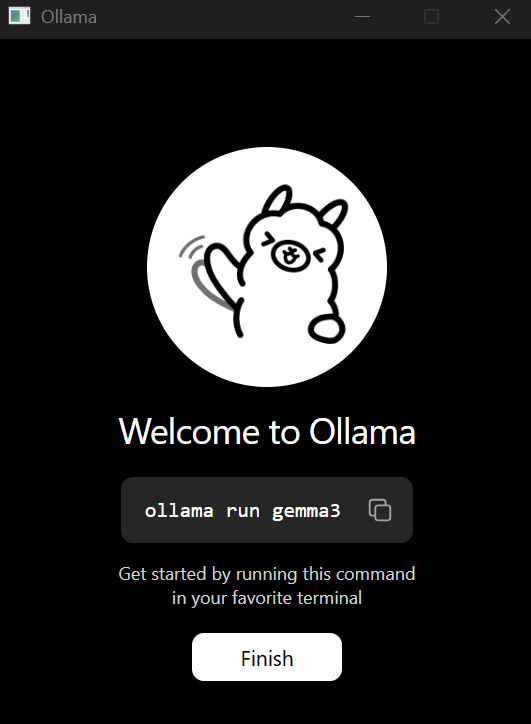
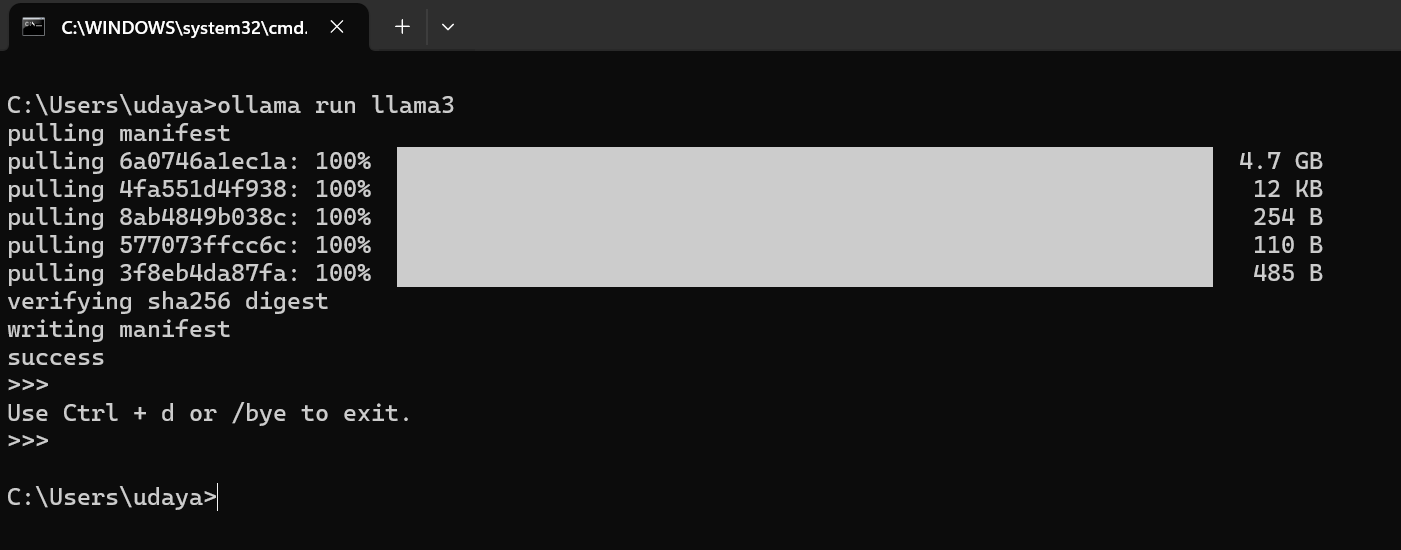
After installation, open Command Prompt and run:
ollama run llama3
It will download the model (llama3:8b). This may take a few minutes.
✅ After the download, it will show a chat prompt like: >>>, which means it’s working.
Exit using Ctrl + d.
🔹 Step 4.1: Try Ollama in your PC
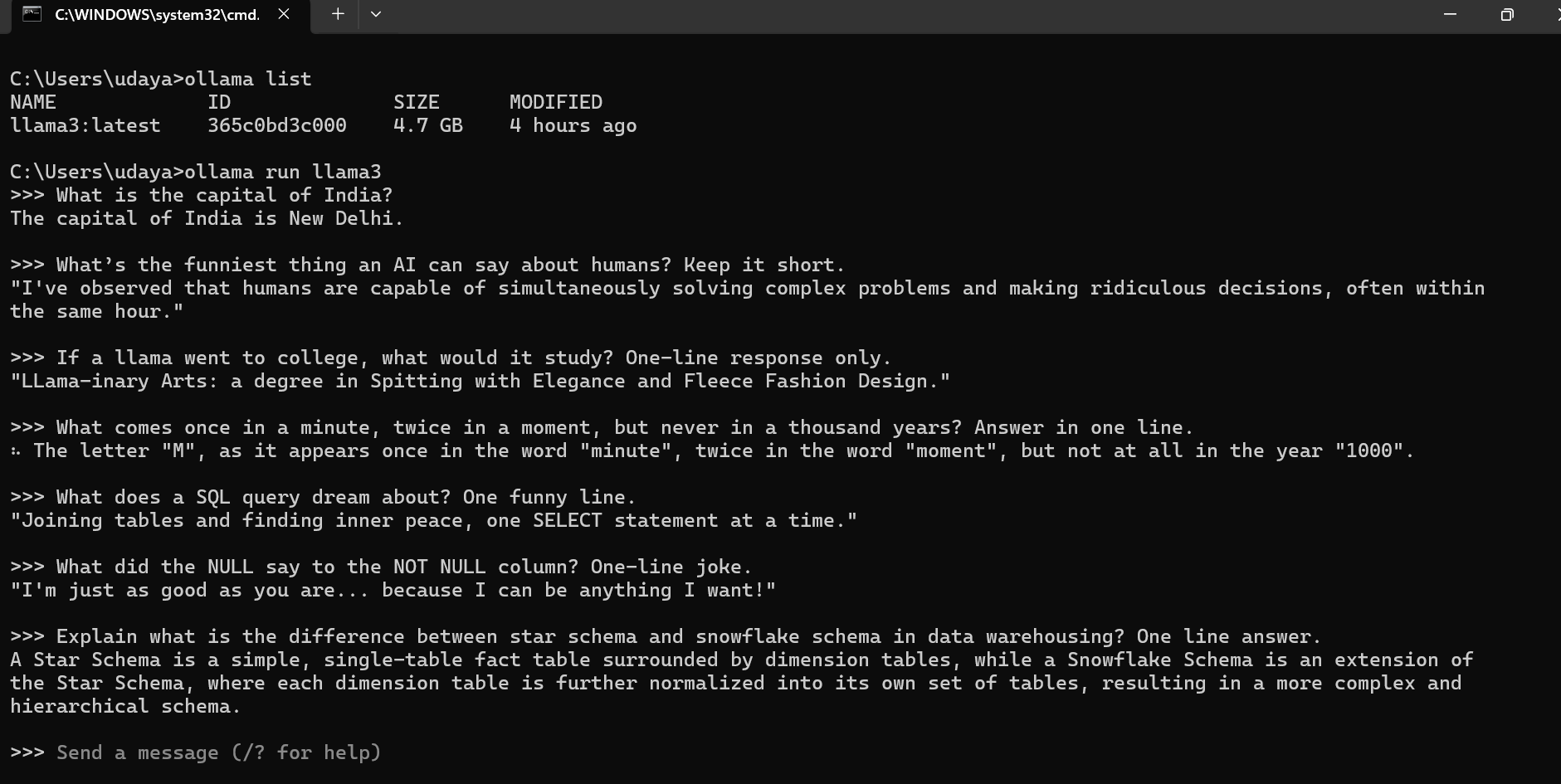
You have successfully installed an opensource LLM on your PC. Now lets try to ask some questions and see how it responds.
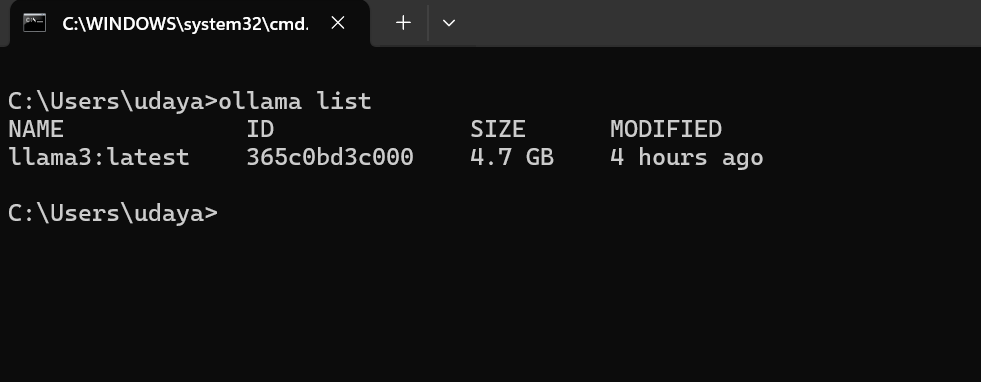
Check what are the LLMs installed in your local using list command
> ollma list
Now, lets try to interact with this model by asking some questions:
🔹 Step 5: Create a Demo SQL Server Database
Open SQL Server Management Studio (SSMS) or Azure Data Studio and run this script to create a test DB:
CREATE DATABASE InsuranceDemo;
GO
USE InsuranceDemo;

CREATE TABLE Customers (
    CustomerID INT PRIMARY KEY,
    Name NVARCHAR(50),
    City NVARCHAR(50),
    Age INT
);

CREATE TABLE Policies (
    PolicyID INT PRIMARY KEY,
    CustomerID INT,
    PolicyType NVARCHAR(50),
    PremiumAmount DECIMAL(10,2),
    PurchaseDate DATE,
    FOREIGN KEY (CustomerID) REFERENCES Customers(CustomerID)
);

-- Insert sample data
INSERT INTO Customers VALUES
(1, 'Alice', 'New York', 30),
(2, 'Bob', 'Chicago', 45),
(3, 'Charlie', 'New York', 28);

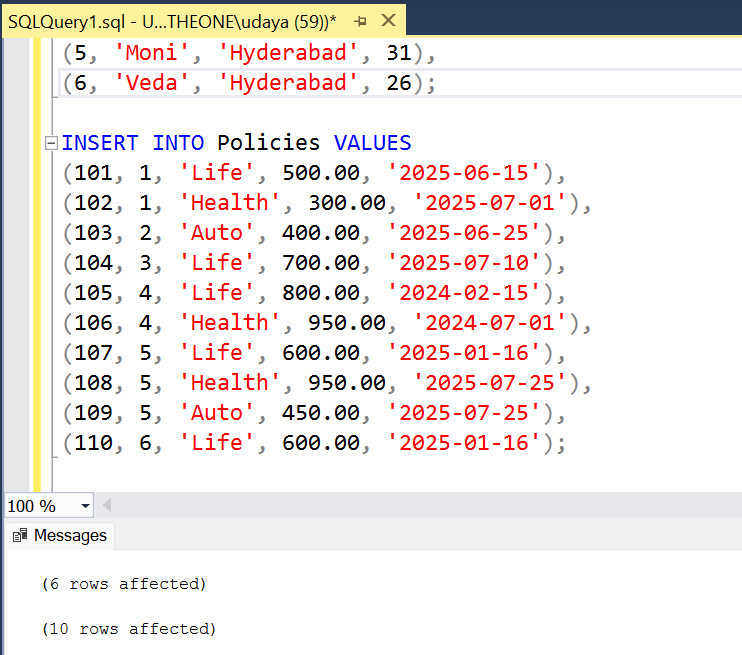
INSERT INTO Policies VALUES
(101, 1, 'Life', 500.00, '2025-06-15'),
(102, 1, 'Health', 300.00, '2025-07-01'),
(103, 2, 'Auto', 400.00, '2025-06-25'),
(104, 3, 'Life', 700.00, '2025-07-10');
✅ This creates two tables and adds a few records for testing.
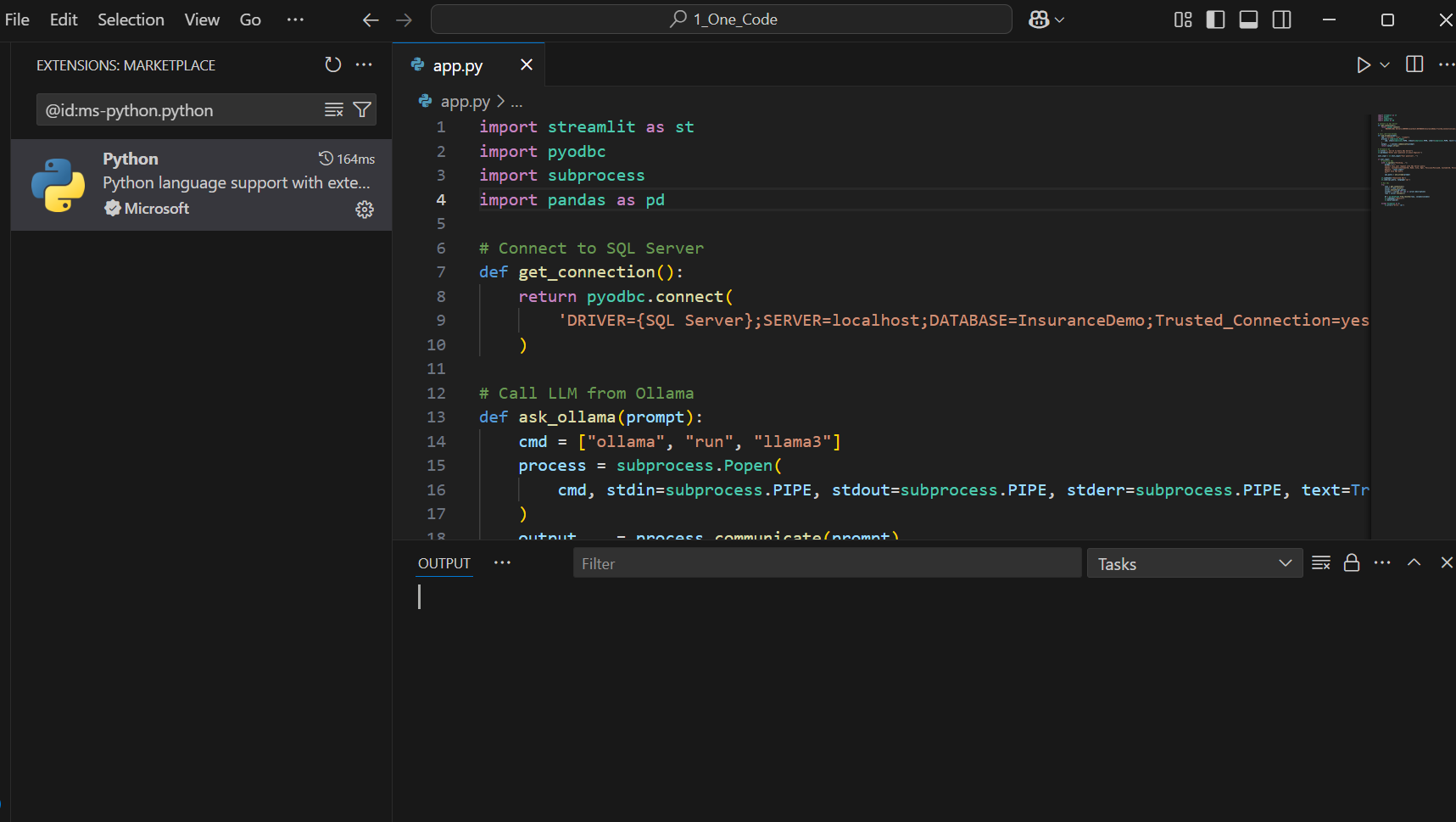
🔹 Step 6: Create the Streamlit App (app.py)
Open Notepad or VS Code
Paste this code and save as app.py in a folder of your choice.
# =====================================================================
# The One AI - Your First AI Agent (Auto SQL or General Answer)
# - Ask any question in plain English.
# - If it's about your data (SQL-ish intent), the app asks the local LLM
#   to write SQL, runs it on SQL Server, and shows the results.
# - If it's a general knowledge question, the app asks the local LLM
#   to answer directly (no database involved).
#
# Runs 100% locally with Ollama (no cloud APIs, no openai module needed).
# Author: Uday Arumilli
# Date: 04/Dec/2025
# =====================================================================

import streamlit as st
import pyodbc               # Connect to SQL Server
import subprocess           # Call Ollama CLI locally
import pandas as pd
import re                   # Extract clean SQL from LLM output

# -----------------------------
# PAGE APPEARANCE / HEADER
# -----------------------------
st.set_page_config(page_title="The One AI", page_icon="🧠", layout="centered")

# Simple CSS header block for a polished look
st.markdown("""
    <style>
    .title-container {
        text-align: center;
        padding: 20px;
        background-color: #f0f2f6;
        border-radius: 12px;
        margin-bottom: 20px;
    }
    .main-title {
        font-size: 36px;
        font-weight: 800;
        color: #31333f;
        margin-bottom: 5px;
    }
    .sub-title {
        font-size: 18px;
        color: #5c5f66;
    }
    </style>

    <div class="title-container">
        <div class="main-title">🧠 The One AI - Your First AI Agent</div>
        <div class="sub-title">Ask general questions or query SQL Server with plain English</div>
    </div>
""", unsafe_allow_html=True)

# -----------------------------
# DATABASE CONNECTION
# -----------------------------
def get_connection():
    """
    Returns a live connection to your local SQL Server database using Windows Authentication.
    BEGINNER TIP:
      - Make sure you created the InsuranceDemo DB and its tables in SSMS.
      - If you use SQL Authentication (username/password), see the commented option below.
    """
    # Windows Authentication (Trusted_Connection)
    conn_str = 'DRIVER={SQL Server};SERVER=localhost;DATABASE=InsuranceDemo;Trusted_Connection=yes;'

    # --- If you need SQL Authentication instead, use this style (uncomment & edit):
    # conn_str = 'DRIVER={SQL Server};SERVER=localhost;DATABASE=InsuranceDemo;UID=your_user;PWD=your_password;'

    return pyodbc.connect(conn_str)

# -----------------------------
# OLLAMA CALL (LOCAL LLM)
# -----------------------------
def ask_ollama(prompt: str, model: str = "llama3") -> str:
    """
    Sends a prompt to your local LLM via Ollama CLI and returns its text output.
    BEGINNER TIP:
      - This DOES NOT use the internet or paid APIs.
      - Ensure you've pulled a model once: `ollama pull llama3`
      - You can change `model` to "mistral" or others you've pulled.
    """
    cmd = ["ollama", "run", model]
    # We open a subprocess, write the prompt to its stdin, and read the output from stdout.
    process = subprocess.Popen(
        cmd, stdin=subprocess.PIPE, stdout=subprocess.PIPE, stderr=subprocess.PIPE, text=True
    )
    output, _ = process.communicate(prompt)
    return output.strip()


# -----------------------------
# SQL CLEANUP / EXTRACTION
# -----------------------------
def extract_sql(text: str) -> str | None:
    """
    Cleans an LLM response and tries to extract the FIRST SQL statement.
    Handles extra explanation like "Here is the SQL..." or code fences ```sql.
    Returns the SQL string if found, else None.

    BEGINNER TIP:
      - LLMs sometimes add explanations or Markdown fences.
      - We strip those and capture only the part that looks like SQL.
    """
    # 1) Remove Markdown code fences like ``` or ```sql
    lines = text.strip().splitlines()
    clean_lines = [line for line in lines if not line.strip().startswith("```")]
    cleaned = "\n".join(clean_lines).strip()

    # 2) Remove "Here is the query"/explanations at the start of lines
    noisy_prefixes = ("here is", "sql query", "the query", "this query", "explanation")
    filtered = []
    for line in cleaned.splitlines():
        if any(line.strip().lower().startswith(p) for p in noisy_prefixes):
            continue
        filtered.append(line)
    cleaned = "\n".join(filtered).strip()

    # 3) Capture the first statement starting with SELECT/INSERT/UPDATE/DELETE up to the first semicolon
    m = re.search(r"(SELECT|INSERT|UPDATE|DELETE)\b.*?;", cleaned, flags=re.IGNORECASE | re.DOTALL)
    if m:
        return m.group(0).strip()

    # 4) Fallback: if no semicolon, but starts with SQL keyword, return the remainder
    m2 = re.search(r"^(SELECT|INSERT|UPDATE|DELETE)\b.*", cleaned, flags=re.IGNORECASE | re.DOTALL)
    if m2:
        return m2.group(0).strip()

    return None  # No SQL found

# -----------------------------
# LIGHTWEIGHT INTENT DETECTION
# -----------------------------
def is_sql_intent(user_question: str) -> bool:
    """
    Guess whether the question is about your demo database (SQL intent).
    BEGINNER TIP:
      - This is a simple keyword check. It's fast and works well enough for demos.
      - For production, you could ask the LLM to classify, but this is fine to start with.
    """
    domain_keywords = [
        "customer", "customers", "policy", "policies", "premium", "purchase", "city",
        "table", "tables", "sql", "database", "report", "count", "sum", "group by",
        "list all", "show me", "get me", "top", "total", "per city", "per year"
    ]
    uq = user_question.lower()
    return any(k in uq for k in domain_keywords)

# -----------------------------
# UI: INPUTS
# -----------------------------
st.caption("Type any question. The agent will automatically choose whether to answer directly or query the database.")

# Using a form prevents running on every keystroke
with st.form("ask_form"):
    user_input = st.text_input(
        "Your question",
        placeholder="e.g., What is the capital of India?  OR  Get total premium per city"
    )
    concise = st.checkbox("Prefer concise answers (for general questions)", value=True)
    submitted = st.form_submit_button("Ask")

# -----------------------------
# MAIN LOGIC
# -----------------------------
if submitted and user_input.strip():
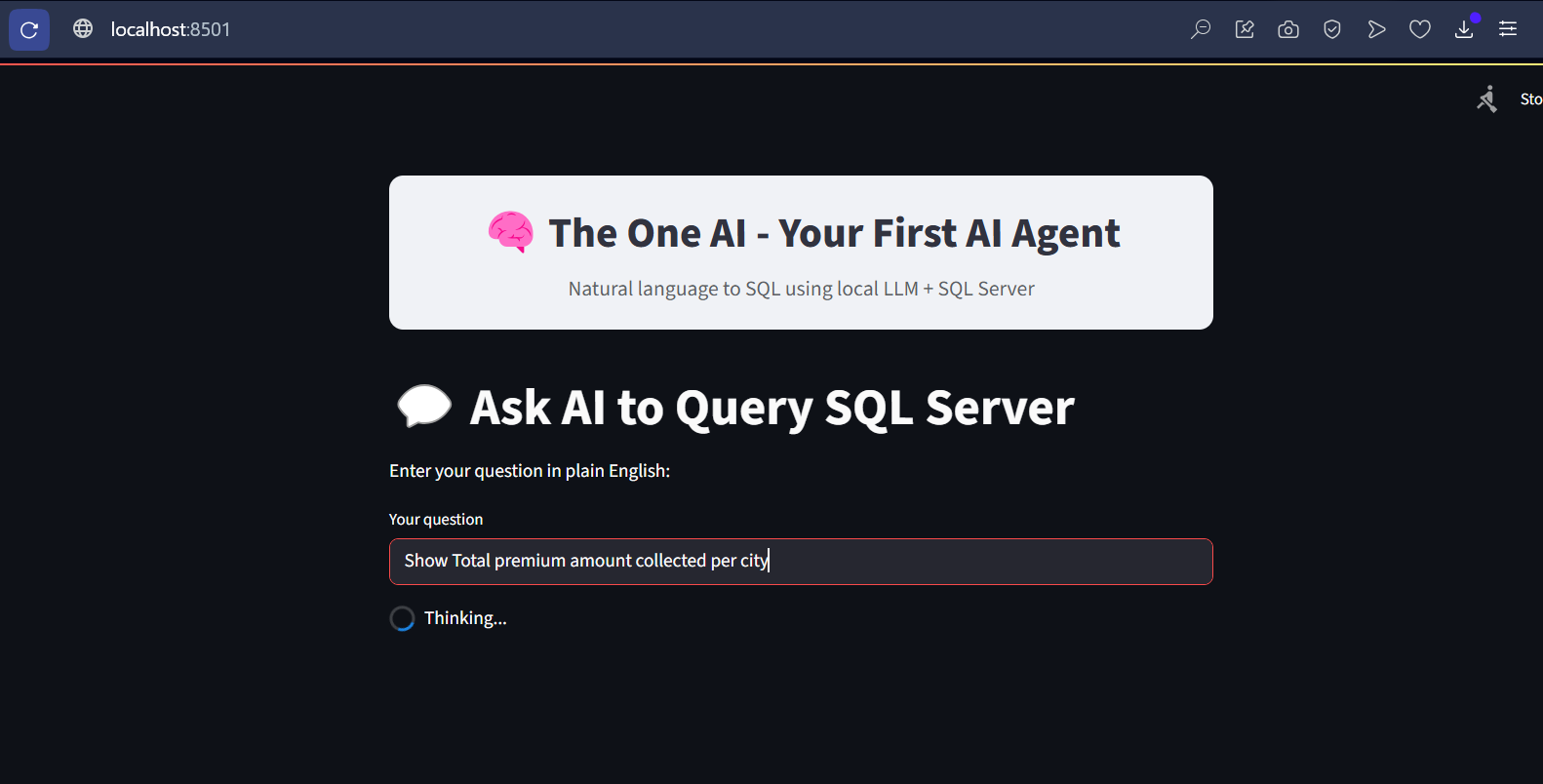
    with st.spinner("Thinking..."):
        if is_sql_intent(user_input):
            # -----------------------------
            # SQL MODE: generate SQL + run it
            # -----------------------------
            st.markdown("**Mode:** SQL (database query)")

            # Prompt tells the LLM your schema and asks for ONLY SQL output
            sql_prompt = f"""
Convert the user's request into a valid SQL Server query.
Return only the SQL, no explanation.

Tables and columns:
- Customers(CustomerID, Name, City, Age)
- Policies(PolicyID, CustomerID, PolicyType, PremiumAmount, PurchaseDate)

User request: "{user_input}"
            """.strip()

            llm_raw = ask_ollama(sql_prompt)      # raw LLM output (may include explanations)
            sql_query = extract_sql(llm_raw)      # attempt to get just the SQL

            # Show raw output for learning/debugging
            with st.expander("🔎 Raw LLM output (for debugging)"):
                st.code(llm_raw)

            if not sql_query:
                st.warning("I couldn't detect a valid SQL query from the model's response. Please rephrase your request.")
            else:
                st.subheader("Generated SQL")
                st.code(sql_query, language="sql")

                # Execute the SQL safely
                try:
                    conn = get_connection()
                    cursor = conn.cursor()
                    cursor.execute(sql_query)

                    # Fetch rows and column names
                    columns = [col[0] for col in cursor.description]
                    rows = cursor.fetchall()
                    df = pd.DataFrame.from_records(rows, columns=columns)

                    st.subheader("Results")
                    st.dataframe(df, use_container_width=True)

                    # Auto bar chart for simple 2+ column aggregated results
                    if len(df.columns) >= 2 and pd.api.types.is_numeric_dtype(df.iloc[:, 1]):
                        st.caption("Auto chart (if it makes sense):")
                        st.bar_chart(data=df.set_index(df.columns[0]))

                except Exception as e:
                    st.error(f"Error running SQL: {e}")
                    with st.expander("Troubleshooting tips"):
                        st.markdown("""
- Ensure the **ODBC SQL Server driver** and **SQL Server** are installed and running.
- Confirm the **InsuranceDemo** DB and its **Customers** and **Policies** tables exist.
- If using **SQL Authentication**, edit the connection string in `get_connection()`.
- Check that the generated SQL is valid for SQL Server syntax.
                        """)

        else:
            # -----------------------------
            # GENERAL Q&A MODE: answer directly with LLM
            # -----------------------------
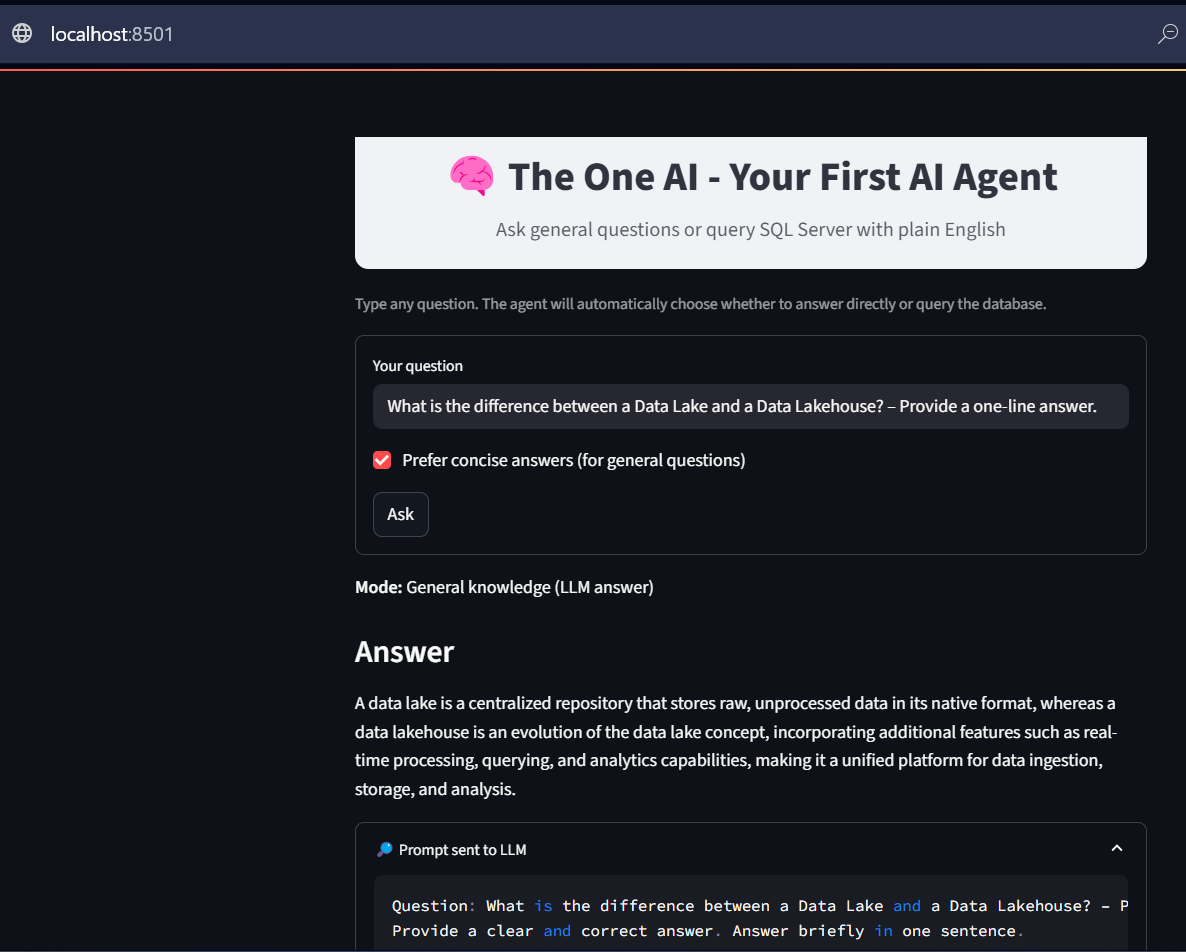
            st.markdown("**Mode:** General knowledge (LLM answer)")

            # Keep answers short if the checkbox is enabled
            style = " Answer briefly in one sentence." if concise else ""
            general_prompt = f"Question: {user_input}\nProvide a clear and correct answer.{style}"

            response = ask_ollama(general_prompt)
            st.subheader("Answer")
            st.write(response)

            # Show the exact prompt we sent (good for learning)
            with st.expander("🔎 Prompt sent to LLM"):
                st.code(general_prompt)

# -----------------------------
# END
# -----------------------------

# QUICK RECAP FOR BEGINNERS:
# - The app auto-detects intent using keywords (fast & simple).
# - SQL intent → LLM writes SQL → app runs it on SQL Server → shows results (and chart).
# - General intent → LLM answers directly (no database call).
# - No cloud APIs. Everything is local via Ollama.
Note: I am using VS Code, you can also use notepad++ or Jupytor Notebook or any other idea of your choice.
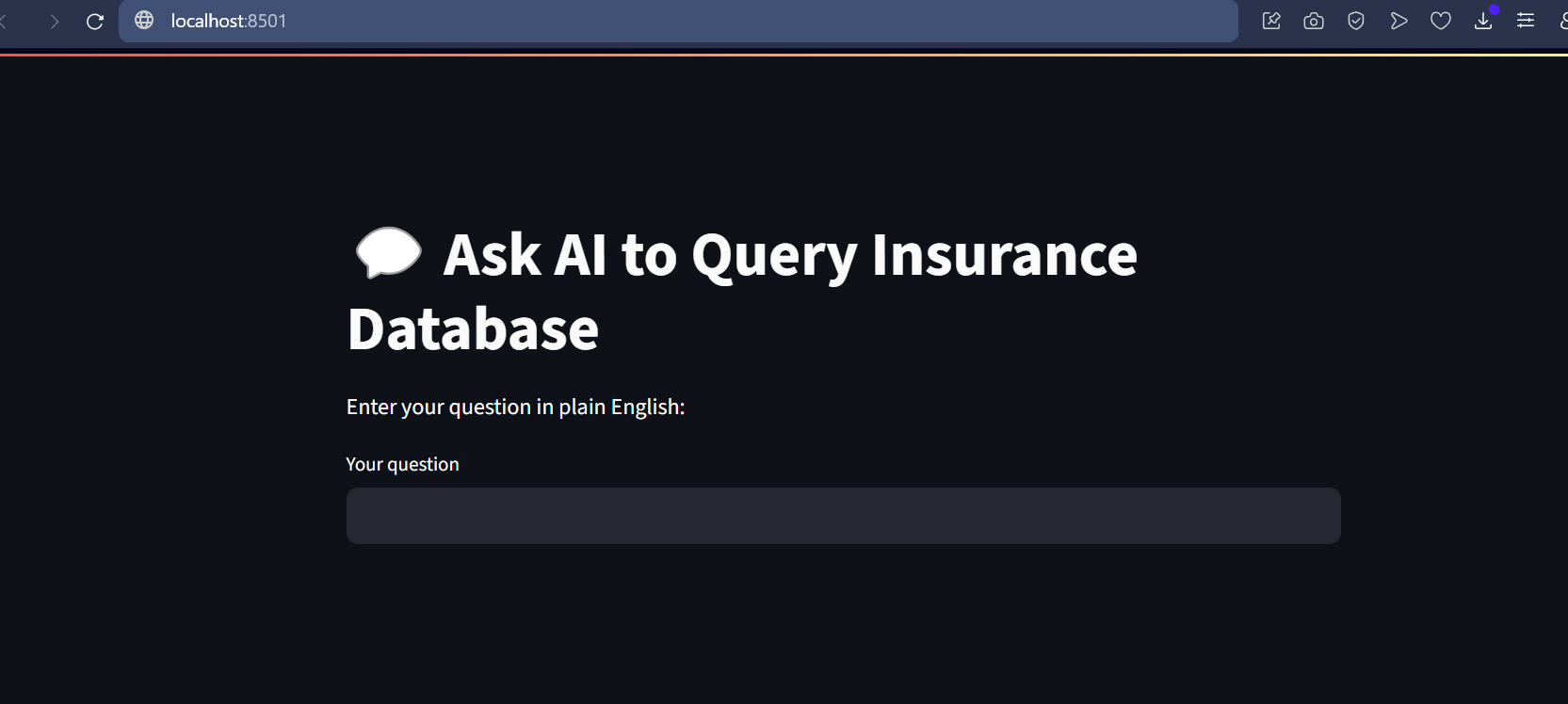
Now, I want to beautify my streamlit UI, its just a normal HTML markup language, I added to the app.py
General Knowledge Questions:
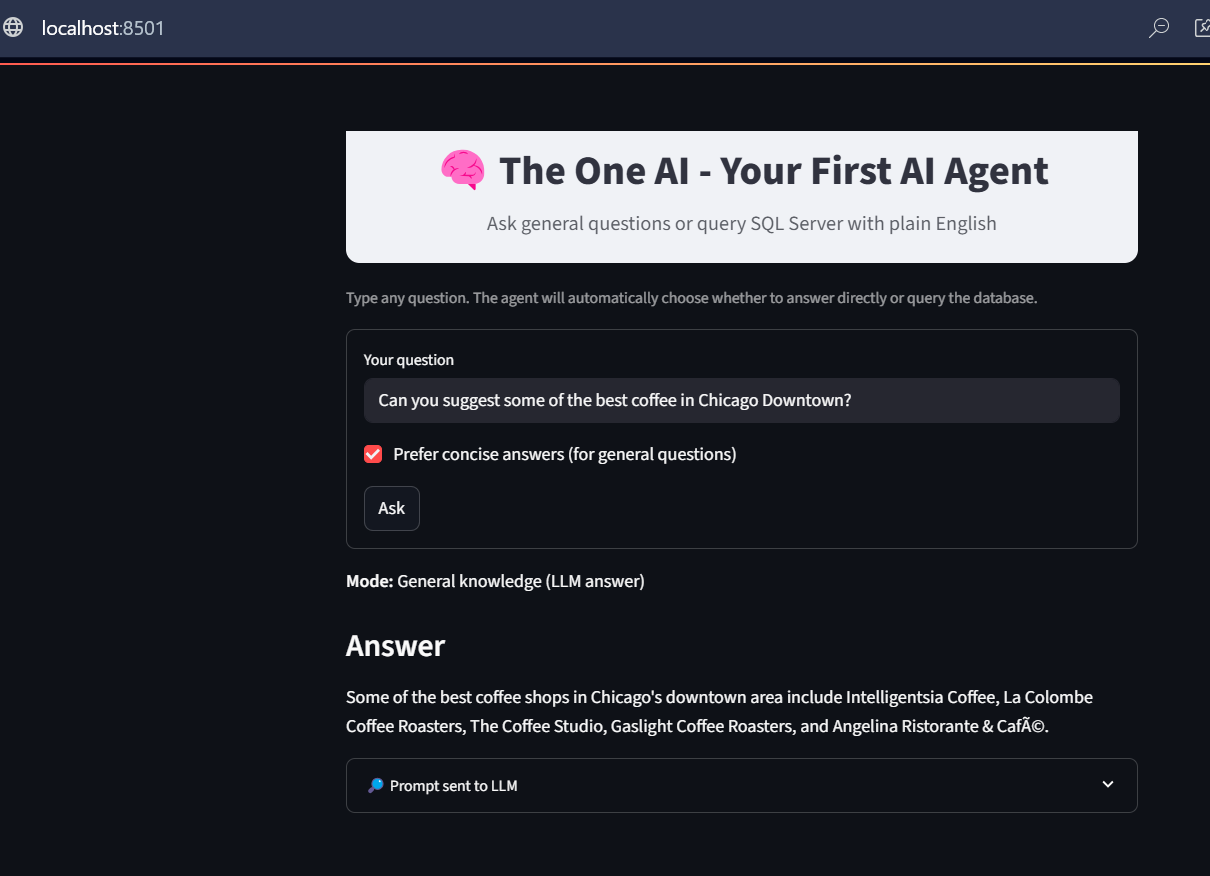
This time, let’s try asking a general question and observe how the system responds. Based on the input, our AI Agent correctly identifies it as a general knowledge query. Instead of querying the database, it uses the general knowledge prompt, passes the question directly to the LLM, and then displays the response returned by the LLM.
Sample Questions:
What is the difference between a Data Lake and a Data Lakehouse? – Provide a one-line answer.
Can you suggest some of the best cafés in Chicago Downtown?
Note: You may notice a few minor changes in the Streamlit UI, as I was experimenting with some CSS adjustments. Please ignore them. The latest code file is attached with this blog
Code Explanation:
1. PAGE APPEARANCE / HEADER
This section is about how the Streamlit app looks when you open it.
You set the page title, favicon icon, and layout (whether it should stretch wide across the screen or stay centered).
Then you add a big title/header like “The One AI – Your First AI Agent”.
This heading acts like a banner for your app, giving users a clear idea of what the app does as soon as they open it.
It’s like setting up the front page of a website — making it neat, professional, and user-friendly.
2. IMPORTS AND INITIAL SETUP
In this section, you import the Python libraries that your app will use.
For example:
streamlit → for creating the web interface.
pandas → for working with SQL data results in table format.
pyodbc → for connecting to SQL Server.
ollama (or OpenAI client) → for sending queries to your local LLM (like Llama3).
This section is like gathering your tools before starting the actual work. Without these imports, the code can’t run because Python won’t know what functions to use.
3. DATABASE CONNECTION FUNCTION
This section defines how the app connects to your SQL Server database.
It usually contains:
Driver details (SQL Server ODBC driver).
Server name (your PC or remote SQL server).
Database name.
Authentication details (like Windows auth or SQL login).
The function creates a connection so the app can run queries and fetch results.
Think of it like plugging a cable between your app and the SQL database — once connected, you can ask the database for any data you want.
4. LLM (AI ENGINE) SETUP
This section sets up how your app communicates with your local AI model (running in Ollama).
It defines the model name (like llama3) and the API endpoint.
The LLM is the “AI brain” in your app — it helps interpret user questions, generate SQL queries, or even provide extra explanations in natural language.
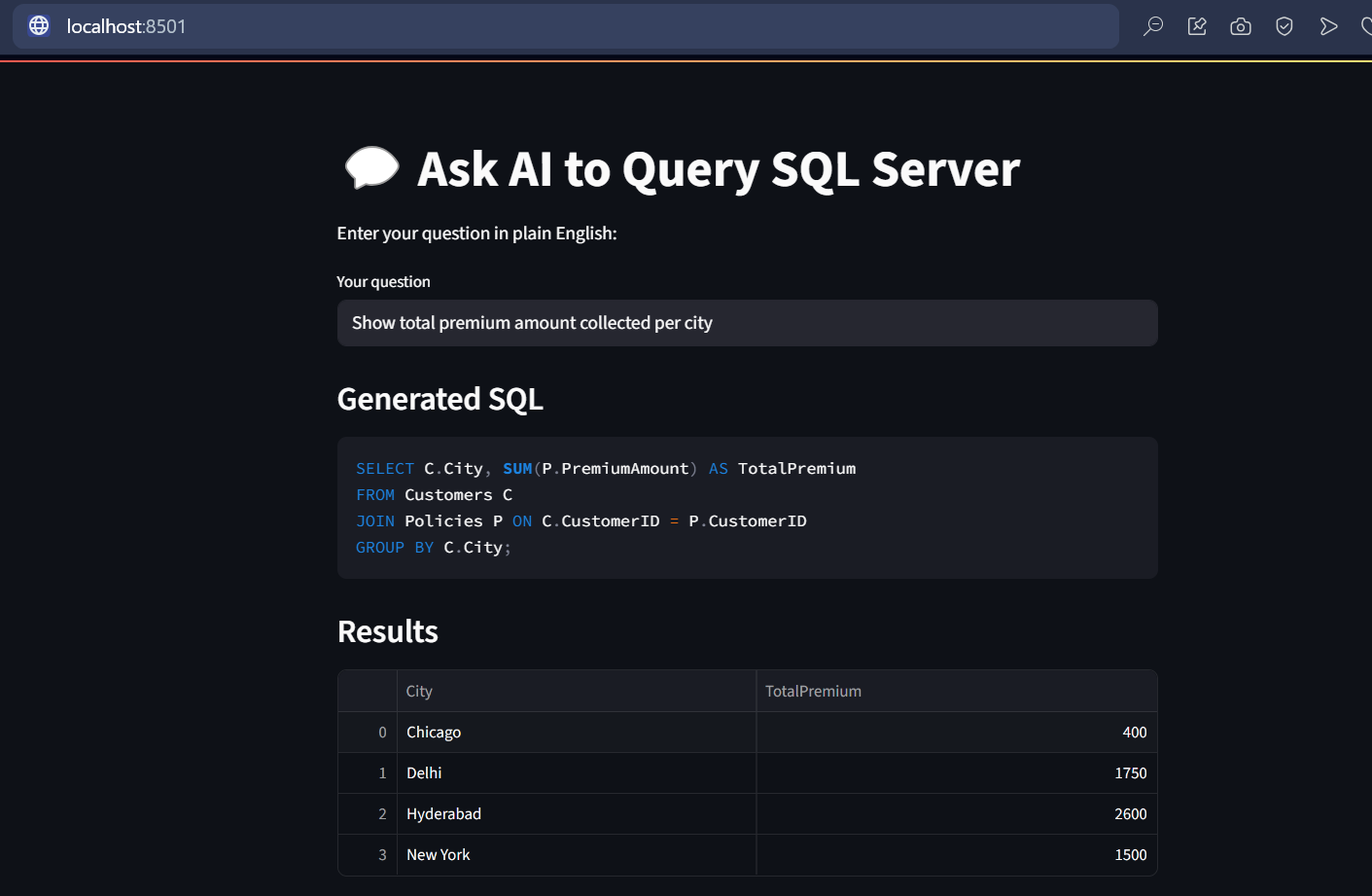
Example: If a user types “Get me premium collected city-wise”, the AI can generate the right SQL query or provide summaries.
In short: This is the bridge between the user’s plain-English input and the actual database query.
5. USER INPUT SECTION
This is the interactive part of the Streamlit app where users type their queries.
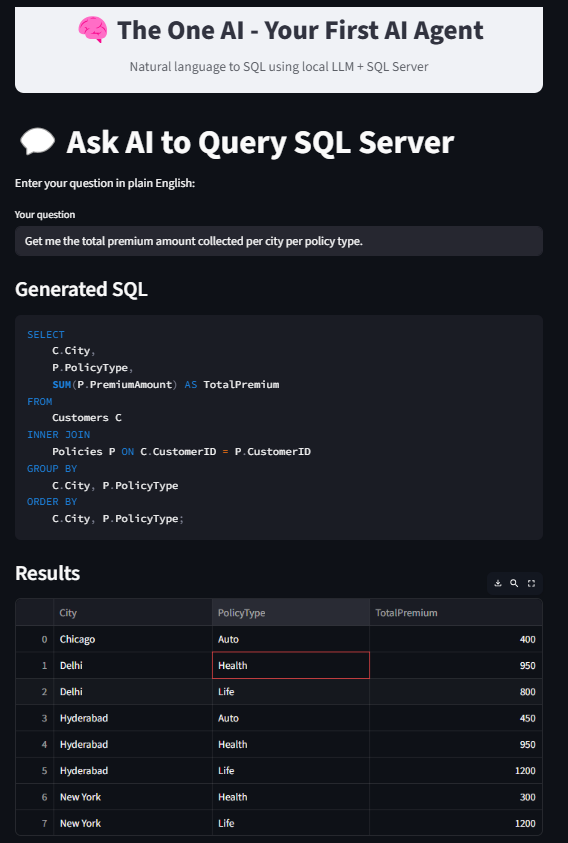
A text box (st.text_input) is used so the user can enter something like: “Get me the total premium amount per city per year.”
When the user presses Enter, the input is captured and passed to the AI engine or directly to the database.
This is the conversation entry point — it’s where the user tells the AI what they want.
6. GENERATING SQL QUERY WITH AI
Once the user provides input, the app uses the AI model to turn that input into a valid SQL query.
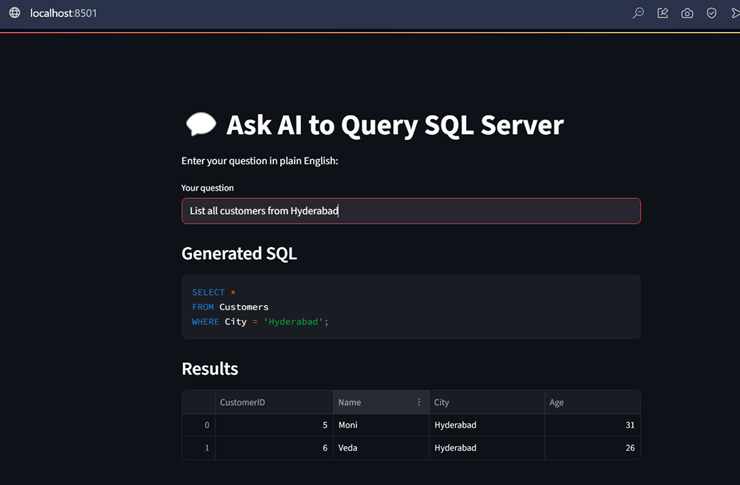
Example: Input → “Get me total premium per city per year” AI Output →
SELECT City, YEAR(PolicyDate) AS Year, SUM(PremiumAmount) AS TotalPremium
FROM Premiums
GROUP BY City, YEAR(PolicyDate);
This step is important because most users don’t know SQL syntax.
The AI translates natural language → database query.
7. EXECUTING SQL QUERY
The app now takes the generated SQL query and sends it to the database.
It runs the query and fetches the results into a pandas DataFrame.
If there are any errors (e.g., wrong column names, missing tables), the app shows an error message instead of crashing.
This part is like the engine room: it actually goes to the database, pulls out the data, and brings it back for display.
8. DISPLAYING RESULTS
The results from the SQL query are displayed inside the Streamlit app.
This is done using a table format, so the user can see rows and columns just like in SQL Server Management Studio (SSMS).
Additionally, you can add visualizations (like bar charts, line charts, pie charts) using Streamlit’s charting features.
Example: If the result is Premium per City per Year, you can show both the table and a bar chart comparing the cities.
This makes the data much easier to understand at a glance.
9. EXTRA RESPONSES FROM AI (OPTIONAL)
Apart from SQL results, the app can also ask the AI model to give additional context or insights.
Example: If the query result shows Hyderabad collected the most premium, the AI might add: “Hyderabad is leading in premium collections consistently for the last 3 years.”
This helps users get not just raw data but also meaningful insights.
This section makes the app feel more like a real AI Agent instead of just a database viewer.
10. END
The final part usually cleans up connections or just marks the end of the script.
It ensures everything is wrapped up neatly.
In Streamlit, you don’t always need explicit cleanup since the app reloads on every change, but it’s good practice to separate logic and keep the code modular.
Summary
Step
Description
1
Install Python & pip
2
Install streamlit, pyodbc, pandas
3
Install Ollama + pull model
4
Create demo database in SQL Server
5
Write app.py using the code above
6
Run app via streamlit run app.py
7
Start typing questions and get answers!
Depending on your PC’s computing power, the response from the LLM may take anywhere from a few seconds to a few minutes. The purpose of this blog is simple—to demonstrate how easily and elegantly we can integrate different components with an LLM to build AI agents. Even with a basic agent code, an open-source LLM, and a regular CPU on a local machine, we can achieve meaningful functionality. The same principles can be scaled up to create powerful, enterprise-grade AI systems using licensed LLMs, high-performance compute, advanced programming and millisecond-response APIs.
Your First AI Experiment: Run It Locally, Hassle-Free – Part 1 – Workflow Explanation
Most people think working with AI requires deep knowledge of machine learning, large language models, or cloud services. That’s not true—at least, not for your first experiment.
The goal of this blog is simple
To give you a hands-on AI experience right on your personal computer—no cloud, no license, no complicated setup. You don’t need to be an AI expert or even know the fundamentals of ML or LLMs. Instead, we’ll jump straight into building a beginner-friendly AI agent that can talk to your database in plain English.
This experiment is intentionally lightweight. You’ll see how an AI model can take natural language, translate it into SQL queries, run them on a real database, and return structured results—all through a simple Streamlit app.
Of course, in real-world large-scale systems, implementing AI requires more: production-grade models, robust design, enterprise services, clean code, and a strong UI/UX. But before we get there, it’s important to first experience how easy it is to start experimenting with AI on a single PC.
This blog is your entry point. By the end, you’ll have built your first working AI agent—something you can try, modify, and learn from—without touching the cloud or paying for a license.
Title: Natural Language Querying of SQL Server using Agentic AI (Ollama + Streamlit)
Environment: Windows PC (SQL Server already installed)
Goal: Build a simple Streamlit app where users type questions in plain English, and the app uses a local AI model to convert it into SQL, run it, and show results.
Expected AI Workflow Explanation (Step by Step):
AI Agent Workflow
1. User Query the Streamlit Web App: The journey starts with the user. They open a simple website (built with Streamlit) and type a question in plain English, such as:
“What is the capital of India?” (General Knowledge)
“Show me all customers from New York with more than one insurance policy.” (Database-Related)
2. Internally triggers “User Query Understanding”: Once the user submits the question, the system doesn’t directly jump to answering. Instead, it first activates an internal process that tries to “understand” what type of question this is.
3. Keyword Detection (Intent Classification): The AI Agent now plays detective. It looks at the keywords in the question and tries to figure out the intent:
Is this a general knowledge question? (“What is the capital of India?”)
Or is this a database-related question that needs real data from our SQL Server? (“Show me all customers from New York…”)
4. Two Paths Based on the Query: Depending on the intent, the query flows into one of two pipelines:
General Query Path → for common, knowledge-based questions.
Database Query Path → for questions that require pulling actual business data from the SQL database.
5. Prompt Construction: Once the path is chosen, the system prepares instructions (a prompt) for the AI model. Think of a prompt as a “well-written request letter” to the AI.
6. Build Simple or SQL-Specific Prompt
If it’s a General Query, the prompt is short and direct (e.g., “Answer the following general knowledge question…”).
If it’s a Database Query, the prompt includes extra context such as the database schema and metadata, so the AI knows how to frame the SQL code correctly.
7. Send Prompt to LLM: This carefully written prompt is sent to a Large Language Model (LLM), like a powerful AI brain (LLaMA in this case), which interprets and prepares the response.
8. LLM Prepares the Answer: The AI brain now works on the query:
For General Queries → it produces a direct answer in plain English.
For Database Queries → it creates an SQL query to fetch the right information.
9. AI Agent Receives LLM Response: The AI Agent gets the answer back. If it’s general text, that’s easy. But if it’s SQL code, some extra steps are needed before showing results.
9.A. Clean SQL: Sometimes the AI adds extra words like “Here is your query: …” which won’t work in the database. The Agent carefully cleans this so only the valid SQL statement remains.
9.B. Connect to SQL Server: The Agent then connects to the actual SQL Server database where the actual data is stored.
9.C. Execute SQL Query: It runs the cleaned SQL code against the database.
9.D. Retrieve Results: The raw data comes back from the database, but it’s usually not user-friendly.
9.E. Format Results: The Agent uses “Pandas” framework to neatly format the results into a readable table.
9.F. Send results back to the Web UI: Send the prepared results data to the web UI
10. Display Final Answer on Web UI: Finally, whether it is a general knowledge answer or database query results, the system sends the final output back to the web page. The user sees a clear, easy-to-read answer or a table — ready to analyze, without needing to know any coding or SQL.
Implementation Workflow
Prepare Your Database
Install or use an existing SQL Server database.
Run the provided SQL script to create a schema and load some sample data (e.g., customers, policies).
Set Up Your AI Agent
Install Ollama to run a local large language model (LLM).
We’ll use LLaMA 3, a free and open LLM, running completely on your PC (no internet or cloud required).
Build the Backend Logic: Write a Python program that connects three things:
Your SQL Server database
The LLaMA 3 model (via Ollama)
A web interface (Streamlit)
Design the Web App
Use Streamlit to create a simple web application where you type questions in plain English.
Example: “Show customers from New York who purchased more than 1 policy.”
How the Query Flows
Step 1: You type the question into the web app.
Step 2: Agent code determines whether it is a General Knowledge Question or a Database related question.
Step 3: The app sends your text to Ollama, which runs the LLaMA 3 model.
Step 4: If it is a GK question, LLM answer will be displayed in the Streamlit UI and skips the remaining steps.
Step 5: If it is SQL related, the LLM converts your question into a valid SQL query.
Step 6: Python executes this query on SQL Server.
Step 7: The results are displayed in the Streamlit UI in a nice table format.
Run & Enjoy
Everything runs locally on your PC.
No cloud subscription, no license, no external API.
Tools You’ll Use
Tool
What It Is
Why You Need It
A relational database system where we store and query structured data (like customers, policies).
To hold your sample insurance data that you’ll query with AI.
SQL Scripts
A set of .sql files containing commands to create a database, schema, and insert sample records.
Saves time — no need to manually type queries to set up data.
A lightweight tool that lets you run large language models (LLMs) on your computer locally.
It’s the engine that powers your AI, making natural language → SQL translation possible.
A modern open-source LLM created by Meta. Runs through Ollama on your PC.
The actual “AI brain” that understands your question and generates SQL.
A programming language widely used in AI/ML and backend development.
Acts as the glue between the database, LLM, and UI.
A Python library for quickly building web apps with minimal code.
Provides a simple, interactive interface to type questions and display results.
Text editors/IDEs to write your Python and SQL code.
How AI Grew From a 1950s Dream to Today’s LLMs, Agents, and Data-Powered Future
Imagine this
The year is 1956. Computers fill entire rooms. Data is on punch cards.
A group of scientists meet at Dartmouth and declare: “In a generation, machines will think like humans.” What sounded like sci-fi then is reality today.
AI writes your SQL queries, summarizes execution plans, suggests indexes, and even automates pipeline monitoring — all inside the tools you already use.
But how did we go from rule-based chess programs to Copilot, GPT, and Agentic AI? Let’s rewind and see how AI’s evolution unlocked this new reality.
Act 1 — The Birth (1950s–1970s): The Dream of “Thinking Machines”
1950: Alan Turing poses the famous Turing Test — can a machine fool a human into believing it’s intelligent?
1956: The term Artificial Intelligence is born at the Dartmouth Conference.
Early systems can play games like chess or solve algebra puzzles using rules.
These were purely symbolic systems:
If condition, then action.
Like enormous stored procedures filled with IF-ELSE logic.
Limitation: Computers were too slow and too small.
“The dream was alive, but the machines weren’t ready.”
Act 2 — The Expert Systems Era (1980s): Rules Go Corporate
The 1980s brought Expert Systems:
Rule-driven AI for businesses — diagnosing diseases, approving loans, troubleshooting machines.
Knowledge was encoded as decision trees:
IF symptom = X AND age > 40 THEN diagnose Y.
For DBAs and Developers, this felt like static business rules hardcoded into logic. Limitation: Every change meant manually editing rules — no “learning,” no “adaptation.”
Act 3 — The Machine Learning Era (1990s–2010s): Data Takes the Wheel
With more powerful computers and the rise of the internet, the game changed. AI moved from static rules to Machine Learning (ML) — systems that learn from data.
Algorithms could now predict:
Which customers might churn
What credit risk a person posed
Detect credit card fraud
Which email is spam
Techniques like decision trees, regression, and neural networks became mainstream.
Limitation: ML models were powerful, but:
Required data scientists, heavy math and Custom infrastructure
Were complex for everyday Data people to use
Act 4 — The Deep Learning & Big Data Explosion (2010s): Machines Get “Vision and Voice”
This is when AI became mainstream. With Big Data (Hadoop, Spark) and GPUs, neural networks grew deep enough to:
Recognize images (self-driving cars)
Understand speech (Siri, Alexa)
Translate languages (Google Translate)
Data People started working alongside:
Data Lakes, PySpark, and TensorFlow
Handling huge datasets for AI training
Limitation: But the tools still felt specialized — not something a SQL Developer, a BI Developer or an Analyst could casually use.
Act 5 — The Transformer Revolution (2017): The Spark for LLMs
Here’s where everything changed. In 2017, Google researchers published a paper called: “Attention Is All You Need.”
This introduced the Transformer architecture:
A new way for AI to “understand” sequences of text.
Instead of reading text word by word, it used attention mechanisms to see the whole context at once.
Why it matters:
It made language models scalable.
It powered the birth of BERT, GPT, T5, and all modern LLMs.
Think of it as:
The indexing breakthrough of AI — suddenly, AI could “query” massive text quantities efficiently and contextually.
Act 6 — The Rise of Generative AI (2020–Present): AI That Writes, Codes, and Creates
Post-transformer, LLMs exploded:
GPT (OpenAI), Claude (Anthropic), Gemini (Google), LLaMA(Meta), Grok (xAI), etc.
Models that can:
Write any programming language
Summarize logs and database health checks
Document ETL pipelines
Generate dashboards or Power BI visuals on the fly
Generative AI doesn’t just analyze data. It creates:
Text
Code
Images, music, videos
Even entire pipeline configs
Act 7 — Agentic AI (The Present & Future): AI That Acts Like a Teammate
Today, AI is moving beyond being a passive assistant to being an active agent:
An Agent can:
Read a requirement (plain English)
Query databases
Generate SQL or Python
Test and validate results
Trigger actions (alerts, dashboards, emails)
Loop until the task is done
For Data People:
Think of it as a super-powered stored procedure that:
Writes its own code
Executes it
Decides what to do next — all under your supervision.
Types of AI You Need to Know
To make sense of today’s buzzwords and the broader AI landscape:
Narrow AI (or Weak AI / Classic AI) AI systems designed and trained for a specific task or a narrow set of tasks. They excel at their designated function but cannot perform beyond it.
Example: Spam filters, recommendation engines (e.g., Netflix, Amazon), voice assistants (Siri, Alexa) for specific commands, image recognition for classifying objects, query tuning, medical diagnosis systems for a specific disease.
Key Point: The vast majority of AI in practical use today is Narrow AI.
Generative AI (Gen AI) A powerful subset of Narrow AI that focuses on creating new, original content (text, images, audio, video, code, etc.) based on patterns learned from vast datasets.
Example: Generating human-like text (e.g., for articles, documentation, creative writing), creating realistic images from text prompts, synthesizing new music, generating code snippets, creating synthetic data.
Agentic AI (AI Agents) AI systems designed to reason, plan, and execute multi-step actions to achieve a specific goal, often by interacting with external tools, APIs, or other AI models. They can break down complex problems into smaller, manageable tasks. Agentic AI often leverages and orchestrates various Narrow AI components (including Generative AI) to achieve its objectives.
Example: AI systems that can independently research a topic, summarize findings, generate reports, send alerts, perform tests, optimize business processes by coordinating various tools, or even develop and refine software.
Future (Theoretical Types – long-term goal of AI research):
Artificial General Intelligence (AGI or Strong AI) A hypothetical type of AI that possesses human-level cognitive abilities across a wide range of tasks, including reasoning, problem-solving, learning from experience, understanding complex ideas, and adapting to new situations.
Examples: Currently theoretical. If it existed, it could perform any intellectual task that a human being can.
Artificial Superintelligence (ASI) A hypothetical AI that would surpass human intelligence in virtually every aspect, including creativity, general knowledge, and social skills.
Examples: Purely theoretical. Often depicted in science fiction as an entity with vastly superior cognitive capabilities to all human minds combined.
Why This Evolution Matters for Data Pros
Each phase of AI made it easier for everyday professionals to use:
From static rules →
To data-driven models →
To AI that writes and acts for you →
To Future (Strong → AI Superintelligence)
Now:
You don’t need to be a data scientist.
You just need to know how to use AI tools with your data skills.
And that’s what this series, “AI The One — With Uday,” will teach you.
Coming Next…
Even before diving into AI concepts and internals, try building a simple agent right on your local PC.