Happy Maha Shiva Ratri

Wishing you a very happy Mahashivaraatri. udayarumilli.com
Wishing you a very happy Mahashivaraatri. udayarumilli.com


 The post Deploying SSIS package using Deployment Manifest with screenshots can help you to deploy SSIS package using deployment manifest. To demonstrate this I have created a simple ETL package to load data from a Flat file to SQL Server table. It’s just Truncates the table and import data from flat file when every time we execute the package.
1 We have designed a simple ETL package using SQL Server Data Tools 2015. From SQL Server 2012 by default package is created in “Project Deployment Model” before that it used to be “Package Deployment Model”. Here you can see how to use Project Deployment Model to deploy packages.
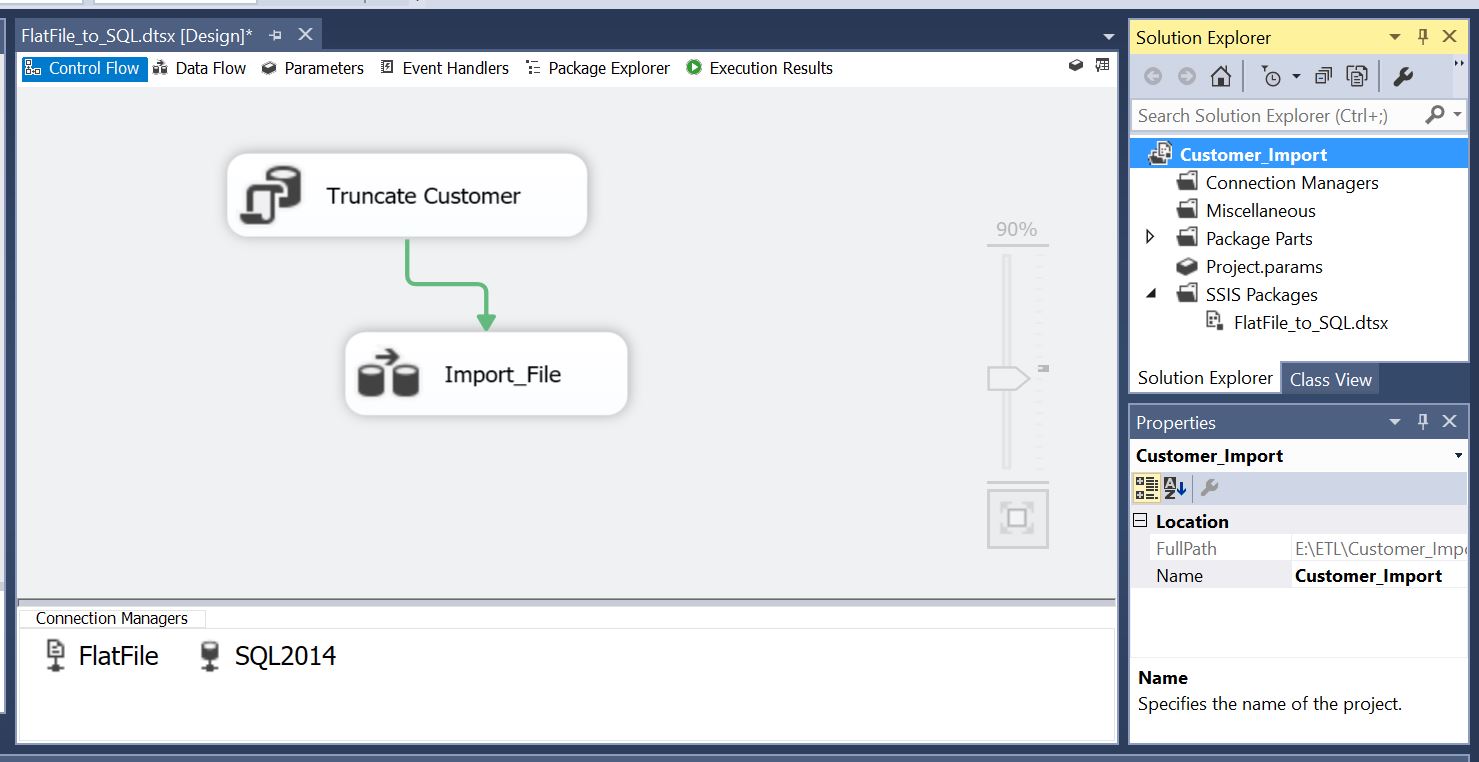
If you are using BIDS then please go to the step 3. Our package looks like below:
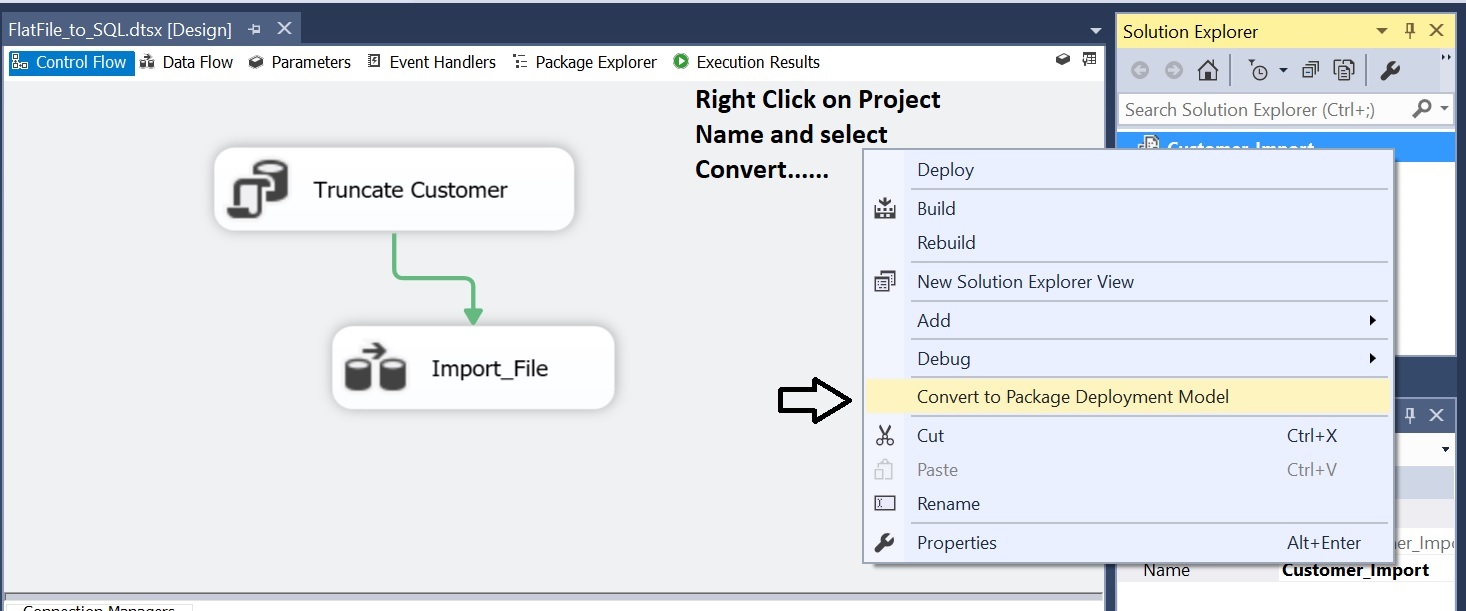
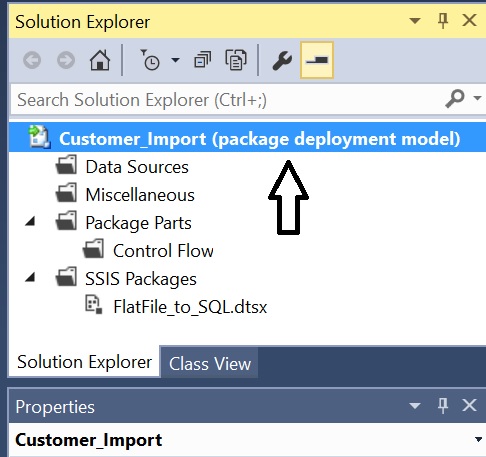
2 Since I am using SQL Server Data Tools for preparing Deployment manifest first I need to convert the deployment model to “Package Deployment” as below:
Remember that if your package is using any Project Deployment features (Ex: Project Parameters) then it will be tough to convert the model.
3 Follow the below steps to create the deployment manifest:
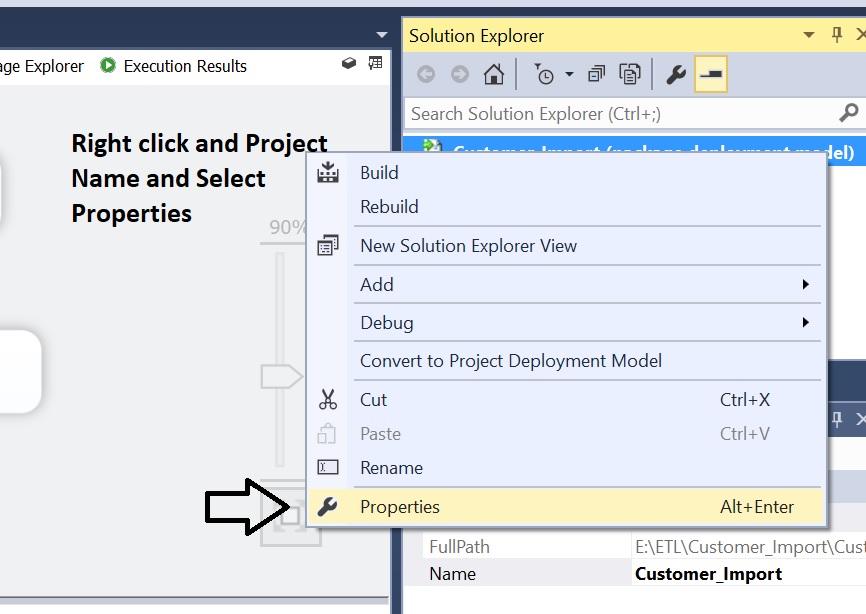
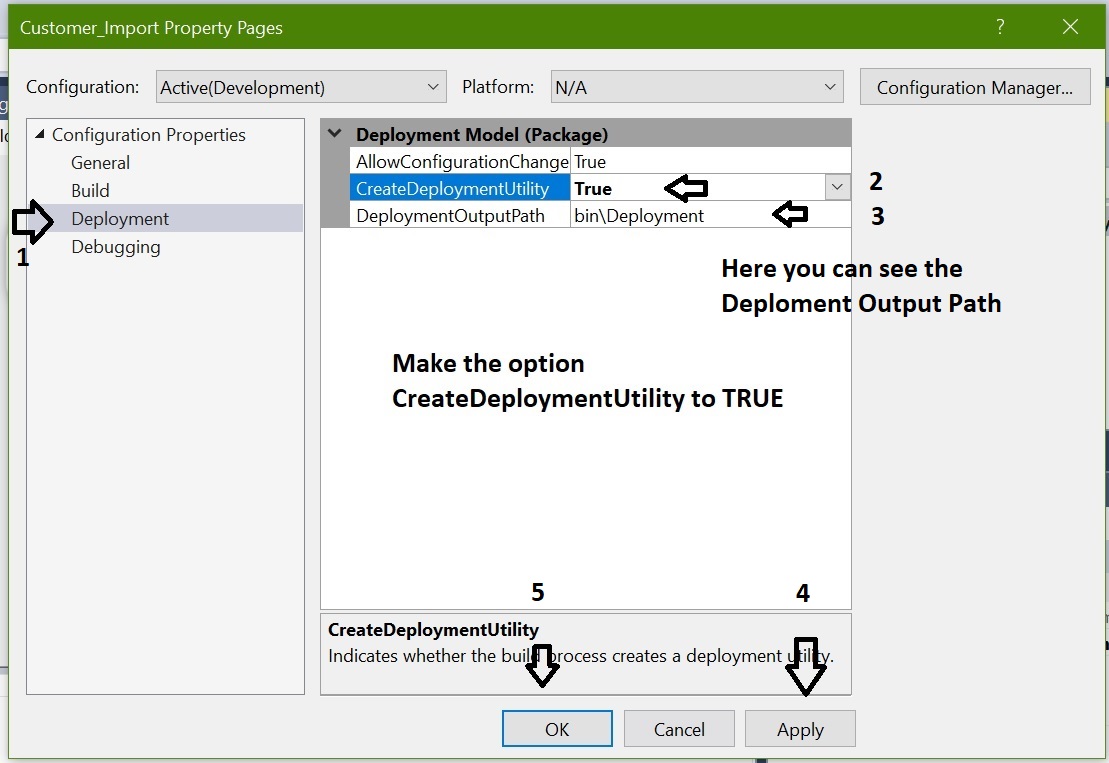
4 That’s it. The deployment manifest has been created at the given path “bin\Development”. Now check the file at the given path:
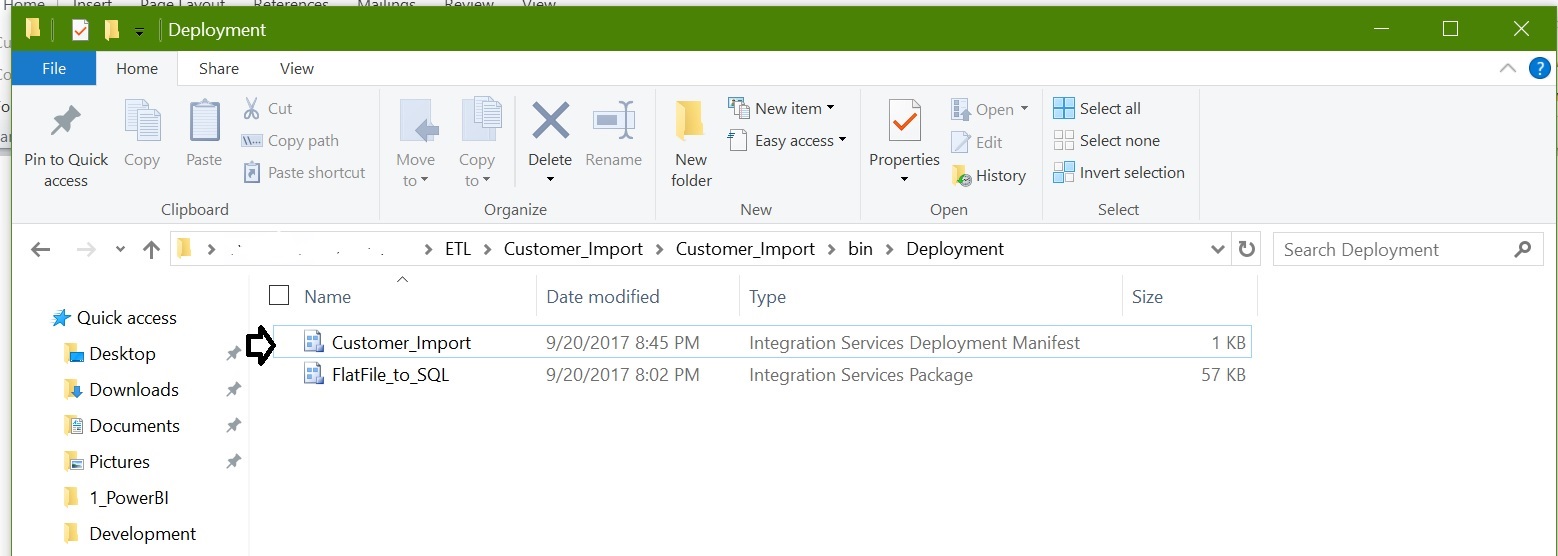
Now we’ll deploy the SSIS package using the Deployment Manifest that we just created.
1 Locate the Deployment Manifest folder, double click on it to open the deployment wizard:
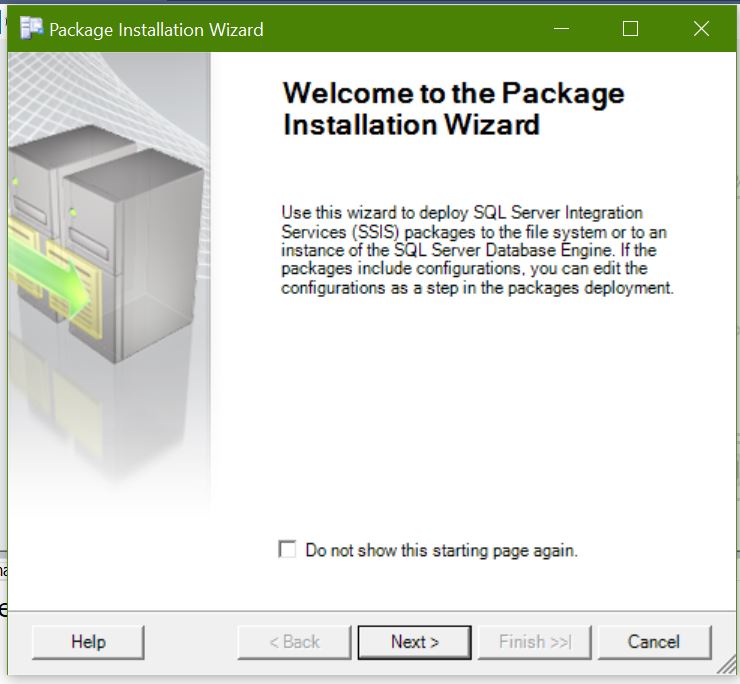
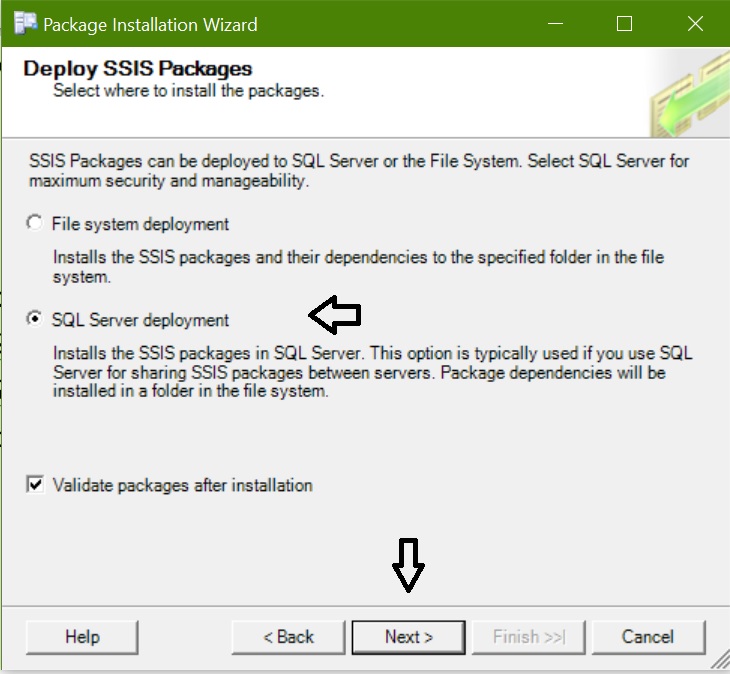
We can see two options to deploy SSIS package:
File System Deployment: Deploy SSIS package to file system at the given folder path
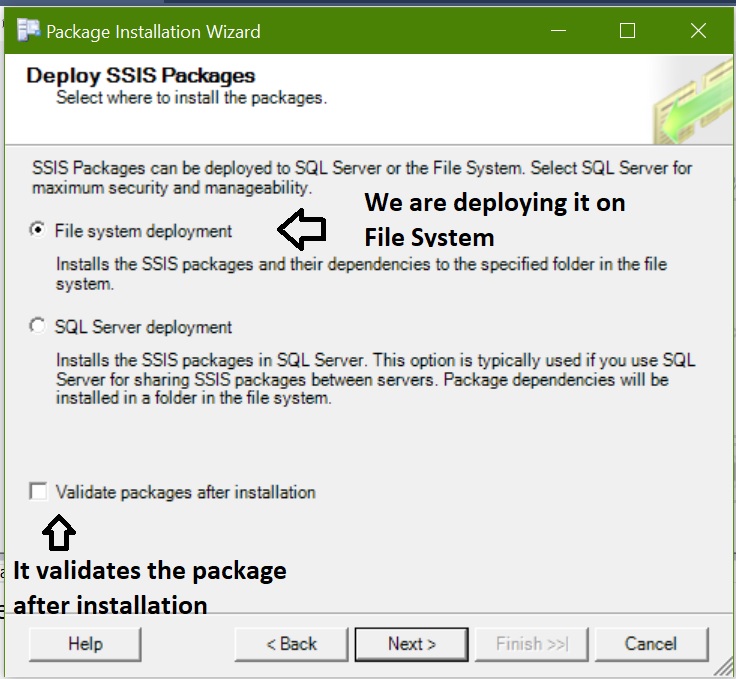
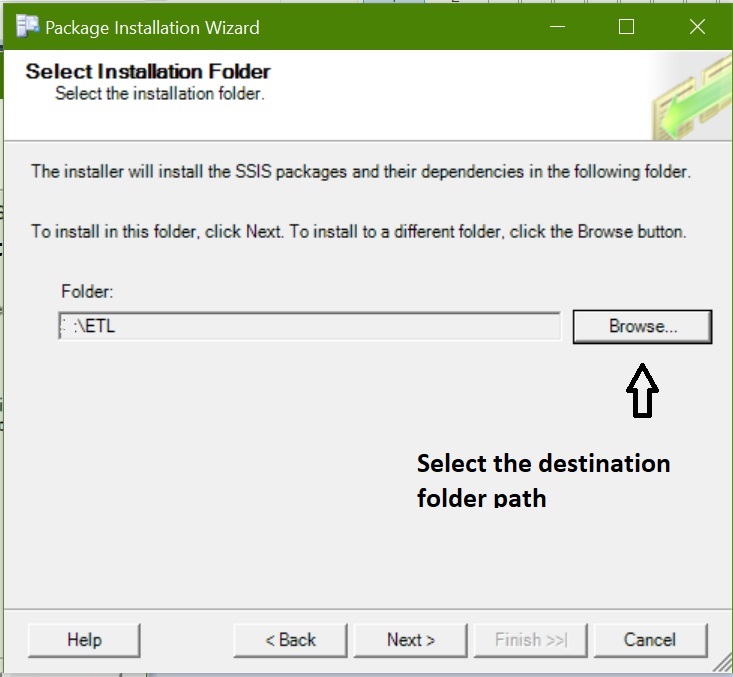
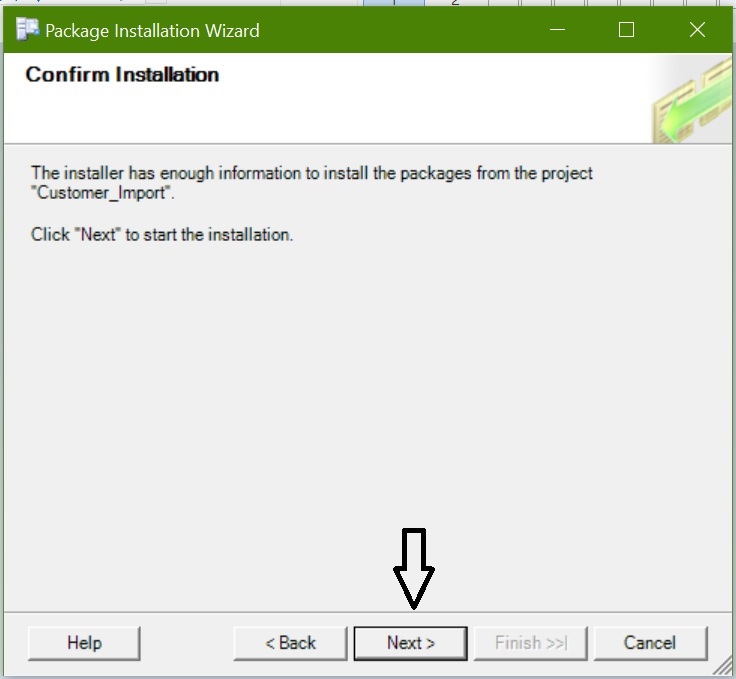
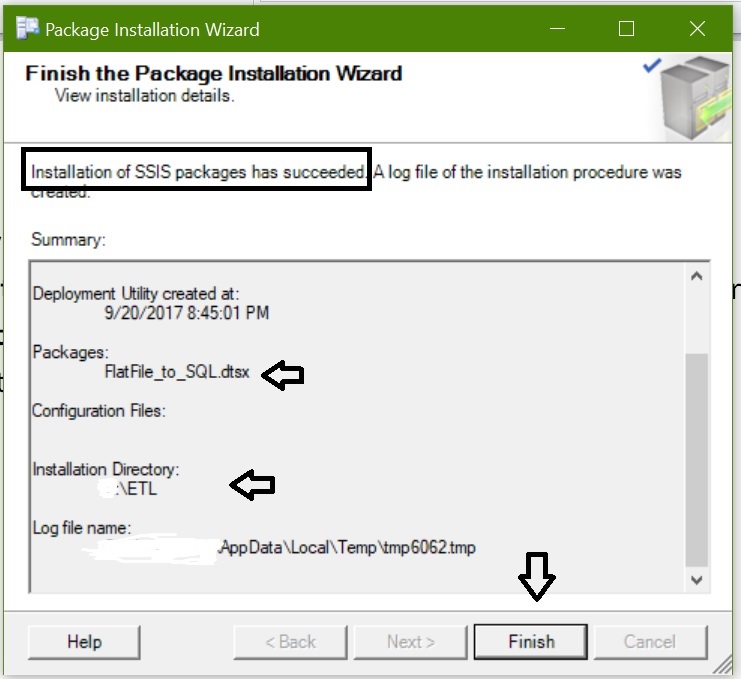
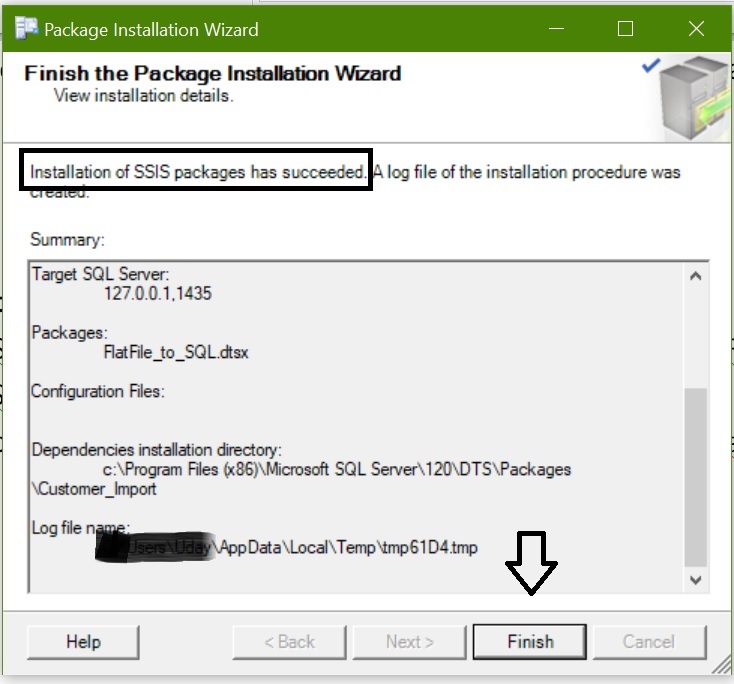
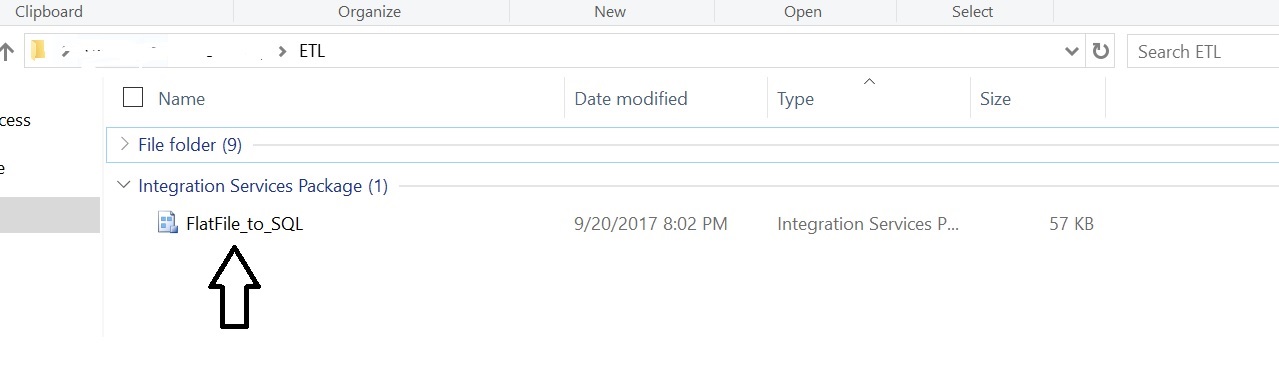
Now File System package deployment is done. You can see the package is installed at the given directory path:
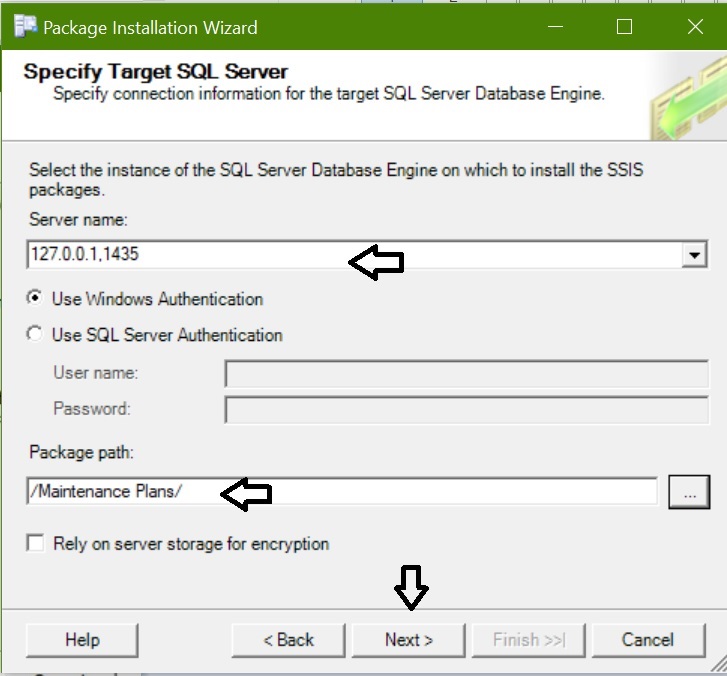
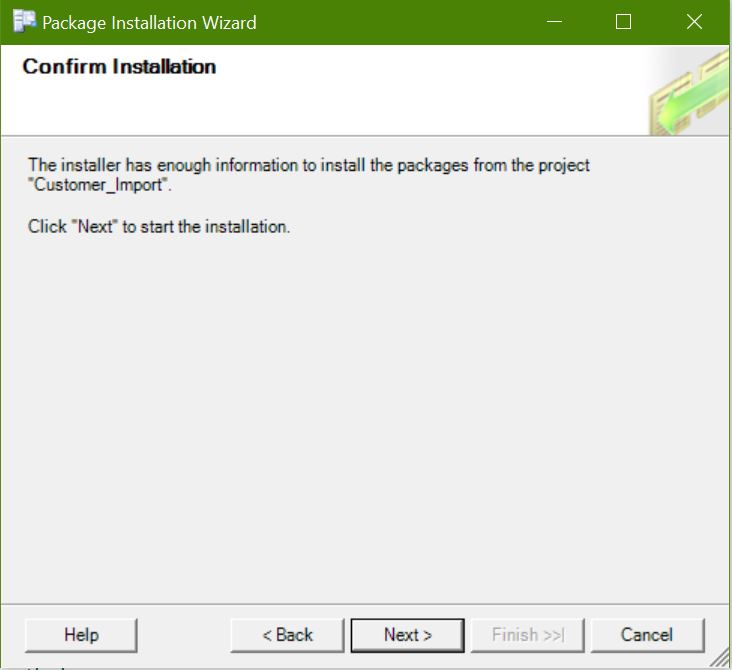
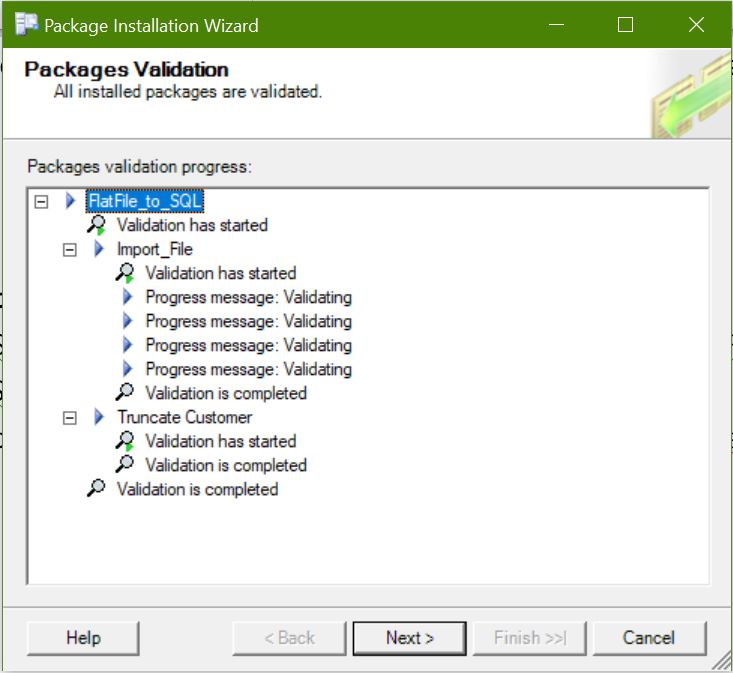
SQL Server Deployment:
Since we are using SQL Server 2014 installing it on legacy path but if it is 2008 R2 or before we can install it on Integration Services instance folders.
Also you can check the package details using “select * from msdb.dbo.sysssispackages”