Upgrading SQL Server Questions and Answers

Q&A

Upgrading SQL Server Questions and Answers

SqlServer2008_Logo.png

logo_sql_server_2nd.gif

sql2000.jpg


1. Can you upgrade SQL Server 2008 SP2 Standard Edition to 2008 R2 Developer Edition?

Ans:

You can’t change the version of the installed instance as far as I know, but you could install a second instance with the Dev edition, or uninstall the Standard edition, install Developer edition and attach the user databases.

2. Does upgrade advisor analyze the remote instances?

Ans:

Upgrade Advisor can analyze remote instances of SQL Server, except for SQL Server Reporting Services. To analyze Reporting Services, Upgrade Advisor must be installed and executed on the report server.

3. Ho to upgrade a SQL Server 2000 to SQL Server 2008?

Ans:

That said, what kind of upgrade are you doing? Are you planning an in-place or side-by-side upgrade? The different approaches will result in different checklists. The safest approach is the side-by-side upgrade. You can do this either by using a backup and restore or dettach/attach of the database files. I’d suggest using the backup & restore as the safer approach. Here are the things I’d do:

  • Run Upgrade Analysis tool from Microsoft. Address any issues raised there, first.
  • Identify DTS packages. These must be migrated by hand, unless you buy PragmaticWorks excellent software. Rebuild the DTS packages as SSIS.
  • Script out all SQL Agent jobs.
  • Script out all security
  • Backup the systems and validate the backups (preferably by restoring them to another system)
  • Run the security script on the new system
  • Run the restore on the new system.
  • Validate the databases by running DBCC
  • Manually update all statistics
  • Run the SQL Agent script

4. Have you ever prepared a checklist while performing an upgrade?

Ans:

Yes Of course!!!

  • Identify which databases need to be upgraded (ie are still on older versions of SQL Server)
  • Of those databases, which are not supported on more recent versions of SQL Server?  This is one for the appropriate vendor – so do we have contact details for the vendor?
  • Of those non-supported databases, if this is just because the vendor hasn’t tried it, are we able to try and will they support is in our efforts?
  • Identify maintenance routines and scheduled jobs associated with database
  • Identify dependencies upon older technologies (eg DTS rather than SSIS), and work out an upgrade path for these
  • What applications depend upon the database?
  • What UserIDs are required?
  • How do we configure the application to point to a new database?
  • What else needs to be changed?  (eg middleware servers)
  • Are parts of the database subject to Replication?
  • Is the database part of a Log Shipping routine?
  • Is the database part of a Mirror set?
  • What’s the recovery plan for the database?
  • What’s the backup plan for the database?
  • Are there any SSRS jobs relating to this database?
    • What are they?
    • Where are they?
    • How do we migrate these across?
    • What else depends upon those reports?
  • …and similarly, are there any OLAP / SSAS dependencies?

It might also be worth thinking about the amount of data in the database:

  • How much data have we got?
  • How fast is the database growing?
  • For how long do we need to retain this data?
  • Can we archive anything off to improve performance?

Of course, all the above forms part of your database documentation, so it should be easily to hand, right?

The other things to work out include:

  • How do we test this thing to ensure the migration is successful?
  • How do we rollback if it isn’t successful?
  • Point of contact for the supplier / vendor / development team
  • Point of contact for the customer(s) / user(s)

5. Can you detach a SQL Server 2005 database and attach it to a SQL Server 2008 server?

Ans:

Yes. SQL Server 2005 databases are compatible with SQL Server 2008. However, that attaching a SQL Server 2005 database to SQL Server 2008 automatically upgrades the SQL Server 2005 database to a SQL Server 2008 database and the database is then no longer usable by the SQL Server 2005 installation.

6. Can you detach a SQL Server 2008 database and attach it to a SQL Server 2005 server?
Ans:

No. The only way to move a SQL Server 2008 database to a SQL Server 2005 server is by transferring the data using a method such as Data Transformation Services (Import/Export),SSIS, bcp, or use of a query between linked servers.

7. How long will it take to upgrade my SQL Server databases?

Ans:

Many factors affect the amount of time needed to upgrade SQL Server Databases. Depending on the complexity of each database, Size of databases, the hardware platform, number of processors, disk subsystem, and amount of RAM plays a significant part in the amount of time required for the upgrade. Selecting “data validation” during the setup increases the amount of time needed to perform the upgrade by a factor of two. Some typical times for the upgrade process are:

Size of Database Estimated Time Required to Upgrade
400 MB Less than 20 minutes.
   1 GB Less than 1 hour.
 10 GB Less than 4 hours.
 50 GB Less than 12 hours.
100 GB Less than 24 hours.

8. When you upgrade a SQL Server, the upgrade wizard seems to stop responding and fails. Why?

Ans:

If applications or services have open ODBC connections to the SQL Server 2005 server during the conversion process, they may not allow the SQL Server to shut down completely. The conversion process will not proceed on to the next step if it does not receive verification that the SQL Server has been completely stopped.

9. “I’m trying to restore a 25 GB database backup taken from a Windows 2003/SQL 2005 machine to a Windows 2008/SQL 2008 machine in the Amazon EC2 cloud, using a .bak file and the SQL Management Studio. SQL Management Studio reports the restore reaches 100% complete, and then just hangs indefinitely (24+ hours) using a lot of CPU, until I restart the SQL Server service. Upon restart, SQL again uses a lot of CPU activity for what seems to be an indefinite amount of time, but the DB never comes online.”

Ans:

The database is in the process of being upgraded from SQL 2005 to SQL 2008 when you kill it. Check the ERRORLOG in SQL Server and you should see that the database restore is complete and that the database is being upgraded.

This process is normally very quick, but it can take a while to perform depending on the database, especially if you have a lot of pending transactions in the database which much be rolled forward or backward before the database can be upgraded.

9. How to rollback the upgrade?

Ans:

If the legacy SQL Server instance is replaced by a new SQL Server 2008 instance, rolling back an in-place upgrade can be complex and time-consuming, whereas in a side-by-side upgrade the legacy instance remains available if a rollback is needed.

10. What are the different ways in upgrading to a higher version?

Ans:

There are two ways:

In-Place Upgrade: Installs 2008 and overwrite on the 2005 Server.

Side-by-side Upgrade: A new instance will be installed and moves the databases.

11. Give some examples when we consider Side-by-side and In-Place?

Ans:

Pros & Cons: In-Place

Pros

  • Easier, mostly automated
  • Generally fast overall process
  • Requires no additional hardware
  • Applications remain pointing to same server/database name

Cons

  • Less granular control over upgrade process
  • Instance remains offline during part of upgrade
  • Not best practice for all components
  • Complex rollback strategy
  • Not recommended for SSAS

Pros & Cons: Side-by-side:

Pros

  • More granular control over the upgrade process
  • Original database left unchanged; allows for testing of new database
  • Single occurrence of database downtime
  • Relatively straightforward rollback strategy

Cons:

  • Usually require additional hardware
  • Server/database name changes
  • Not practical for VLDB unless utilizing SAN(Beware of “loss of quick roll-back)

12 What are the parameters should be considered while choosing the upgrade process?

Ans:

Components: A certain upgrade strategy might not be possible because the component does not support it. For example, there is no in-place upgrade for SSIS from SQL Server 2000; Microsoft recommends that you upgrade most SQL Server 2000 SSAS components.

Versions and Editions: The in-place upgrade strategy does not support all paths between versions and editions. For example, to upgrade a SQL Server 2000 Enterprise Edition instance to SQL Server 2008 Standard Edition, you must perform a side-by-side upgrade because SQL Server Setup does not support an in-place upgrade path.

Partial upgrading: To transition only a few databases on a server to SQL Server 2008 and leave the rest on the legacy version, you must use a side-by-side upgrade.

Upgrading over time: To transition databases gradually, a few databases at a time, from a legacy instance to SQL Server 2008, you can only use a side-by-side upgrade.

Effect on applications: If your organization requires minimal disturbance to the existing applications and users, you may want to choose an in-place upgrade if possible.

Availability: Both an in-place upgrade and a side-by-side upgrade require that the databases be unavailable for a certain amount of time. The amount of downtime required depends primarily on the size of the data sets. At first, it might seem that an in-place upgrade would be faster than a side-by-side upgrade because the data is not transferred from one server to another. However, an in-place upgrade also requires time for the installation of SQL Server 2008. In a side-by-side upgrade, SQL Server 2008 is already installed on another instance. If the data transfer proceeds quickly and few changes are needed on the new instance, a side-by-side upgrade might be faster than an in-place upgrade.

13. We have upgraded databases from SQL Server 2000 to SQL Server 2008 and now the upgrade hits the production. Unfortunately a part of application is not supporting SQL Server 2008. Do we need to Rollback entire process to SQL 2000? Is that the only solution? If it is the only way! Since the databases at production transactions are being running and the data has been updated. Please assist us.

Ans

However, after the upgraded SQL Server 2008 instance goes into production and starts capturing new data, there will come a point in time when enough new data has been captured that a rollback is no longer realistic. For an in-place upgrade, if you encounter problems after the system is in production, making adjustments or “patches” to the new application would be a better option than attempting a rollback. For a side-by-side upgrade, you could employ SSIS to transfer new data from the SQL Server 2008 instance to the legacy SQL Server 2000 to bring it current. Depending on the complexity of the data, this could be a difficult process.

14. Can you list out some of the compatibility options while upgrading?

Ans:

For example we goanna upgrade SQL 2000 to SQL 2008:

  • Some features do not exist anymore
  • Examples: undocumented system stored procedures, DUMP, LOAD, sp_addalias,
  • Some are deprecated, Will be removed in future versions of SQL Server
  • Examples: SQL Mail, COMPUTE BY, Remote Servers, backup passwords,…
  • Some features behave differently
  • Example: Access to catalog views (new security on system views)
  • Some editions have different features
  • Example: Express has no SQL Server Agent


15. What are the different tools available while upgrading from SQL 2000 to SQL 2008?

Ans:

Primary Tools:

  • SQL Server 2008 Upgrade Advisor
  • DTS xChange

Secondary Tools

  • Microsoft® Assessment and Planning Toolkit 3.2
  • SQL Server 2008 Upgrade Assistant
  • SQL Server Best Practices Analyzer
  • System Configuration Checker
  • SQL Server Profiler
  • SQL Server: Deprecated Features Object Counter
  • Other tools

16. Error while upgrading to SQL server 2005 from Sql server 2000.

“while upgrading my sqlserver 2000 with version 8.0.2039 to SQLserver 2005, msxml6.msi failed to upgrade and while trying to uninstall it is try to look the msi file which missing from the path”

Ans:

MSXML 6 services installed in my server is a lower version of SP2 msxml6-KB954459 and not allowing the upgrade, because setup trying to upgrade MSXML6.MSI and it could not locate the file in the previous installation and Of course it got missed.

So, we have worked out here to download the same version from Microsoft website and then extracted the MSXML6.MSI file to some location and then we tried to un-install the MSXMl service and it went successfully.

Later, again we have installed the msxml6-KB954459-enu-x86.exe and upgrade of SQLserver 2000 to 2005 went smooth without issues and applied latest servicepack 4 successfully.

17. How to Upgrade to SQL SERVER 2005?

Ans:

  • We can directly upgrade instances of SQL Server 2000 Service Pack 3 (SP3) or later, and instances of SQL Server 7.0 SP4 or later, to SQL Server 2005. We can perform most upgrade operations through Setup
  • Before running Setup to upgrade to SQL Server 2005, we should first review system requirements and update Matrix
  • Before beginning an upgrade
  • All SQL Server database files will have to be backed up.
  • Appropriate DBCC commands should be run to ensure consistent state.
  • SQL Server System databases will have to be configured with autogrow setting to ensure that they will have adequate disk space.
  • All startup procedures will have to be disabled; else they will block the process of upgrading.
  • Replication log should be emptied and Replication will have to be stopped.
  • Another factor that needs to be taken into account while preparing for an upgrade, are the features that have been deprecated in SQL Server 2005.
  • Once all the above has been done, SQL Server 2005 setup has to be run and the instance installed.
  • The upgrade Advisor does not get installed automatically when SQL Server is installed. It has to be installed separately.
  • After reviewing system requirements and upgrade Matrix, run SQL Server Upgrade Advisor to analyze the instances of SQL Server 2000 and SQL Server 7.0.
  • Upgrade Advisor produces lists of issues that we must fix before or after upgrading. SQL Server Setup will detect blocking issues that will prevent us from upgrading to SQL Server 2005 (The table alias should not be used in order by clause)
  • Thereafter, move user databases to the instance by using backup and restore or detach and attach functionalities in SQL Server 2005. Then register the server, repopulate full text catalogs, update the statistics and run Surface Area Configuration tool. Change the compatibility level to 90 from 80


18. What are the issues u faced in sql server upgrade?

Ans:

Common causes

  • SQL Server or the machine running the upgrade loses its network connection.
  • The database in which you were working has run out of log or data space.
  • You are not allowed to perform an update to a table.
  • The database is corrupted.
  • The database is not available (still in recovery.) It may be unavailable if the upgrade program begins to work before SQL Server finishes performing recovery after startup.
  • Unable to restart the server

Can identify the issue from the upgrade log files and resolve the issues and rerun the upgrade advisor

19. What is the sequence to install service packs or hotfixes on an instance of SQL Server that is part of Log Shipping/Database Mirroring/Replication/Failover Clustering environment?

Ans:

When an instance of SQL Server is configured as part of Log Shipping, Database Mirroring, Replication, or Failover Clustering environment, it is important to install service packs or hotfixes in a correct sequence otherwise we may get unexpected issues.

Log Shipping:

There is no required sequence to apply a service pack or hotfix for Primary, Secondary and Monitor servers in a Log Shipping environment. The following is my preferable to apply service pack or hotfix:

  • Apply the service pack or hotfix on the Monitor server.
  • Apply the service pack or hotfix on the all Secondary servers.
  • Apply the service pack or hotfix on the Primary server.

Database Mirroring:

If you install service packs or hotfixes on servers in a database mirroring environment, you need to determine the role of the servers. If there are many mirroring sessions configured on the server, you need to determine all possible roles that could be. For instance, if the server is acting as a mirror server for any database mirroring session, update the server as the mirror role for all mirroring sessions. To do this, follow these steps:

  • If a witness server is configured in the database mirroring session, disable the automatic failover during the update process. To do this, remove the witness server from the mirroring session.
  • If the safety level of the database mirroring session is OFF (asynchronous mode), change the safety level to FULL (this is required in step 3).
  • Make sure all database mirroring sessions to be in Synchronous mode and synchronized.
  • Pause the database mirroring sessions that are present on the server.
  • Install the service pack or hotfix on the mirror server.
  • Resume the database mirroring sessions.
  • Perform manual failover (all the mirroring sessions on this principal server) to the mirror server so that mirroring server assumes the principal role.
  • Pause the database mirroring sessions as step 4.
  • Install the service pack or hotfix on the new mirror server (previous principal server).
  • Resume the database mirroring sessions.
  • If you changed the safety level in step 2, change the safety level back to OFF.
  • If the database mirroring session has a witness server, undo the changes made in step 1.

Replication:

In a replication environment, there is no preferable sequence to apply service pack or hotfix for non-bidirectional replication typology. However, for bi-directional replication typology such as merge typology or transactional replication with updateable subscriptions, you must upgrade Distributor, Publisher, and Subscribers in the following order:

  • Apply the service pack or hotfix on the Distributor server.
  • Apply the service pack or hotfix on the Publisher server.
  • Apply the service pack or hotfix on the Subscriber server.

 Failover Clustering:

In SQL Server 2005, if you want to install a service pack or hotfix, you must install the setup on the Active node (node that currently runs SQL Server services). When running the setup which will launch simultaneously “remote silence” on all passive nodes.

However, in SQL Server 2008 and SQL Server 2008 R2, the service pack or hotfix deployment is changed to reduce the downtime. Now, you must install the service pack or hotfix on the passive node first. To do this, following these steps:

  • Apply the service pack or hotfix on the passive node (or all passive nodes if you have more than one).
  • Reboot the passive node.
  • Failover the SQL Server failover cluster to the passive node (and the passive node becomes active now).
  • Apply the service pack or hotfix on the new passive node (previous active node).
  • Reboot the passive node.
Posted in High Availability, SQL Server DBA | Tagged , , , , , , , | 16 Comments

Installing SQL Server Interview Questions

Q&A

Installing SQL Server Interview Questions and Answers

dvd_sql05_1.jpg

software_installation.jpg

multiset2.jpg

Installing SQL Server Interview Questions and Answers

Here are listing out few question and answers on installing sql server, lets go through these questions.

1. What are the components installed with the SQL Server 2005 installation?

Ans:

  • Server Components
  • SQL Server Database Engine
  • Analysis Services
  • Reporting Services
  • Notification Services
  • Integration Services
  • Client Components
  • Connectivity Components
  • Communication between clients and servers
  • Network libraries for DB-Library, ODBC, and OLE DB.
  • Management Tools
  • Management Studio
  • Profiler
  • Configuration Manager
  • Database Tuning Advisor
  • Development Tools
  • Business Intelligence Development Studio
  • Documentation and Samples
  • Books Online
  • SQL Server Samples

2. What are the editions available in SQL Server 2005?

Ans:

  • Enterprise Edition (32-bit and 64-bit)
  • Evaluation Edition (32-bit and 64-bit)
  • Standard Edition (32-bit and 64-bit)
  • Workgroup Edition (32-bit and 64-bit)
  • Developer Edition (32-bit and 64-bit)
  • Express Edition (32-bit only)
  • Compact Edition (32-bit only)
  • Runtime Edition (32-bit and 64-bit)

3. What are the network protocols that SQL Server supports?

Ans:

Stand-alone named and default instances support the following network protocols:

  • Shared memory
  • Named pipes
  • TCP/IP
  • VIA

Note   Shared memory is not supported on failover clusters.

4. What are the basic software requirements for installing SQL Server 2005?

Ans:

  • Microsoft Windows Installer 3.1 or later
  • Microsoft Data Access Components (MDAC) 2.8 SP1 or later
  • Microsoft .NET Framework 2.0 Software Development Kit (SDK)
  • Microsoft .NET Framework 2.0 (Installed Automatically)
  • Microsoft SQL Server Native Client (Installed Automatically)
  • Microsoft SQL Server Setup support files (Installed Automatically)

5. What are the file locations for Server components?

Ans:

Server components are installed in directories with the format <instanceID>\<component name>. For example, a default or named instance with the Database Engine, Analysis Services, and Reporting Services would have the following default directories:

  • <Program Files>\Microsoft SQL Server\MSSQL.1\MSSQL\ Database Engine
  • <Program Files>\Microsoft SQL Server\MSSQL.2\OLAP\ for Analysis Services
  • <Program Files>\Microsoft SQL Server\MSSQL.3\RS\ for Reporting Services

6. What about SSIS, Notification services and client components?

Ans:

SQL Server 2005 Integration Services, Notification Services, and client components are not instance aware and, therefore, are not assigned an instance ID. Non-instance-aware components are installed to the same directory by default: <system drive>:\Program Files\Microsoft SQL Server\90\. Changing the installation path for one shared component also changes it for the other shared components. Subsequent installations install non-instance-aware components to the same directory as the original installation.

7. List out the default path for the SQL Server components.

Ans:

Database Engine server components

\Program Files\Microsoft SQL Server\MSSQL.n\MSSQL\Binn\

Database Engine data files

\Program Files\Microsoft SQL Server\MSSQL.n\MSSQL\Data\

Analysis Services server

\Program Files\Microsoft SQL Server\MSSQL.n\OLAP\Bin\

Analysis Services data files

\Program Files\Microsoft SQL Server\MSSQL.n\OLAP\Data\

Reporting Services report server

\Program Files\Microsoft SQL Server\MSSQL.n\Reporting Services

\ReportServer\Bin\

Reporting Services report manager

\Program Files\Microsoft SQL Server\MSSQL.n\Reporting Services

\ReportManager\Bin\

SQL Server Integration Services

<Install Directory>\90\DTS\

Notification Services

<Install Directory>\90\Notification Services\

Client Components

<Install Directory>\90\Tools\

Components that are shared between all instances of SQL Server 2005

\Program Files\Microsoft SQL Server\90\Shared\

8. Can we change the directory while adding new features?

Ans:

Can’t! You must either install additional features to the directories already established by Setup, or uninstall and reinstall the product.

9. What are the log files generated while Installing\Upgrading\Applying (packages) SQL Server on Windows machine? (SQL Server 2008 / R2)

Ans:

Summary.txt (SQL 2005)

This file shows the SQL Server components that were detected during Setup, the operating system environment, command-line parameter values if they are specified, and the overall status of each MSI/MSP that was executed.

Location:

%programfiles%\Microsoft SQL Server\100\Setup Bootstrap\Log\.

Note:

To find errors in the summary text file, search the file by using the “error” or “failed” keywords.


Summary_engine-base_YYYYMMDD_HHMMss.txt

Generated during the main workflow

Location:

%programfiles%\Microsoft SQL Server\100\Setup Bootstrap

\Log\<YYYYMMDD_HHMM>\

Summary_engine-base_YYYYMMDD_HHMMss_ComponentUpdate.txt

Generated during the component update workflow.

Location:

%programfiles%\Microsoft SQL Server\100\Setup Bootstrap\Log\<YYYYMMDD_HHMM>\

Summary_engine-base_20080503_040551_GlobalRules.txt

Generated during the global rules workflow.

Location:

%programfiles%\Microsoft SQL Server\100\Setup Bootstrap\Log\<YYYYMMDD_HHMM>\

Detail.txt

Detail.txt is generated for the main workflow such as install or upgrade, and provides the details of the execution. The logs in the file are generated based on the time when each action for the installation was invoked, and show the order in which the actions were executed, and their dependencies.

Location

%\Microsoft SQL Server\100\Setup Bootstrap\Log

\<YYYYMMDD_HHMM>\Detail.txt.

Note:

If an error occurs during the Setup process, the exception or error are logged at the end of this file. To find the errors in this file, first examine the end of the file followed by a search of the file for the “error” or “exception” keywords.

Detail_ComponentUpdate.txt

Detail_GlobalRules.txt

MSI log files

The MSI log files provide details of the installation package process. They are generated by the MSIEXEC during the installation of the specified package.

Location

%programfiles%\Microsoft SQL Server\100\Setup Bootstrap\Log \<YYYYMMDD_HHMM>\<Name>.log.

Note:

At the end of the file is a summary of the execution which includes the success or failure status and properties. To find the error in the MSI file, search for “value 3” and usually the errors can be found close to the string.

ConfigurationFile.ini

The configuration file contains the input settings that are provided during installation. It can be used to restart the installation without having to enter the settings manually. However, passwords for the accounts, PID, and some parameters are not saved in the configuration file.

Location:

%programfiles%\Microsoft SQL Server\100\Setup Bootstrap\Log\

<YYYYMMDD_HHMM>\

SystemConfigurationCheck_Report.htm

Contains a short description for each executed rule, and the execution status.

Location:

%programfiles%\Microsoft SQL Server\100\Setup Bootstrap\Log

\<YYYYMMDD_HHMM>\

10. How much had disk space required installing the SQL Server 2005/08?

Ans:

2 GB. Before the installation is started windows installer allocated 2 GB of temporary space for installation.

11. What is the space required for each component in SQL Server?

Ans:

Database Engine and data files, Replication, and Full-Text Search – 280 MB

Analysis Services and data files – 90 MB

Reporting Services and Report Manager – 120 MB

Notification Services engine components, client components, and rules components – 50 MB

Integration Services – 120 MB

Client Components – 850 MB

SQL Server Books Online and SQL Server Compact Edition Books Online – 240 MB

Samples and sample databases – 410 MB

(Note that samples and sample databases are not installed by default.)

12. List out the Windows machines which supports the SQL Server 2005 Enterprise edition.

Ans:

32-Bit:

Windows 2000 Server SP4

Windows 2000 Advanced Server SP4

Windows 2000 Datacenter Edition SP4

Windows Server 2003 Server SP1

Windows Server 2003 Enterprise Edition SP1

Windows Server 2003 Datacenter Edition SP1

Windows Small Business Server 2003 Standard Edition SP1

Windows Small Business Server 2003 Premium Edition SP1

Windows Server 2008 Standard (32 bit and 64 bit)

Windows Server 2008 Enterprise (32 bit and 64 bit)

Windows Server 2008 Data Center (32 bit and 64 bit)

Windows Server 2008 Web Edition (32 bit and 64 bit)

64-Bit:

Windows Server 2003 64-Bit Itanium Datacenter Edition SP1

Windows Server 2003 64-Bit Itanium Enterprise Edition SP1

Windows Server 2008 Itanium

13. What are the security considerations for a SQL Server installation?

Ans:

Before Installation:

  • Enhance physical security
  • Use firewalls
  • Isolate services
  • Create service accounts with least privileges
  • Disable NetBIOS and server message block

After Installation:

  • Run SQL Server services with the lowest possible privileges.
  • Associate SQL Server services with Windows accounts.
  • Use Windows Authentication for connections to SQL Server.
  • Always assign a strong password to the sql account.
  • Always enable password policy checking.

14. What additional software requires for installing SSRS 2005?

Ans:

  • Microsoft Internet Information Services (IIS) 5.0 or later is required for Reporting Services installations.
  • Microsoft Internet Explorer 6.0 SP1 is required for installations of the Report Designer component of Reporting Services.

15. Which component performs the configuration check while installing the SQL Server 2005?

Ans:

As part of SQL Server 2005 Setup, the System Configuration Checker (SCC) scans the computer where Microsoft SQL Server 2005 will be installed. The SCC checks for conditions that prevent a successful SQL Server installation. Before Setup starts the SQL Server 2005 Installation Wizard, the SCC retrieves the status of each check item, compares the result with required conditions, and provides guidance for removal of blocking issues. All of the SCC check items are network enabled; checks can run on a local computer, as well as in remote and cluster situations.


16. What are the precautions needs to be taken before installing SQL Server 2005?

Ans:

  • Be sure the computer meets the system requirements for SQL Server 2005
  • Review Security Considerations for a SQL Server Installation.
  • Run SCC to identify the blocking issues and resolve before go ahead.
  • Make sure you have administrator permissions on the computer where SQL Server will be installed. If you install SQL Server from a remote share, you must use a domain account that has read and execute permissions on the remote share.
  • Back up your current installation of SQL Server if you are running an instance of SQL Server on the computer where SQL Server 2005 is to be installed
  • Verify that the disk where SQL Server will be installed is uncompressed. If you attempt to install SQL Server to a compressed drive, Setup will fail
  • Exit antivirus software while installing SQL Server
  • Stop all services that depend on SQL Server, including any service using Open Database Connectivity (ODBC), such as Internet Information Services (IIS). Exit Event Viewer and registry editors (Regedit.exe or Regedt32.exe).

17. List out the Instance-Aware and Instance-Unaware Services

Ans:

Instance-aware services in Microsoft SQL Server 2005 include:

  • SQL Server
  • SQL Server Agent
  • Analysis Services
  • Reporting Services
  • Full-Text Search

Instance-unaware services in SQL Server 2005 include:

  • Notification Services
  • Integration Services
  • SQL Server Browser
  • SQL Server Active Directory Helper
  • SQL Writer

18. What is the installation log file location for SQL Server 2005?

Ans:

Summary.txt:

C:\Program Files\Microsoft SQL Server\90\Setup Bootstrap\LOG

All other files:

C:\Program Files\Microsoft SQL Server\90\Setup Bootstrap\LOG\Files

Here you find logs for each individual component as well as the actions performed at the time of installation.

19. What information stored in Summary.txt?

Ans:

This file has information on the installation start and stop time, installed components, machine name, product, version and detailed log files.  Although this file differs slightly based on selected installation components, this file does not have any user names, passwords, service accounts, ports, etc.  What this file does have is references to the detailed files which will be reviewed next.

20. Is there any possibility to find out the “sa” password from log files?

Ans:

Clear Passwords not stored at anywhere. But !

When it comes to clear text passwords being stored in the detailed log files, it appears as if the sa password validation and confirmation is logged, but the actual password is never stored in clear text during the database services installation.  As an example, the files listed below reference the usage of the sa password:

  • SQLSetup0002_MachineName_SQL.log
  • SQLSetup0002_MachineName_Tools.log
  • SQLSetup0002_MachineName_WI.log

Stored in C:\Program Files\Microsoft SQL Server\90\Setup Bootstrap\LOG\Files

After reviewing the SQL Server 2005 installation log files, it appears as if temporary files are referenced.  Do these local files have clear text passwords?  Based on files located at the below location C:\DOCUME~1\ProfileName\LOCALS~1\Temp\*.tmp these files appear to be cleaned up after the installation process and do not appear to pose any additional vulnerability because they do not appear to have the passwords in clear text.

21. What are the prerequisites for installing SQL Server 2008?

Ans:

Microsoft SQL Server 2008 setup requires Windows Installer 4.5 and .Net Framework 3.5 SP1 to be installed. The Windows Installer 4.5 and .Net Framework 3.5 SP1 can be installed independently or it can be installed by double clicking SETUP.EXE within SQL Server 2008 installation media. Both Windows Installer 4.5 and .Net Framework setups are also available in <Drive>:\x86\redist folder of installation media. Once Windows Installer 4.5 and .Net Framework 3.5 SP1 is installed the system requires a restart of the operating system.

22. I have applied SP3 on 2005 instances. Where we can find the log files?

Ans:

C:\Program Files\Microsoft SQL Server\90\Setup Bootstrap

\LOG\Hotfix\Summary.txt (On that day)

Other files like component wise files are also located in the same folder.

23. What is Slipstreaming?

Ans:

It is a term used to describe merging original source media with updates in memory and then installing the updated files. Slipstreaming has been supported by Windows Operating systems for awhile but has just been added to SQL Server 2008 service pack 1. Slipstream allows you to go to the latest and greatest, currently service pack 1 and a CU for service pack 1. Prior to service pack, we supported just update the setup file also referred to as “Patchable Setup”. Since the release of SQL Server 2008 Service Pack 1, it is recommend to use the slipstream procedures instead as patchable setup since the entire product can be updated and you will be using the latest and greatest. Any scenario (install, upgrade, addnode) that is supported by the original media is supported when slipstream.

25. I have installed SQL 2008 Database Engine component to an instance and now I want to add features to this instance using slipstream. How do I add features to an existing instance?

Ans:

In theory you just run the slipstream build again to add features. However, setup will fail since setup does not correct detect that it is installed and needs to be patched versus installed.  In this case, you need to add features using original media and then patch using the service pack installer. We don’t support features within an instance at different levels, so ensure features within an instance are at the same patch level.

26. I have slipstreamed media, but I just want to install the original media (RTM). How can I just install the original media?

Ans:

You need to use your original media.

27. What if I did not copy the ia64 and x64 folders to my original media which is necessary for slipstreaming. Can I still install x86?

Ans:

Technically, it will work. But we do not recommend skipping merging all architectures since at some point, a user might install one of these architectures.  If you merges x86 but not x64, you media is inconsistent. If at a later point in time, you run x64, the result will be unpredictable.

28.I already have SQL Server 2008 instance and now I want to update to service pack 1. Do I need to use slipstream?

Ans:

No, slipstream will not work when the product is already installed.

29. Does PCUSource need to be an absolute path?

Ans:

No, it can be a relative path, such as “.\PCU”. However, when you launch setup.exe your current path needs to point to the setup.exe.

**30. I am hitting the error: “The setting ‘PCUSOURCE’ specified is not recognized.”

Ans:

If you have followed the slipstream instructions, ensure the path to PCUSOURCE does not contain spaces. The setup does not handle the spaces as expected.  The quick workaround is to rename the PCUSource path so it does not contain any spaces. You can confirm this is the problem by viewing the Detail_ComponentUpdate.log located at %programfiles%\Microsoft SQL Server\100\Setup Bootstrap\Log\<last session>. Search for “PCUSource”. If you see commas in the PCUSource path, this is the issue:

31: Can I slipstream in any CU?

Ans:

In general, yes.  However, you need to ensure the CU will work the original release (RTM) or SP.  For example, if you are slipstreaming Service Package 1 (SP1), then only CUs based on SP1 can be slipstreamed into the installation. If you are not slipstreaming a service pack, then you need to ensure the CU is for the original release.


Uninstalling the Service Pack:

32. After I slipstream the original media and service pack 1, and then uninstall the service pack is it the same as just install the original media?

Ans:

Essentially, it is the same. However some of the components (e.g. SNAC, MSXML 6, and Setup support files) can’t be rolled back. The core features: Database Engine, Reporting Services, Analysis Services, and the other shred components will be rolled back.

33. Can I use slipstream to upgrade from SQL 2005 to SQL Server 2008?

Answer: Yes.

34. Can I use slipstream to upgrade from SQL 2000 to SQL Server 2008?

Answer: Yes.

35.  Is there a way to find out when a patch / sp was last applied to an instance?

Ans:

  • Start SSMS, open help menu and go to “about”
  • Run Select @@version
  • Run SELECT SERVERPROPERTY(‘productversion’), SERVERPROPERTY (‘productlevel’), SERVERPROPERTY (‘edition’)
  • Run XP_READERRORLOG and from the result set we can find the version details
  • If nothing worked as far as I know only option there would be to look at the add/remove programs list (or dump this data from the registry to make it easier to deal with) and get that info from there. SQL Server doesn’t track that within the system databases.

36. Can you identify the current version from version no?

Ans:

Yes we can!

Version Latest

2008R2 SP1 – 10.50.2 —.-

2008R2 RTM – 10.50.1 —.-

2008 SP3 – 10.00.5.—

2008 SP2 – 10.00.4.—

2008 SP1 – 10.00.2.—

2008 RTM – 10.00.1.—

2005 SP4 – 9.00.5.—

2005 SP3 – 9.00.4.—

2005 SP2 – 9.00.3.—

2005 SP1 – 9.00.2.—

2005 RTM – 9.00.1.—

2000 SP4 – 8.00.7—-


error3.jpgerror4.png

Errors While Installing…………………….

1. Can you narrate one critical installation issue that you resolved?

Ans:

Yes we have few.

A) I have got a request to install SQL Server 2005 Standard Edition with SP4. While installing database services it suddenly failed by throwing a pop – up. The error message:

“The SQL Server service failed to start. For more information, see the SQL Server Books Online topics, “How to: View SQL Server 2005 Setup Log Files” and “Starting SQL Server Manually”

Ans:

I gone through the all security credentials and found everything is fine. Gone through the log files and found the windows server is running with 24 processors Where as SQL Server 2005 Standard Edition supports upto 4 processors. To resolve the issue follow the steps below.

1. Update windows config to use only one processor (From MSConfigIniBoot)

2. Restart the windows server

3. Install SQL Server

4. Apply Service Pack 4

5. Change config to use default configuration

6. Restart the windows server

B) Installed failed on MSXML 6 Service Pack 2”

Ans:

Remove the MSXML 6.0 Parser and related components (with MSXML 6 *.*) from Add and Remove Programs at Control Panel. I was not able to remove it. I found there is a solution to force removal of this component nothing but windows installer cleanup.

We can get it from MSDN download center or we can get it from below link

http://www.eStockCard.com/Software/msicuu2.exe . Once all related components of MSXML 6.0 Parser were removed I ran the setup again and it was completed w/o any issue.

Other Issues:

1 Sample Error from errorlog–>MSI (s) (C4:C8) [19:04:30:953]: Product: Microsoft Office 2003 Web Components — Error 1706. Setup cannot find the required files. Check your connection to the network, or CD-ROM drive. For other potential solutions to this problem, see

C:\Program Files\Microsoft Office\OFFICE11\1033\SETUP.CHM.

Ans:

Solution 1: Uninstall SQL server 2005 completely and then try to manually run the OWC11.msi file available in Tools folder of sql 2005.Then try to install sql 2005 freshly !

Solution 2: Just uninstall Office web components from Add \ Remove programs and then try to install sql 2005

2. “There was an unexpected failure during the setup wizard” – Error 1603

Ans:

Solution1: To work around this problem, set the folders in the correct layout for the SQL Server 2005 installation. The SQL Server 2005 installation uses the following two folders:

  • Servers
  • Tools

These two folders must be under the same level of a folder or the root folder of a drive. The names of these folders must be exactly Servers and Tools. The Servers folder contains all the files that are required to install major SQL Server 2005 components, such as database engine. The Tools folder contains tools components and Books Online for SQL Server 2005.Then try installing sql from the path\servers\setup.exe

3. SP2 fails to install database services – MSP Error: 29512 “Unable to install Windows Installer MSP file” Error Snippet : MSP Error: 29512 SQL Server Setup was unable add user Clusteruser@FQDN (where FQDN is the actual fully qualified domain name – abbreviated here for security) to local group DOMAIN\SQL2005SQLAgents (where DOMAIN is the actual name of the domain). MSP returned 1603: A fatal error occurred during installation.

Ans:

Solution: KB 926622 — This article is for SP1 and also applicable to SP2 also.
To install SP2, try creating the following path, and restart SP2 setup:
DRIVE:\Microsoft SQL Server\MSSQL.2\MSSQL\FTData

4. SQL Server 2005 Setup program taking very long time to be completed

Ans:

Reason1: This problem may occur when you install software that also installs SQL Server 2005, such as Microsoft System Center Data Protection Manager (DPM) 2007.

Reason2: When the primary domain has many external trust relationships with other domains, or when many lookups are performed at the same time, the time that is required to look up domain group names may increase significantly. Therefore, the time that is required to install SQL Server 2005 may also increase.

Solution1: This problem can be solved by installing a Hotfix. Below is the link for the Hotfix.

http://support.microsoft.com/?kbid=910070

5. MSP Error: 29538 SQL Server Setup did not have the administrator permissions required to rename a file Sample Error

Product : Database Services (MSSQLSERVER)
Product Version (Previous) : 1399
Product Version (Final) :
Status : Failure
Log File : C:\Program Files\Microsoft SQL Server\90\Setup Bootstrap\LOG\Hotfix\SQL9_Hotfix_KB921896_sqlrun_sql.msp.log
Error Number : 29538
Error Description : MSP Error: 29538 SQL Server Setup did not have the administrator permissions required to rename a file: C:\Program Files\Microsoft SQL Server\MSSQL\Data\mssqlsystemresource1.ldf. To continue, verify that the file exists, and either grant administrator permissions to the account currently running Setup or log in with an administrator account. Then run SQL Server Setup again

Ans:

You can run the install in repair mode and repair your RTM instance. After that, you should be able to install SP2. Take a look at Books Online or template.ini on the original media for repair mode options. Here’s a sample snippet from template.ini to repair all files, reg keys, and shortcuts for a default instance.

start /wait setup.exe /qb INSTANCENAME=MSSQLSERVER REBUILDDATABASE=1 REINSTALL=All SAPWD= REINSTALLMODE=OMUS

6. SQLEXpress installation error

“An instance with the same name is already installed on this computer. To proceed with SQL Server Setup, provide a unique instance name.”

Solution:

You can get this error if your previous uninstallation of SQLExpress doesn’t get uninstalled properly. You need to cleanup some registry keys to proceed with the installation of SQLExpress. For more information http://blogs.msdn.com/b/astebner/archive/2005/12/08/501885.aspx

7. Error MSP Error: 29537 while installing SQL Server 2005 SP3

Sample Error

Product                   : Database Services (MSSQLSERVER)
Product Version (Previous): 4035
Product Version (Final)   :
Status                    : Failure
Log File                  : C:\Program Files\Microsoft SQL Server\90\Setup Bootstrap\LOG\Hotfix\SQL9_Hotfix_KB955706_sqlrun_sql.msp.log
Error Number              : 29537

Error Description         : MSP Error: 29537  SQL Server Setup has encountered the following problem: [Microsoft][SQL Native Client][SQL Server]CREATE DATABASE failed. Some file names listed could not be created. Check related errors.. To continue, correct the problem, and then run SQL Server Setup again.

Ans:

CAUSE:
By default the setup creates the Temp_MS_AgentSigningCertificate_database Database on specified default database location, If the location doesn’t exist, it fails to create the database and the setup fails.

RESOLUTION:

1. In SSMS, go to Server Properties > Database Settings > Database Default
Locations , check default location for Data and Log .
2. Try to access locations specified at Data and Log, Make sure files are available
there.
3. If any of the files missing from above location , we hit the above error.
4. In that case, change the path to point to reall location of mdf/ldf files .
5. Setup should now succeed.

8. “Error 1706. Setup cannot find the required files.

Check your connection to the network, or CD‐ROM drive”

Sol:

Just uninstall Office web components from Add \ Remove programs

and then try to install sql 2005

9.There was an unexpected failure during the setup wizard” ‐ Error 1603

Sol

Set the folders in the correct layout for the SQL Server 2005 installation. The SQL Server 2005 installation uses the following two folders:

• Servers

• Tools

These two folders must be under the same level of a folder or the root folder of a drive. The names of these folders must be exactly Servers and Tools.

Posted in SQL Server DBA | Tagged , , , , , | 1 Comment

Using variables in SSIS – Simple example

Using variables in SSIS – Simple example

Working with variables in SSIS: A simple demonstration

Before building the ETL package we need create a sales history table:

CREATE TABLE Product_Sales_History(
SaleID     BIGINT      NOT NULL UNIQUE,
ProductID  VARCHAR(50) NOT NULL,
Total      INT         NOT NULL,
FYEAR      CHAR(4)     NOT NULL);

GO

Insert sample data as below.

INSERT INTO Product_Sales_History (SaleID,ProductID,Total,FYEAR)

VALUES(112889,'ELS2550',1289,2006),

(112811,'ELS2550',1289,2007),

(112812,'ELS2550',1700,2008),

(112813,'ELS2550',2400,2009),

(112814,'ELS2550',2800,2010),

(112815,'ELS2550',2918,2011),

(112816,'ELS2550',3100,2012),

(112817,'ELS2550',3000,2013);

INSERT INTO Product_Sales_History (SaleID,ProductID,Total,FYEAR)
VALUES
(112818,'DSL-14',210,2007),

(112819,'DSL-14',200,2008),

(112820,'DSL-14',189,2009),

(112821,'DSL-14',199,2010),

(112822,'DSL-14',202,2011),

(112823,'DSL-14',209,2012),

(112824,'DSL-14',304,2013);

INSERT INTO Product_Sales_History (SaleID,ProductID,Total,FYEAR)
VALUES
(112825,'AGCL-112',1210,2007),

(112826,'AGCL-112',2200,2008),

(112827,'AGCL-112',2189,2009),

(112828,'AGCL-112',2199,2010),

(112829,'AGCL-112',3202,2011),

(112830,'AGCL-112',3209,2012),

(112831,'AGCL-112',3304,2013);

go

ETL requirement: Design a ETL package to extract data from sales history to a staging table. Data needs to be loaded for the given financial year only. This financial year value will be changing.

Solution:

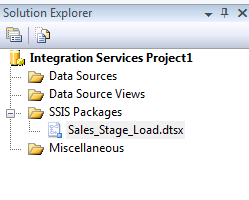
Create a new package and name it as “Sales_Stage_Load”.

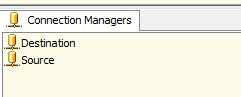
  1. Add connection managers to source and destination
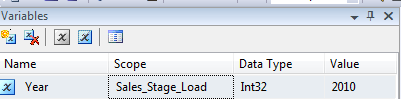
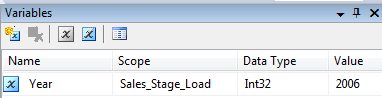
  2. Create a variable “Year” and assign a default value “2006”.
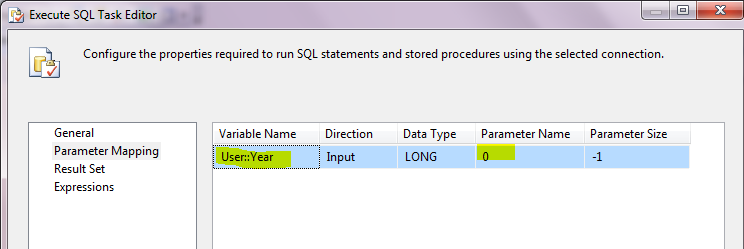
  3. Add an “Execute SQL Task” to clean up the staging table. Map the parameter value with the variable as data needs to be cleaned for the given financial year only.
  4. Add a “Data Flow” task.
  5. Inside the data flow, add OLEDB source and OLEDB destination.
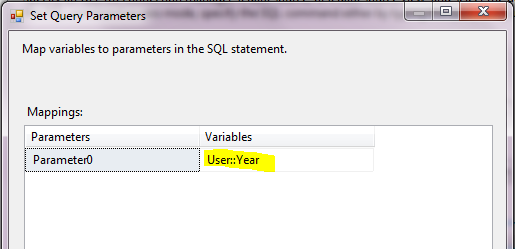
  6. OLEDB Source: Select data from source for the given financial year. Since the value is dynamic the parameter needs to be mapped with the variable “Year”.
  7. OLEDB Destination: Load data into staging table.

Implementation:

Create a package and add connection managers to source and destination.

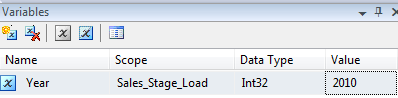
Create a variable “Year” as below.

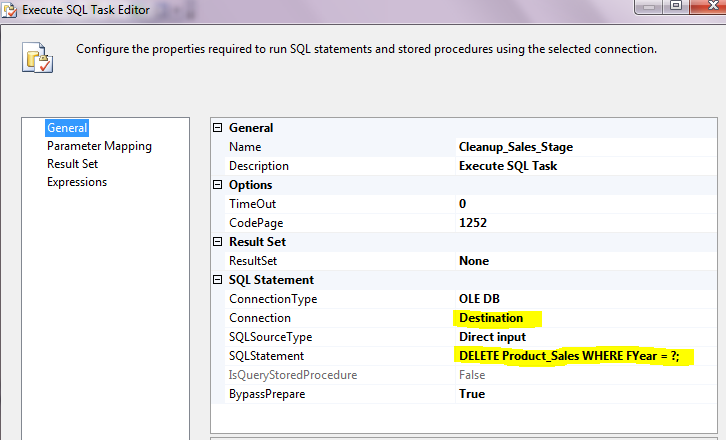
Add “Execute SQL Task” to the control flow and apply the properties as below.

Connection should point to the destination.

SQL statement is to delete data from stage table for the given year value.

Now MAP parameters in Parameter Mapping tab as below.

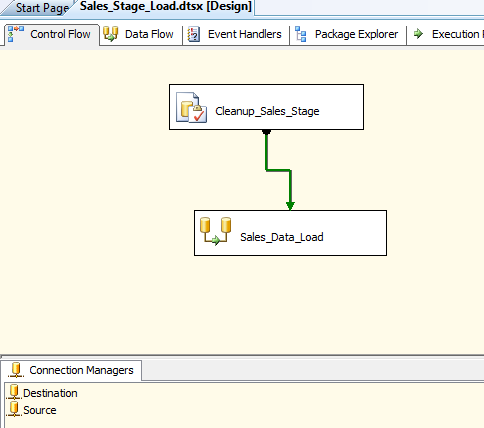
Now add a dataflow task and now the control flow looks like below.

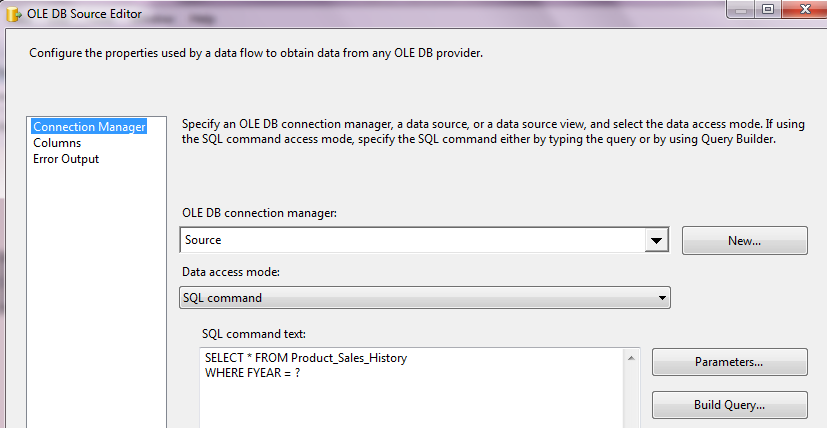
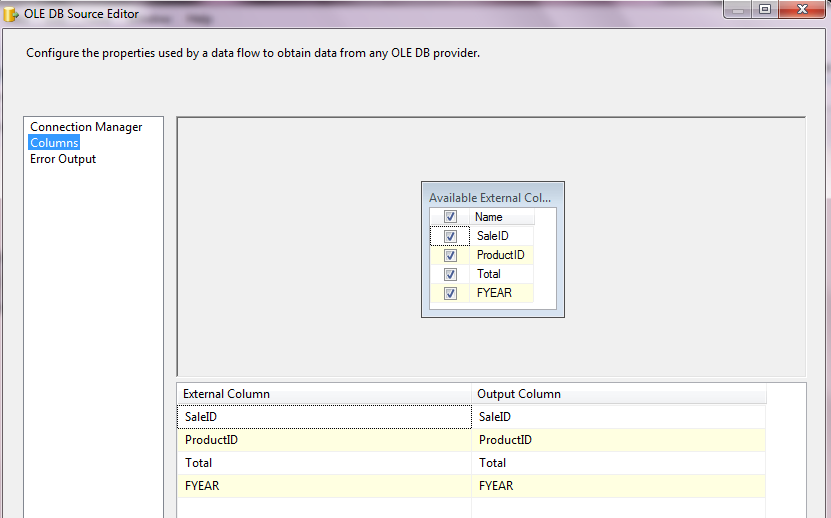
Inside the dataflow create an OLEDB source and map it with the connection “Source”.

Data access should be “SQL Command”.

Map the parameter to the user defined parameter “Year” as below.

Map the columns as below.

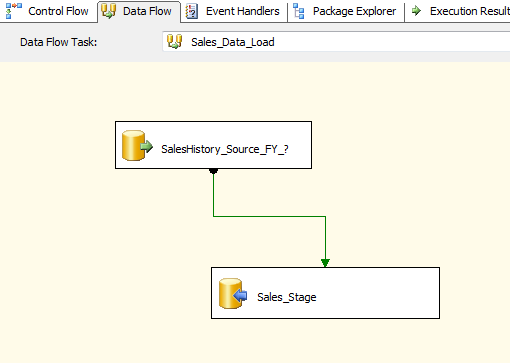
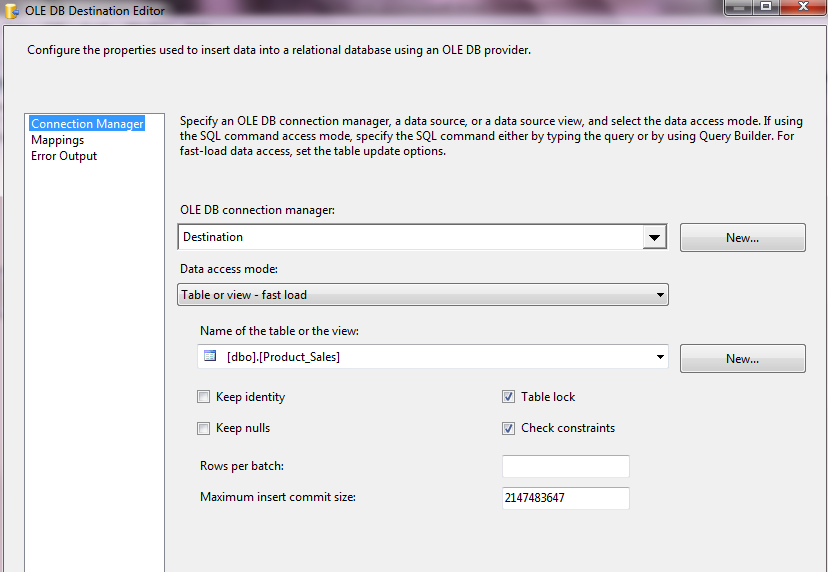
Add destination and map it with the connection manager “Destination”.

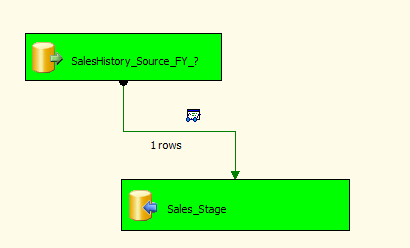
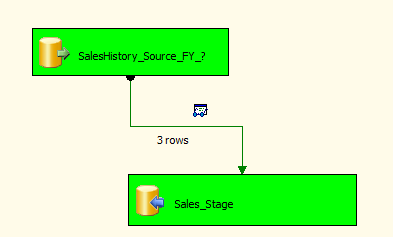
Now the dataflow looks like below.

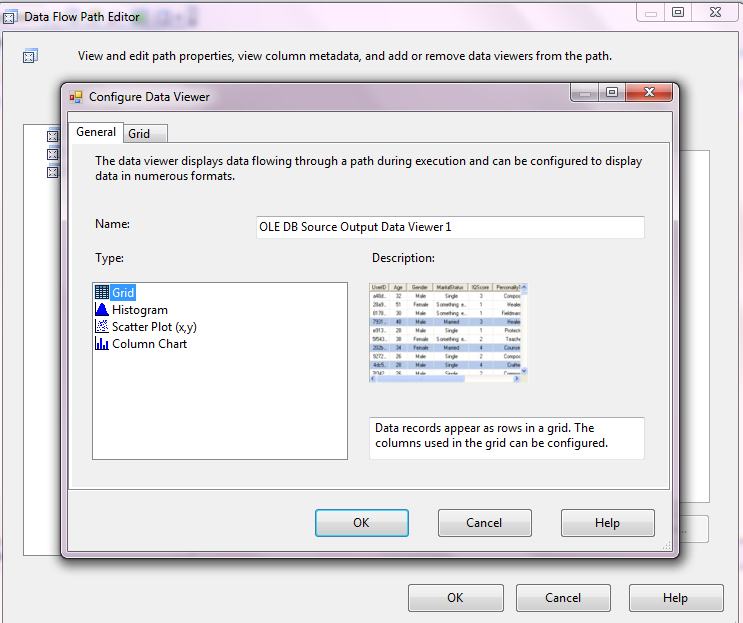
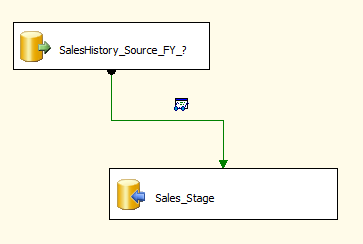
Now add “Data viewers” which can be helpful in validating the output.

Finally Dataflow looks like as below.

Execute the package:

Execution 1:

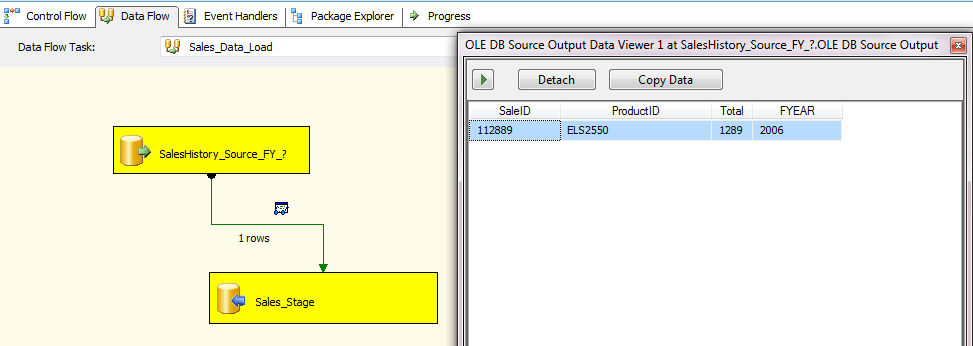
Initially the variable “Year” value is: 2006.

Now execute the package and see the output as below.

We can see there’s only one row available for the year 2006.

Execution 2:

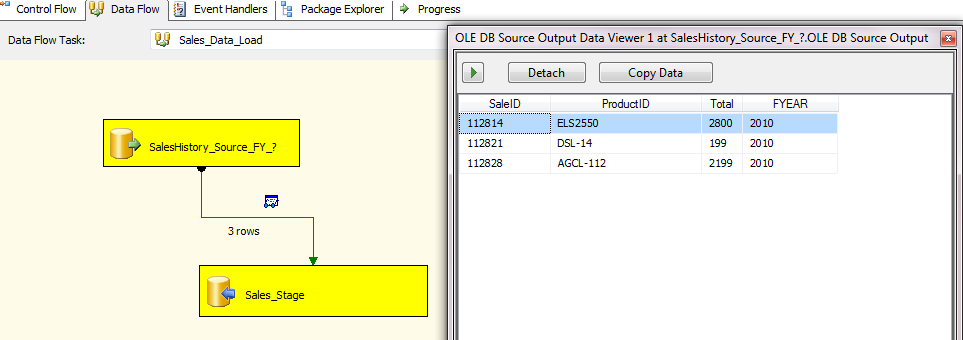
Change the variable value to 2010.

Now execute the package and see the output as below.

We can see there are three rows available for the year 2010.

Note: This is just a sample to showcase how variables are being used in SSIS packages.


Posted in MSBI, SSIS | Tagged , , , , , | Leave a comment