SQL Server Performance Tuning Interview Questions – Part 1

Sql Server Performance Tuning Interview Questions

Performance Tuning – SQL Server  Part – 1

Q. What are the bottlenecks that effects the performance of a Database / Application

Ans:

The top performance bottlenecks for OLTP applications are outlined as:

  • Database Design \ Database Code
  • Application Design \ Application Code
  • CPU bottleneck
  • Memory bottleneck
  • IO bottleneck
  • Blocking bottleneck
  • Network bottleneck
  • Server Hardware

Database Design \ Database Code

  • Too many indexes on frequently updated (inclusive of inserts, updates and deletes):

Tables incur extra index maintenance overhead. Generally, OLTP database designs should keep the number of indexes to a functional minimum, again due to the high volumes of similar transactions combined with the cost of index maintenance

  • Statistics may not be updated or missing statistics
  • Excess use of cursors and temporary tables
  • Too much of normalization
  • Do not use the conversion/system/user defined functions in where clause
  • Unused indexes incur the cost of index maintenance for inserts, updates, and deletes without benefiting any users:

Unused indexes should be eliminated. Any index that has been used (by select, update or delete operations) will appear in sys.dm_db_index_usage_stats. Thus, any defined index not included in this DMV has not been used since the last re-start of SQL Server

  • Choose the Appropriate Data Types

Always choose the smallest appropriate data type. Avoid NCHAR/NVARCHAR unless there is a need of storing Unicode.

  • Use Triggers Cautiously

Keep the code in your triggers to the very minimum to reduce overhead. The more code that runs in the trigger, the slower each INSERT, UPDATE, and DELETE that fires it will be

  • Don’t Access More Data Than You Need

Don’t return more columns or rows of data to the client than absolutely necessary. This just increases disk I/O on the server

  • Avoid Using Cursors
  • Wherever possible Try to use alternative solutions includes Temp-Tables, Derived tables, Table Variables or Recursive CTE’s etc
  • Always select the cursor with the least amount of overhead. The most efficient cursor you can choose is the fast forward-only cursor.
  • When you are done using a cursor, don’t just CLOSE it, DEALLOCATE
  • Use Joins Appropriately
  • If you have two or more tables that are frequently joined together, then the columns used for the joins should have an appropriate index. If the columns used for the joins are not naturally compact, then considering adding surrogate keys to the tables that are compact in order to reduce the size of the keys, thus decreasing read I/O during the join process, and increasing overall performance. You will learn more about indexing in the next section of this article.
  • For best performance, the columns used in joins should be of the same data types. And if possible, they should be numeric data types rather than character types.
  • Avoid joining tables based on columns with few unique values. If columns used for joining aren’t mostly unique, then the SQL Server optimizer will perform a table scan for the join, even if an index exists on the columns. For best performance, joins should be done on columns that have unique indexes.
  • If you have to regularly join four or more tables to get the recordset you need, consider denormalizing the tables so that the number of joined tables is reduced. Often, by adding one or two columns from one table to another, joins can be reduced.
  • Generally, frequent operations requiring 5 or more table joins should be avoided by redesigning the database
  • Encapsulate Your Code in Stored Procedures
  • Try to put all your T-SQL code in stored procedures which reduces the network traffic by just calling the proc from application and reduces the I/O overhead by using the compiled execution plan
  • Always use the option “SET NOCOUNT ON”
  • Design the proc’s to avoid the deadlocks
  • Collect all inputs before the transaction begins
  • Keep transaction short with in a batch
  • Use the correct isolation levels
  • Try to use with no lock option

Application Design / Application code:

Application Design issues:

  • Perform as many data-centered tasks as possible on SQL Server in the form of stored procedures. Avoid manipulating data at the presentation and business services tiers.
  • Don’t maintain state (don’t store data from the database) in the business services tier. Maintain state in the database as much as possible
  • Don’t create complex or deep object hierarchies. The creation and use of complex classes or a large number of objects used to model complex business rules can be resource intensive and reduce the performance and scalability of your application. This is because the memory allocation when creating and freeing these objects is costly.
  • Consider designing the application to take advantage of database connection pooling and object pooling using Microsoft Transaction Server (MTS). MTS allows both database connections and objects to be pooled, greatly increasing the overall performance and scalability of your application.
  • If your application runs queries against SQL Server that by nature are long, design the application to be able to run queries asynchronously. This way, one query does not have to wait for the next before it can run. One way to build in this functionality into your n-tier application is to use the Microsoft Message Queue Server (MSMQ).

Application Code:

  • Use OLE DB to Access SQL Server:
    • You can access SQL Server data using either ODBC or OLE DB. For best performance, always select OLE DB. OLE DB is used natively by SQL Server, and is the most effective way to access any SQL Server data.
  • Use DSN-less in Connection String:
    • While creating an ADO connection to SQL Server, you can either use a DSN in the connection string, or you can use a DSN-less connection. For optimal performance, use DSN-less connections. Using them prevents the need for the OLE DB driver to look up connection string information in the registry of the client the application code is running on, saving some overhead.
  • Encapsulate your DML (Data Manipulation Language) in Stored Procedures
    • ADO allows you three different ways to SELECT, INSERT, UPDATE, or DELETE data in a SQL Server database. You can use ADO’s methods, you can use dynamic SQL, or you can use stored procedures. For better performance prefer Stored Procedures
  • Encapsulate Your ADO Code in COM Components
    • Put the ADO code that accesses SQL Server data into COM components. This gives you all the standard benefits of COM components, such as object pooling using MTS. And for ASP-based applications, it provides greater speed because the ADO code in COM objects is already compiled, unlike ADO code found in ASP pages. How you implement your data manipulation code in COM components should be considered when the application is first designed.
    • For optimum performance, COM objects should be compiled as in-process DLLs (which is required if they are to run under MTS). You should always employ early binding when referencing COM objects, and create them explicitly, not implicitly.

CPU bottlenecks:

  • Signal waits > 25% of total waits.

(See sys.dm_os_wait_stats for Signal waits and Total waits. Signal waits measure the time spent in the runnable queue waiting for CPU. High signal waits indicate a CPU bottleneck.)

  • Plan re-use < 90%.

(A query plan is used to execute a query. Plan re-use is desirable for OLTP workloads because re-creating the same plan (for similar or identical transactions) is a waste of CPU resources. Compare SQL Server SQL Statistics: batch requests/sec to SQL compilations/sec. Compute plan re-use as follows: Plan re-use = (Batch requests – SQL compilations) / Batch requests. Special exception to the plan re-use rule: Zero cost plans will not be cached (not re-used) in SQL 2005 SP2. Applications that use zero cost plans will have a lower plan re-use but this is not a performance issue.)

Memory bottleneck:

  • Consistently low average page life expectancy. (MSSQL$Instance: Buffer Manager\Page Life Expectancy:)

(See Average Page Life Expectancy Counter which is in the Perfmon object SQL Server Buffer Manager (this represents is the average number of seconds a page stays in cache). For OLTP, an average page life expectancy of 300 is 5 minutes. Anything less could indicate memory pressure, missing indexes, or a cache flush)

  • Consistently low SQL Cache hit ratio. (MSSQL$Instance: Plan Cache\Cache Hit Ratio:)

(OLTP applications (e.g. small transactions) should have a high cache hit ratio. Since OLTP transactions are small, there should not be (1) big drops in SQL Cache hit rates or (2) consistently low cache hit rates < 90%. Drops or low cache hit may indicate memory pressure or missing indexes.)

IO bottleneck:

  • High average disk seconds per read.

(When the IO subsystem is queued, disk seconds per read increases. See Perfmon Logical or Physical disk (disk seconds/read counter). Normally it takes 4-8ms to complete a read when there is no IO pressure. When the IO subsystem is under pressure due to high IO requests, the average time to complete a read increases, showing the effect of disk queues. Periodic higher values for disk seconds/read may be acceptable for many applications. For high performance OLTP applications, sophisticated SAN subsystems provide greater IO scalability and resiliency in handling spikes of IO activity. Sustained high values for disk seconds/read (>15ms) does indicate a disk bottleneck.)

  • High average disk seconds per write.

(See Perfmon Logical or Physical disk. The throughput for high volume OLTP applications is dependent on fast sequential transaction log writes. A transaction log write can be as fast as 1ms (or less) for high performance SAN environments. For many applications, a periodic spike in average disk seconds per write is acceptable considering the high cost of sophisticated SAN subsystems. However, sustained high values for average disk seconds/write is a reliable indicator of a disk bottleneck.)

  • Big IOs such as table and range scans due to missing indexes.

Blocking bottleneck:

  • High average row lock or latch waits.

(The average row lock or latch waits are computed by dividing lock and latch wait milliseconds (ms) by lock and latch waits. The average lock wait ms computed from sys.dm_db_index_operational_stats represents the average time for each block.)

  • Top wait statistics
  • High number of deadlocks.

(See Profiler “Graphical Deadlock” under Locks event to identify the statements involved in the deadlock.)

Network bottleneck:

  • High network latency coupled with an application that incurs many round trips to the database.
  • Network bandwidth is used up.

(See counters packets/sec and current bandwidth counters in the network interface object of Performance Monitor. For TCP/IP frames actual bandwidth is computed as packets/sec * 1500 * 8 /1000000 Mbps)

Server Hardware:

Most slow applications are slow because of poor up front design, not because of slow hardware. Since the application’s design can’t be changed at the time when deployed to production, about the only thing you can try to help boost performance is to throw hardware at it.

  • CPU: Always purchase a server with the ability to expand its number of CPUs. Usually it goes for larger servers with four or more CPUs. Always leave room for growth.
  • Memory: Try to get enough RAM to hold the largest table you expect to have, and if you can afford it, get all the RAM your server can handle, which is often 2GB or more.
  • I/O Subsystem: At the very minimum, purchase hardware-based RAID for your databases. As a rule of thumb, you will to purchase more – smaller drives, not fewer – larger drives in your array. The more disks that are in an array, the faster I/O will be.
  • Network Connection: At the server, have at least one 100Mbs network card, and it should be connected to a switch. Ideally, you should have two network cards in the server connected to a switch in full-duplex mode.

For best performance on a server, SQL Server should be the only application running on the server, other than management utilities. Don’t try to save a few bucks by putting your IIS server on the same server as SQL Server.

Q. What is the process of tuning the Performance?

Ans:

  • Identification – Use native tools like Profiler, Query Tuning Advisor, Query Execution Plans, Performance Monitor, system stored procedures, dynamic management views, custom stored procedures or third party tools
  • Analysis – Analyze the data to determine the core problems
  • Providing Solution
  • Creating new index on appropriate columns
  • Altering the complex quires to make them use the existing indexes.
  • By Updating Statistics for Tables and Views.
  • By Rebuilding and Reorganizing indexes.
  • By Resolving blocking problems.
  • By removing Deadlocks.
  • Testing – Test the various options to ensure they perform better and do not cause worse performance in other portions of the application
  • Knowledge sharing – Share your experience with the team to ensure they understand the problem and solution, so the issue does not occur again

Q. How to choose the correct (Clustered/ Non- Clustered) index on a column?

Ans:

Selecting Clustered Index:

  • Clustered indexes are ideal for queries that select by a range of values or where you need sorted results. Examples of this include when you are using BETWEEN, <, >, GROUP BY, ORDER BY, and aggregates such as MAX, MIN, and COUNT in your queries.
  • Clustered indexes are good for queries that look up a record with a unique value (such as an employee number) and when you need to retrieve most or all of the data in the record.
  • Clustered indexes are good for queries that access columns with a limited number of distinct values, such as columns that holds country or state data. But if column data has little distinctiveness, such as columns with a yes or no, or male or female, then these columns should not be indexed at all.
  • Avoid putting a clustered index on columns that increment, such as an identity, date, or similarly incrementing columns, if your table is subject to a high level of INSERTS.

Selecting Non – Clustered Index:

  • Non-clustered indexes are best for queries that return few rows (including just one row) and where the index has good selectivity (above 95%).
  • If a column in a table is not at least 95% unique, then most likely the SQL Server Query Optimizer will not use a non-clustered index based on that column. For example, a column with “yes” or “no” as the data won’t be at least 95% unique.
  • Keep the “width” of your indexes as narrow as possible, especially when creating composite (multi-column) indexes. This reduces the size of the index and reduces the number of reads required to read the index, boosting performance.
  • If possible, try to create indexes on columns that have integer values instead of characters. Integer values have less overhead than character values.
  • If you know that your application will be performing the same query over and over on the same table, consider creating a covering index on the table. A covering index includes all of the columns referenced in the query.
  • An index is only useful to a query if the WHERE clause of the query matches the column(s) that are leftmost in the index. So if you create a composite index, such as “City, State”, then a query such as “WHERE City = ‘Houston'” will use the index, but the query “WHERE STATE = ‘TX'” will not use the index.

Q. How to read the graphical execution plan?

Ans:

The plan should be read from right to left

  • Check the Graphical execution plan of a stored procedure / Query
  • Table Scan – Index is missing
  • Index Scan – Proper indexes are not using
  • BookMark Lookup – Limit the number of columns in the select list
  • Filter – Remove any functions from where clause, May require additional indexes
  • Sort – Does the data really need to be sorted? Can an index be used to avoid sorting? Can sorting be done at the client more efficiently?
  • DataFlow Arrow – High density: Sometimes you find few rows as outcome but the arrow line density indicates the query/proc processing huge number of rows
  • Cost – Can easily find out which table / operation taking much time
  • From the execution plan we can find out the bottleneck and give the possible solution to avoid the latency

Q. Why the Actual and Estimated Execution Plans Might Differ

Ans

  • When Statistics are Stale:

The main cause of a difference between the plans is differences between the statistics and the actual data. This generally occurs over time as data is added and deleted.

  • When the Estimated plan is invalid:

When the batch contains temporary tables or the T-SQL statements which refers some of the objects that are not currently existed in the database, but will be created once the batch is run. (Create table is there in batch)

Q. What are the permissions required to view execution plans?

Ans:

Either the user must be mapped to sysadmin, db_owner, db_creator or he/she will be granted the permission “Show Plan”.

GRANT SHOWPLAN TO [username]

Q. What are the tools available for performance tuning/monitoring?

Ans:

  • Performance Studio: Act as a Central Data Repository, Collect Selected SQL Server Performance Data and Display Performance Reports
  • Activity Monitor: It displays graphically about Processes, Resource Waits, Datafile I/O, Recent expensive Quires.
  • Database Tuning Advisor (DTA): Recommend indexes
  • Profiler: Can run traces and find out the expensive/long running quires/transactions
  • Execution Plans: There are three types Graphical, Text and XML.
  • DMV: Dynamic management views shows the current state of the sql server
  • PerfMon: Windows native tool to view / monitor the performance of both sql and windows servers
  • Third Party: Redgate products

Q. How to identify the CPU bottlenecks and how to resolve it?

Ans:

Identifying CPU Bottlenecks:

Firstly we have to confirm that SQL Server – CPU utilization is high. Run the below query

SELECT Timestamp, CONVERT(XML, record) AS XmlRecord

FROM SYS.DM_OS_RING_BUFFERS

WHERE ring_buffer_type = N’RING_BUFFER_SCHEDULER_MONITOR’

AND record like ‘%<SystemHealth>%’

ORDER BY timestamp DESC

One record is stored every minute up to a maximum of 256 records. Clicking on any of the XML links will take you to the XML editor and will show an entry similar to below


<Record id=”434″ type=”RING_BUFFER_SCHEDULER_MONITOR” time=”22398046″>

<SchedulerMonitorEvent>

<SystemHealth>

<ProcessUtilization>55</ProcessUtilization>

<SystemIdle>35</SystemIdle>

<UserModeTime>228180000</UserModeTime>

<KernelModeTime>251812000</KernelModeTime>

<PageFaults>64252</PageFaults>

<WorkingSetDelta>21770240</WorkingSetDelta>

<MemoryUtilization>100</MemoryUtilization>

</SystemHealth>

</SchedulerMonitorEvent>

</Record>

Information from above XML:

ProcessUtilization: Percentage of CPU utilized by SQL Server – 55%

SystemIdle: Percentage of Idle CPU – 35%

Other processes using CPU: 100- (55+35) = 10 %

Now find out the query/proc/process that is making CPU utilization High:

SELECT TOP 20

qst.sql_handle,

qst.execution_count,

qst.total_worker_time AS Total_CPU,

total_CPU_inSeconds = –Converted from microseconds

qst.total_worker_time/1000000,

average_CPU_inSeconds = –Converted from microseconds

(qst.total_worker_time/1000000) / qst.execution_count,

qst.total_elapsed_time,

total_elapsed_time_inSeconds = –Converting from microseconds

qst.total_elapsed_time/1000000,

st.text AS ‘Query’,

qp.query_plan

from

sys.dm_exec_query_stats as qst

CROSS APPLY sys.dm_exec_sql_text(qst.sql_handle) as st

cross apply sys.dm_exec_query_plan (qst.plan_handle) as qp

ORDER BY qst.total_worker_time DESC

From the above script we can find the commands which are taking the most CPU time along with the execution plan. By reviewing the execution plan you can see what additional indexes need to be added to the database which will improve database performance and decrease the CPU load time.

By adding missing indexes or by using the proper indexes we can decrease the load on CPU.

Other options:

  • Sp_monitor: Displays statistics, including CPU usage, I/O usage, and the amount of time idle since sp_monitor was last executed. We can get the information about the “CPU Time (Sec)”, “I/O Time (Sec)”, “Count of Input\Output Packets”, “No of logins attempted”, “Errors in reading/writing network packets” etc.
  • @@CPU_BUSY / @@IO_BUSY: Returns the time that SQL Server has spent working since it was last started. Result is in CPU time increments, or “ticks,” and is cumulative for all CPUs, so it may exceed the actual elapsed time. Multiply by @@TIMETICKS to convert to microseconds. But it may not the accurate value to be considered.
  • PerfMon
  • Profiler

Q. Can you tell me what the Wait Type “LAZY WRITTER” is?

Ans:

The job of the lazy writer is to find dirty pages in the buffer pool and write them out to disk and drop those pages from cache.

Q. Can we find performance bottleneck from sysprocesses?

Ans:

Yes. We may not confirm that it is the only bottleneck but at least we can find the bottleneck. Lastwaittype column with waittime plays a vital role in identifying the issue. This is a very interesting column because it can tell you what the offending query is waiting for to complete.

Network_io: There is too much of traffic in Network

Cxpacket: Your process is waiting on other parallel processes to complete.

SOS_SCHEDULER_YIELD: CPU bound. We may not have enough CPU in your box

IO_Completion: Disk issue. We may not have enough disk space or running on corrupted disk array.

Q. What Are SQL Server Waits?

Ans:

Instead of measuring activity of CPU, storage, or memory, why not ask what SQL Server has been waiting on when executing queries?

In general there are three categories of waits that could affect any given request:

  • Resource waits are caused by a particular resource, perhaps a specific lock that is unavailable when the requested is submitted.
  • External waits occur when SQL Server worker thread is waiting on an external process
  • Queue waits normally apply to internal background tasks, such as ghost cleanup, which physically removes records that have been previously deleted.

Q. How could you know the statistics are outdated?

Ans:

If old statistics is your problem, you will likely experience this as a gradual decline of SQL Server slowing down over many days or weeks, or you may have just upgraded your platform (from 2000 to 2008) and forgot to update the statistics. Out of date statistics cause inaccurate execution plans.

Q. What are the main parameters we need to check when you are dealing with memory performance?

Ans:

There are four significant properties of sql server.

Max server memory and Min server memory:

Use the two server memory options, min server memory and max server memory, to reconfigure the amount of memory (in megabytes) that is managed by the SQL Server Memory Manager for a SQL Server process used by an instance of SQL Server. By default Min Memory is set to be 0 and Max Memory is set to be 2147483647 MB (21 GB). Never leave these two settings as default. Depends on the memory available and other applications running on windows Server, change these two settings.

For example we have 24 GB available and the settings can be like this:

Min Memory: 1 GB

Max Memory: 16 GB

Remember total max memory of all instances should not exceeds the actual physical memory available

Priority boost: By default, the priority boost setting is 0, which causes SQL Server to run at a normal priority. If you set priority boost to 1, the SQL Server process runs at a high priority.

Lightweight pooling: Switch on this parameter when you want to make sql server use the fiber mode facility. Unless there is a real need and environment (Large multi-processor servers) available we should not use this option at production servers.

Note: While answering questions regarding threshold values and performance counter values it really depends on lot many things. Ex: Type of database (OLTP / OLAP), Server and database configurations, SLA with the business owners etc. Like these lot many parameters will be considered while determining a threshold values.

One of our blog reader Jagadesh suggested how they calculate and keep threshold value for “Page Life Expectancy”.

“It really depends on the amount of memory allocated to your instance of SQL Server. When working with my clients the value I start with is taking (max memory in GB) / 4 * 300. This would be the minimum value. On a server with 32GB allocated to SQL this value would be (32/4)*300 = 2400 seconds or 40 minutes.”


Posted in Interview Q&A, Performance Tuning, SQL Development, SQL Server DBA | Tagged , , , , , , , , , | 47 Comments

SQL DBA – INTERVIEW QUESTIONS ANSWERS – 2

SQL DBA – INTERVIEW QUESTIONS ANSWERS – 2

SQL Server Database Administrator – Interview Questions

This post “SQL DBA – INTERVIEW QUESTIONS ANSWERS – 2”  helps SQL DBA for interview preparation.

Q. Does TRUNCATE is a DDL or DML and why?

Ans:

TRUNCATE is a DDL command as it directly works with table schema instead of row level. This we can observe by using “sys.dm_tran_locks” while executing the “TRUNCATE” command on a table. It issues a schema lock (sch-M) where as “DELETE” issues exclusive lock. Schema lock issued as it requires resetting the identity value.

Q. What is SQL DUMP? Have you ever dealt with this?

Ans:

When SQL Server is crashed or in hung state due to a Memory/Disk/CPU problems it creates a SQL DUMP file. A DUMP files is a file containing a snapshot of the running process (in this case SQL Server) that includes all of the memory space of that process and the call stack of every thread the process has created. There are two major types of DUMP files:

Full DUMP: It contains entire process space and takes lot of time and space

Mini DUMP: It’s a smaller file contains the memory for the call stack of all threads, the CPU registers and information about which modules are loaded.

Q. We are not able to connect to SQL Server. Can you list out what are all the possible issues and resolutions?

Ans:

This is one of the most common problems every DBA should be able to handle with. Here are the list of possible problems and resolutions. All the problems can be categorized into:

  • Service Down/Issue
  • Network Access/Firewall Issue
  • Authentication and Login issue
  • SQL Server configuration Issue
  • Application Driver or Connection String Issue

Possible Problems:

  • Using a wrong instance name/IP or port
  • Using a wrong user name or password
  • User access might be revoked
  • Trying to access from outside organization VPN
  • SQL Server is down
  • SQL Server is not responding due to high CPU/Memory/Disk I/O
  • Might be a disk full issue
  • Master database might be corrupted
  • User default database may not be online
  • SQL Server port might be blocked
  • We are using named instance name and SQL Browser service is down
  • Using the wrong network protocol
  • Remote connections may not be enabled
  • Network issue with the host windows server
  • Using a wrong client driver (32 bit – 64 bit issues or Old driver using for new version)
  • Version Specific issues, for example an application cannot connect to a contained database when connection pooling is enabled. This issue got fixed in SQL Server 2014 CU1

Resolutions:

The error message itself can tell you how to proceed ahead with the resolution:

  • If possible first thing should be done is, check SQL Server and Windows error log as it can tell us the exact problem and based on that we can determine the possible best resolution.
  • Please cross check connection string information before complaining
  • Cross check hosted windows server and SQL Server are up and running
  • Make sure the SQL login default database is online and accessible
  • Make sure the user access is not revoked
  • Make sure all system databases are up and running
  • Cross check all resource usage that includes Memory, CPU, Disk I/O, Disk Space etc.
  • Try to use IP address and port number instead of instance name, also try with FQDN
  • Try to connect from different possible places/systems to make sure the source system has no issues
  • Check windows server is reachable from remote location using PING
  • Check SQL Server listening on the given port using TELNET <IP> <Port>. Try both from local and remote
  • If the port is blocked add this port to exception list in windows firewall INBOUND rules
  • Make sure SQL Server is configured to allow remote connections
  • If you are also not able to connect then try to connect using DAC and fix the issue by running DBCC commands
  • Try if you can connect using SQLCMD
  • Cross check if there is any recent changes happened in Active Directory security policy
  • Make sure you are using the correct driver to connect to application
  • Cross check if there is any blocking on system process

Q. Can you explain how database snapshots works?

Ans:

Let me explain what happens when we create a database snapshot

  • It creates an empty file known as sparse file for each source database data file
  • Uncommitted transactions are rolled back, thus having a consistent copy of the database
  • All dirty pages will be returned to the disk
  • The user can query the database snapshot
  • Initially the sparse file contains an empty copy of source database data file
  • Snapshot data points to the pages from source database datafile
  • When any modification occurred (INSERT/DELETE/UPDATE) on source database, all modified pages are copied to the sparse file before the actual modification. That means the sparse file contains the old/point in time data (when the time the snapshot taken).
  • Now if you query the snapshot all modified pages are read from sparse file and remaining all unchanged pages are read from the original (source database) data file.

Q. How to know the number of VLF created on a given database log file?

Ans:

Run DBCC LOGINFO; Number of rows returned = Total number of VLF. If it is more than 50 means we need to control the Auto-growth rate. Number of times Auto Grow happens means it increases the number of VLF’s.

Q. Any idea about boot page?

Ans:

In every database there is a page available which stores about the most critical information about that database. This page is called boot page. Boot Page is page 9 in first file on primary file group. We can examine the BOOTPAGE using DBCC PAGE or DBCC DBINFO

Q. Can we hot add CPU to sql server?

Ans:

Yes! Adding CPUs can occur physically by adding new hardware, logically by online hardware partitioning, or virtually through a virtualization layer. Starting with SQL Server 2008, SQL Server supports hot add CPU.

  • Requires hardware that supports hot add CPU.
  • Requires the 64-bit edition of Windows Server 2008 Datacenter or the Windows Server 2008 Enterprise Edition for Itanium-Based Systems operating system.
  • Requires SQL Server Enterprise.
  • SQL Server cannot be configured to use soft NUMA

Once the CPU is added just run RECONFIGURE then sql server recognizes the newly added CPU.

Q: How can we check whether the port number is connecting or not on a Server?

Ans:

TELNET <HOSTNAME> PORTNUMBER

TELNET PAXT3DEVSQL24 1433

TELNET PAXT3DEVSQL24 1434

Common Ports:

MSSQL Server: 1433

HTTP TCP 80

HTTPS TCP 443

Q: What is the port numbers used for SQL Server services?

Ans:

  • The default SQL Server port is 1433 but only if it’s a default install. Named instances get a random port number.
  • The browser service runs on port UDP 1434.
  • Reporting services is a web service – so it’s port 80, or 443 if it’s SSL enabled.
  • Analysis service is on 2382 but only if it’s a default install. Named instances get a random port number.

Q: Start SQL Server in different modes?

Ans:

Single User Mode (-m) : sqlcmd –m –d master –S PAXT3DEVSQL11 –c –U sa –P *******

DAC (-A): sqlcmd –A –d master –S PAXT3DEVSQL11 –c –U sa –P *******

Emergency: ALTER DATABASE test_db SET EMERGENCY

Q: How to recover a database that is in suspect stage?

Ans:

ALTER DATABASE test_db SET EMERGENCY

After you execute this statement SQL Server will shutdown the database and restart it without recovering it. This will allow you to view / query database objects, but the database will be in read-only mode. Any attempt to modify data will result in an error similar to the following:

Msg 3908, Level 16, State 1, Line 1 Could not run BEGIN TRANSACTION in database ‘test’ …..etc

ALTER DATABASE test SET SINGLE_USER

GO

DBCC CHECKDB (‘test’, REPAIR_ALLOW_DATA_LOSS) GO

If DBCC CHECKDB statement above succeeds the database is brought back online (but you’ll have to place it in multi-user mode before your users can connect to it). Before you turn the database over to your users you should run other statements to ensure its transactional consistency. If DBCC CHECKDB fails then there is no way to repair the database – you must restore it from a backup.

Q. Can we uninstall/rollback a service packs from SQL Server 2005?

Ans:

No not possible for SQL Server 2005. To rollback a SP you have to uninstall entire product and reinstall it.

For Sql Server 2008 you can uninstall a SP from Add/Remove programs.

Some people are saying that we can do it by backup and replace the resource db. But I am not sure about that.

Q. What is a deadlock and what is a live lock? How will you go about resolving deadlocks?

Ans:

Deadlock is a situation when two processes, each having a lock on one piece of data, attempt to acquire a lock on the other’s piece. Each process would wait indefinitely for the other to release the lock, unless one of the user processes is terminated. SQL Server detects deadlocks and terminates one user’s process.

A livelock is one, where a request for an exclusive lock is repeatedly denied because a series of overlapping shared locks keeps interfering. SQL Server detects the situation after four denials and refuses further shared locks. A livelock also occurs when read transactions monopolize a table or page, forcing a write transaction to wait indefinitely.

Q. SQL Server is not responding. What is action plan?

Ans:

Connect using DAC via CMD or SSMS

Connect via CMD

SQLCMD -A –U myadminlogin –P mypassword -SMyServer –dmaster

Once you connect to the master database run the diagnostic quires to find the problem

Correct the issue and restart the server

Find the errors from sql log using

SQLCMD –A –SmyServer –q”Exec xp_readerrorlog” –o”C:\logout.txt”

A long running query blocking all processes and not allowing new connections

Write a query and put the script file on hard disk Ex: D:\Scripts\BlockingQuery.sql

use master;

select p.spid, t.text

from sysprocesses p

CROSS APPLY sys.dm_exec_sql_text (sql_handle) t

where p.blocked = 0

and p.spid in

( select p1.blocked

from sysprocesses p1

where p1.blocked > 0

and p1.waittime > 50 )

From command prompt run the script on sql server and get the result to a text file

SQLCMD -A – SMyServer -i”C:\SQLScripts\GetBlockers.sql” -o”C:\SQLScripts\blockers.txt”

Recently added some data files to temp db and after that SQL Server is not responding

This can occur when you specify new files in a directory to which the SQL Server service account does not have access.

Start the sql server in minimal configuration mode using the startup parameter “–f”. When we specify –f the sql server creates new tempdb files at default file locations and ignore the current tempdb data files configuration. Take care when using –f as it keep the server in single user mode.

Once the server is started change the tempdb configuration settings and restart the server in full mode by removing the flag -f

A database stays in a SUSPECT or RECOVERY_PENDING State

Try to resolve this using CheckDB and any other DBCC commands if you can.

Last and final option is put the db in emergency mode and run CHECKDB with repair_allow_data_loss

(Note: Try to avoid this unless you don’t have any option as you may lose large amounts of data)

Q. What is your experience with third party applications and why would you use them?

Ans:
I have used some of the 3rd Party tools:

  • SQL CHECK – Idera – Monitoring server activities and memory levels
  • SQL DOC 2 – RedGate – Documenting the databases
  • SQL Backup 5 – RedGate – Automating the Backup Process
  • SQL Prompt – RedGate – Provides IntelliSense for SQL SERVER 2005/2000,
  • Lite Speed 5.0 – Quest Soft – Backup and Restore

Benefits using Third Party Tools:

  • Faster backups and restores
  • Flexible backup and recovery options
  • Secure backups with encryption
  • Enterprise view of your backup and recovery environment
  • Easily identify optimal backup settings
  • Visibility into the transaction log and transaction log backups
  • Timeline view of backup history and schedules
  • Recover individual database objects
  • Encapsulate a complete database restore into a single file to speed up restore time
  • When we need to improve upon the functionality that SQL Server offers natively
  • Save time, better information or notification

Q. Why sql server is better than other databases?

Ans:

I am not going to say one is better than other, but it depends on the requirements. We have number of products in market. But if I have the chance to choose one of them I will choose SQL SERVER because…..

  • According to the 2005 Survey of Wintercorp, The largest SQL Server DW database is the 19.5 terabytes. It is a database of a European Bank
  • High Security. It is offering high level of security.
  • Speed and Concurrency, SQL Server 2005 system is able to handles 5,000 transactions per second and 100,000 queries a day and can scale up to 8 million new rows of data per day,
  • Finally more technical peoples are available for SQL SERVER when we compare to any other database.

So that we can say SQL SERVER is more than enough for any type of application.

Q. Differences between SQL SERVER 2000 AND 2005?

Ans:

Security

  • 2000: Owner = Schema, hard to remove old users at times Schema is separate.
  • 2005: Better granularity in easily controlling security. Logins can be authenticated by certificates.

Encryption

  • 2000: No options built in, expensive third party options with proprietary skills required to implement properly.
  • 2005: Encryption and key management build in.

High Availability

  • 2000: Clustering or Log Shipping requires Enterprise Edition and Expensive hardware.
  • 2005: Clustering, Database Mirroring or Log Shipping available in Standard Edition. Database Mirroring can use cheap hardware.

Scalability

  • 2000: Limited to 2GB, 4CPUs in Standard Edition. Limited 64-bit support
  • 2005: 4 CPU, no RAM limit in Standard Edition. More 64-bit options offer chances for consolidation.

Q. What are the Hotfixes and Patches?

Ans:

Hotfixs are software patches that were applied to live i.e. still running systems. A hotfix is a single, cumulative package that includes one or more files that are used to address a problem in a software product (i.e. a software bug).

In a Microsoft SQL SERVER context, hotfixes are small patches designed to address specific issues, most commonly to freshly-discovered security holes.

Ex: If a select query returning duplicate rows with aggregations the result may be wrong….

Q. Why Shrink file/ Shrink DB/ Auto Shrink is really bad?

Ans:

In the SHRINKFILE command, SQL Server isn’t especially careful about where it puts the pages being moved from the end of the file to open pages towards the beginning of the file.

  • The data becomes fragmented, potentially up to 100% fragmentation, this is a performance killer for your database;
  • The operation is slow – all pointers to / from the page / rows being moved have to be fixed up, and the SHRINKFILE operation is single-threaded, so it can be really slow (the single-threaded nature of SHRINKFILE is not going to change any time soon)

Recommendations:

  • Shrink the file by using Truncate Only: First it removes the inactive part of the log and then perform shrink operation
  • Rebuild / Reorganize the indexes once the shrink is done so the Fragmentation level is decreased

Q. Which key provides the strongest encryption?

Ans:

AES (256 bit)

The longer the key, the better the encryption, so choose longer keys for more encryption. However there is a larger performance penalty for longer keys. DES is a relatively old and weaker algorithm than AES.

AES: Advanced Encryption Standard

DES: Data Encryption Standard

Q. What is the difference between memory and disk storage?

Ans:

Memory and disk storage both refer to internal storage space in a computer. The term “memory” usually means RAM (Random Access Memory). The terms “disk space” and “storage” usually refer to hard drive storage.

Q. What port do you need to open on your server firewall to enable named pipes connections?

Ans:
Port 445. Named pipes communicate across TCP port 445.

Q. What are the different log files and how to access it?

Ans:

  • SQL Server Error Log: The Error Log, the most important log file, is used to troubleshoot system problems. SQL Server retains backups of the previous six logs, naming each archived log file sequentially. The current error log file is named ERRORLOG. To view the error log, which is located in the %Program-Files%\Microsoft SQL Server\MSSQL.1\MSSQL\LOG\ERRORLOG directory, open SSMS, expand a server node, expand Management, and click SQL Server Logs
  • SQL Server Agent Log: SQL Server’s job scheduling subsystem, SQL Server Agent, maintains a set of log files with warning and error messages about the jobs it has run, written to the %ProgramFiles%\Microsoft SQL Server\MSSQL.1\MSSQL\LOG directory. SQL Server will maintain up to nine SQL Server Agent error log files. The current log file is named SQLAGENT.OUT, whereas archived files are numbered sequentially. You can view SQL Server Agent logs by using SQL Server Management Studio (SSMS). Expand a server node, expand Management, click SQL Server Logs, and select the check box for SQL Server Agent.
  • Windows Event Log: An important source of information for troubleshooting SQL Server errors, the Windows Event log contains three useful logs. The application log records events in SQL Server and SQL Server Agent and can be used by SQL Server Integration Services (SSIS) packages. The security log records authentication information, and the system log records service startup and shutdown information. To view the Windows Event log, go to Administrative Tools, Event Viewer.
  • SQL Server Setup Log: You might already be familiar with the SQL Server Setup log, which is located at %ProgramFiles%\Microsoft SQL Server\90\Setup Bootstrap\LOG\Summary.txt. If the summary.txt log file shows a component failure, you can investigate the root cause by looking at the component’s log, which you’ll find in the %Program-Files%\Microsoft SQL Server\90\Setup Bootstrap\LOG\Files directory.
  • SQL Server Profiler Log: SQL Server Profiler, the primary application-tracing tool in SQL Server, captures the system’s current database activity and writes it to a file for later analysis. You can find the Profiler logs in the log .trc file in the %ProgramFiles%\Microsoft SQL Server\MSSQL.1\MSSQL\LOG directory.

Q. Explain XP_READERRORLOG or SP_READERRORLOG

Ans:

Xp_readerrorlog or sp_readerrorlog has 7 parameters.

Xp_readerrorlog <Log_FileNo>,<Log_Type>,<Keyword-1>,<Keyword-2>,<Date1>,<Date2>,<’Asc’/’Desc’>

Log_FileNo: -1: All logs

0: Current log file

1: No1 archived log file etc

Log_Type: 1: SQL Server

2: SQL Agent

KeyWord-1: Search for the keyword

KeyWord-2: Search for combination of Keyword 1 and Keyword 2

Date1 and Date2: Retrieves data between these two dates

‘Asc’/’Desc’: Order the data

Examples:

EXEC Xp_readerrorlog 0 – Current SQL Server log

EXEC Xp_readerrorlog 0, 1 – Current SQL Server log

EXEC Xp_readerrorlog 0, 2 – Current SQL Agent log

EXEC Xp_readerrorlog -1 – Entire log file

EXEC Xp_readerrorlog 0, 1, ’dbcc’ – Current SQL server log with dbcc in the string

EXEC Xp_readerrorlog 1, 1, ’dbcc’, ’error’ – Archived 1 SQL server log with dbcc and error in the string

EXEC xp_readerrorlog -1, 1, ‘dbcc’, ‘error’, ‘2012-02-21’, ‘2012-02-22′,’desc’

Search entire sql server log file for string ‘dbcc’ and ‘Error’ within the given dates and retrieves in descending order.

Note: Also, to increase the number of log files, add a new registry key “NumErrorLogs” (REG_DWORD) under below location.
HKEY_LOCAL_MACHINE\SOFTWARE\Microsoft\MSSQL.X\MSSQLServer\
By default, this key is absent. Modify the value to the number of logs that you want to maintain.


Q. Can we track no of transactions  / inserts / updates / deletes a Day (Without using profiler)? If yes how?

Ans:

You could use capture data change or change tracking:

http://msdn.microsoft.com/en-us/library/cc280519.aspx

Q. We have 300 SSIS packages those needs to be deployed to production, how can we make it easier / short way to deploy all SSIS packages at once.

Ans:

I would store these as XML based files and not in the MSDB database. With the configuration files, you can point the packages from prod to dev (and vice versa) in just a few seconds. The packages and config files are just stored in a directory of your choice. Resources permitting, create a standalone SSIS server away from the primary SQL Server

Q. We have a table which is 1.2 GB in size, we need to write a SP which should work with a particular point of time data (like snapshot) (We should not use snapshot Isolation as it take other 1.2 TB size)

Ans:

You may want to add insert timestamps and update timestamps for each record. Every time a new record is inserted, stamp it with the datetime, and also stamp it with the date time when updated. Also possibly use partitioning to reduce index rebuilds.

Q. What is RAID levels? Which one we have to choose for SQL Server user databases?

Ans:

Check out the charts in this document. It shows how the disks are setup. It will depend on what the customer wants to spend and level of reliability needed. Raid 5 is common, but see the topic ‘RAID 10 versus RAID 5 in Relational Databases’, in the document below. It’s a good discussion. Raid 10 (pronounced Raid one-zero) is supposed to have the best in terms of performance and reliability, but the cost is higher.

http://en.wikipedia.org/wiki/RAID

Q. How many datafiles I can put in Tempdb? What is the effect of adding multiple data files.

Ans:

By far, the most effective configuration is to set tempdb on its own separate fast drive away from the user databases. I would set the number of files based on # of cpu’s divided by 2. So, if you have 8 cpu’s, then set 4 tempdb files. Set the tempdb large enough with 10% data growth. I would start at a general size of 10 GB for each size. I also would not create more than 4 files for each mdf/ldf even if there were more than 8 cpu’s. you can always add more later.

http://msdn.microsoft.com/en-us/library/ms175527.aspx

http://msdn.microsoft.com/en-us/library/ms190768.aspx

Q. Let’s say a user is performing a transaction on a clustered server and failover has occurred. What will happen to the Transaction?

Ans:

If it is active/passive, there is a good chance the transaction died, but active/passive is considered by some the better as it is not as difficult to administer. I believe that is what we have on active. Still, active/active may be best depending on what the requirements are for the system.

Q. How you do which node is active and which is passive. What are the criteria for deciding the active node?

Ans:

Open Cluster Administrator, check the SQL Server group where you can see current owner. So current owner is the active node and other nodes are passive.

Q. What is the common trace flags used with SQL Server?

Ans:

Deadlock Information: 1204, 1205, 1222

Network Database files: 1807

Log Record for Connections: 4013

Skip Startup Stored Procedures: 4022

Disable Locking Hints: 8755

Forces uniform extent allocations instead of mixed page allocations 1118 – (SQL 2005 and 2008) To reduces TempDB contention.

Q. What is a Trace flag? Types of Trace Flags? How to enable/disable it? How to monitor a trace flag?

Ans:

http://blogs.technet.com/b/lobapps/archive/2012/08/28/how-do-i-work-with-trace-flags.aspx

Q. What are the limitations for RAM and CPU for SQL SERVER 2008 R2?

Ans:

Feature Standard Enterprise Datacenter
Max Memory 64 GB 2TB Max Memory supported by windows version
Max CPU (Licensed per Socket, not core) 4 Sockets 8 Sockets Max Memory supported by windows version

Q. Do you know about Resource Database?

Ans:

All sys objects are physically stored in resource database and logically available on every database.

Resource database can faster the service packs or upgrades

Q. Really does resource faster the upgrades? Can you justify?

Ans:

Yes, in earlier versions upgrades requires dropping and recreating system objects now an upgrade requires a copy of the resource file.

We are also capable of rollback the process, because it just needs to overwrite the existing with the older version resource copy.

Q. I have my PROD sql server all system db’s are located on E drive and I need my resource db on H drive how can you move it?

Ans:

No only resource db cannot be moved, Resource db location is always depends on Master database location, if u want to move resource db you should also move master db.

Q. Can we take the backup for Resource DB?

Ans:

No way. The only way if you want to get a backup is use windows backup for option resource mdf and ldf files.

Q. Any idea what is the Resource db mdf and ldf file names?

Ans:

  • mssqlsystemresource.mdf and
  • mssqlsystemresource.ldf

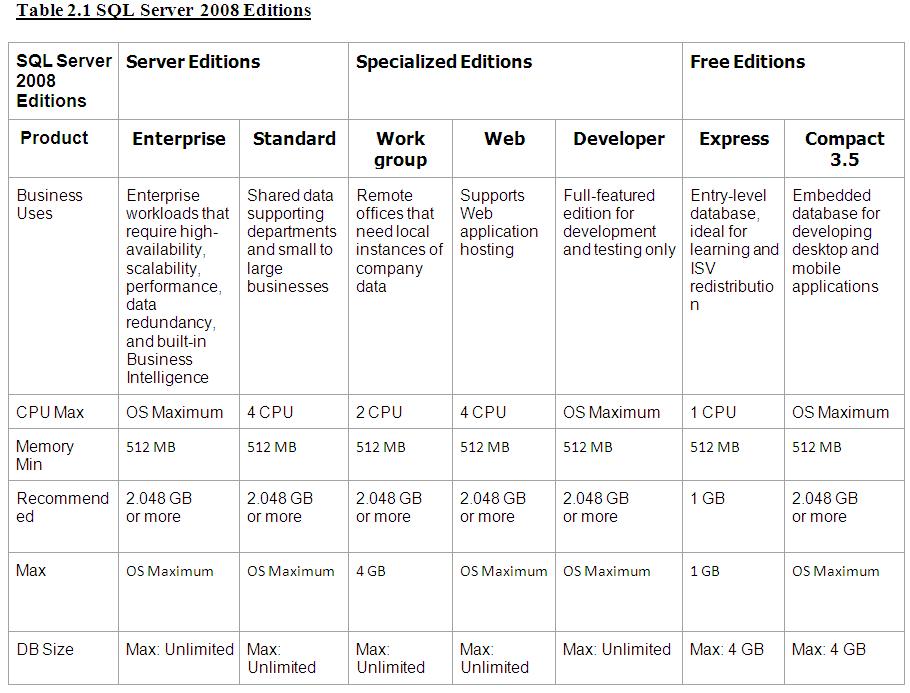
Q. Can you elaborate the requirements specifications for SQL Server 2008?

Ans:

SQLServer2008_Spec.jpg

Q. What you do if a column of data type int is out of scope?

Ans:

I do alter column to BigInt

Q. Are you sure the data type Bigint never been out of scope?

Ans:

Yes I am sure.

Let’s take few examples and see how many years will it take for BIGINT to reach its upper limit in a table:

(A) Considering only positive numbers, Max limit of BIGINT = 9,223,372,036,854,775,807

(B) Number of Seconds in a year = 31,536,000

Assume there are 50,000 records inserted per second into the table. Then the number of years it would take to reach the BIGINT max limit is:

9,223,372,036,854,775,807 / 31,536,000 / 50,000 = 5,849,424 years

Similarly,

If we inserted 1 lakh records per second into the table then it would take 2,924,712 yrs

If we inserted 1 million (1000000) records per second into the table then it would take 292,471 yrs

If we inserted 10 million (10000000) records per second into the table then it would take 29,247 yrs

If we inserted 100 million records per second into the table then it would take 2,925 yrs

If we inserted 1000 million records per second into the table then it would take 292 yrs

By this we would have understood that it would take extremely lots of years to reach the max limit of BIGINT.

Thank You

Top 7 SQL basic interview questions for SQL Developers

1000 Plus Professional SQL Server Interview Questions and Answers


Posted in Interview Q&A, SQL Server DBA | Tagged , , , , , , , | 56 Comments

SQL DBA INTERVIEW QUESTIONS WITH ANSWERS – 1

SQL DBA Interview Questions with Answers – 1

SQL DBA Interview Questions with Answers

SQL DBA Interview Questions with Answers

SQL DBA Interview Questions with Answers

Q. What are the common issues a SQL DBA should deal with as a part of DBA daily job?

Ans:

  • Backup Failure
  • Restore Failure
  • Log Full Issues
  • Blocking Alerts
  • Deadlocks Alerts
  • TEMPDB full issues
  • Disk Full Issues
  • SQL Connectivity Issues
  • Access issues
  • Installation and Upgrade Failures
  • SQL Agent Job failures
  • Performance Issues
  • Resource (Memory/IO/CPU etc.) Utilization Alerts
  • High-Availability and Disaster Recovery related issues

Q. “model” system DB is down and we are trying to create a new database. Is it possible to create a new database when model DB is down?

Ans:

We can’t create a new database when model database is down. SQL Server restart will be unsuccessful when model database is down as TEMPDB creation failed. TEMPDB is created based on model DB configurations, since model DB is down TEMPDB will not be created.

Q. Which operation is faster COMMIT or ROLLBACK? Why?

Ans:

It’s obviously COMMIT is faster than ROLLBACK. Let me explain with an example: Let’s say we opened a transaction and updated 8000 records:

Commit: It’s completed quickly as the operation is already completed and it just marks those dirty pages as committed and when checkpoint happens all those dirty pages will be written to disk.

Rollback: The operation is already updated 8000 records if we need to rollback then again all these updates has to be rolled back which means there are another 8000 log records will be written to LDF which will take time when compared to commit.

Q. What are the different ways available to insert data from a file into SQL Server database table?

Ans:

These are the different ways:

  • BCP
  • BULKINSERT
  • OPENROWSET
  • OPENDATASOURCE
  • OPENQUERY
  • LINKED SERVER
  • IMPORT/EXPORT WIZARD
  • SSIS

Q. What is the scope of different temp objects?

Ans:

Local Temp Table: “CREATE TABLE #TempTable”

Local temporary tables are visible only in the current session, and can be shared between nested stored procedure calls

Table Variable: “DECLARE TABLE @TempTable”

The scope of a local variable is the batch, stored procedure, or statement block in which it is declared. They can be passed as parameters between procedures. They are not subject to transactions and will retain all rows following a rollback.

Derived Table: “SELECT * FROM (SELECT * FROM Customers) AS TempTable”

Is visible to the current query only

Global Temp Table: “CREATE TABLE ##TempTable”

This differs from a #temp table in that it is visible to all processes. When the creating process ends, the table is removed (but will wait until any current activity from other processes is done).

CTE: Common Table Expression

Example CTE:

;WITH YourBigCTE AS

(

big query here

)

SELECT * FROM YourTable1 WHERE ID IN (SELECT ID FROM YourBigCTE)

UNION

SELECT * FROM YourTable2 WHERE ID IN (SELECT ID FROM YourBigCTE)

Scope is next immediate select command. Can be used multiple times within the same CTE command, even recursively, and will last for the duration of the CTE command.

Q. What is the maximum limit of SQL Server instances for a standalone computer? 

Ans:

50 instances on a stand-alone server for all SQL Server editions. SQL Server supports 25 instances on a failover cluster.

Q. What is the cluster node limitation?

Ans:

The number of allowable nodes in the SQL Server cluster depends on your SQL Server version and your Windows Server version. For SQL Server 2008 Standard edition, you can only have two cluster nodes. If you have SQL Server Enterprise, the limit depends on your Windows Server version, 8 cluster nodes for 2003 and 16 nodes for 2008.

Q. Can we install SQL Server using a configure file?

Ans:

Yes! We can prepare a configuration file. While installing SQL Server the path to the configuration file is specified in the “Ready to Install” page in the configuration file path section. Cancel the setup without actually completing the installation, to generate the INI file.

File Location and Name:

%programfiles%\Microsoft SQL Server\110\Setup Bootstrap\Log\<YYYYMMDD_HHMM>\ConfigurationFile.ini.

Q. How to install a SQL Server using configuration file?

Ans:

From Command prompt locate the setup.exe file location and can install using config file.

Setup.exe /ConfigurationFile=MyConfigurationFile.INI

Instead of specifying passwords inside the config file specify them explicitly as below.

Setup.exe /SQLSVCPASSWORD=”************” /AGTSVCPASSWORD=”************” /ASSVCPASSWORD=”************” /ISSVCPASSWORD=”************” /RSSVCPASSWORD=”************” /ConfigurationFile=MyConfigurationFile.INI

Q. What are the top performance counters to be monitor in Performance Monitor?

Ans:

Processor\%Processor Time: Monitoring CPU consumption allows you to check for a bottleneck on the server (indicated by high sustained usage).

High percentage of Signal Wait: Signal wait is the time a worker spends waiting for CPU time after it has finished waiting on something else (such as a lock, a latch or some other wait). Time spent waiting on the CPU is indicative of a CPU bottleneck. Signal wait can be found by executing DBCC SQLPERF (waitstats) on SQL Server 2000 or by querying sys.dm_os_wait_stats on SQL Server 2005.

Physical Disk\Avg. Disk Queue Length: Check for disk bottlenecks: if the value exceeds 2 then it is likely that a disk bottleneck exists.

MSSQL$Instance: Buffer Manager\Page Life Expectancy: Page Life Expectancy is the number of seconds a page stays in the buffer cache. A low number indicates that pages are being evicted without spending much time in the cache, which reduces the effectiveness of the cache.

MSSQL$Instance: Plan Cache\Cache Hit Ratio: A low Plan Cache hit ratio means that plans are not being reused.

MSSQL$Instance:General Statistics\Processes Blocked: Long blocks indicate contention for resources.

Q. Task manager is not showing the correct memory usage by SQL Server. How to identify the exact memory usage from SQL Server?

Ans:

To know the exact memory usage relay on column “physical_memory_in_use_kb” from DMV “sys.dm_os_process_memory”.

Using performance counters also we can find the usage.


Performance object: Process

Counter: Private Bytes

Instance: sqlservr

Performance object: Process

Counter: Working Set

Instance: sqlservr


The Private Bytes counter measures the memory that is currently committed. The Working Set counter measures the physical memory that is currently occupied by the process.

For 64-bit sql servers we can also check the current memory usage using the below performance counter.

Performance object: SQL Server:Memory Manager

Counter: Total Server Memory (KB)


Q. What is the option Lock Pages in Memory”?

Ans:

Lock Pages in Memory is a setting that can be set on 64-bit operating systems that essentially tell Windows not to swap out SQL Server memory to disk. By default, this setting is turned off on 64-bit systems, but depends on various conditions this option needs to be turned on.

We must be very careful in dealing with this option. One can enable this after a detailed analysis of current environment.

Following issues may rise when “Lock Pages in Memory” is not turned on:

  • SQL Server performance suddenly decreases.
  • Application that connects to SQL Server may encounter timeouts.
  • The hardware running SQL Server may not respond for a short time periods.


Q. How do you know how much memory has been allocated to sql server using AWE?

Ans:

We can use DBCC MEMORYSTSTUS command to know the memory allocation information. But it’s trick to understand the results.

We can use a DMV called “sys.DM_OS_Memory_Clerks”. Sample query to calculate total AWE memory allocated is “SELECT SUM(awe_allocated_kb) FROM sys.dm_os_memory_clerks”

From 2008 onwards we can get all memory related information using DMV “sys.dm_os_process_memory”.

Q. How to apply service pack on Active / Passive cluster on 2008 and 2012?

Ans:

1. Freeze the service groups on Node A (active node).

2. Confirm all SQL services are stopped on Node B.

3. Upgrade the SQL Server 2008 instance on Node B.

4. Reboot node B.

5. Unfreeze the service group on node A.

6. Fail over the service group to Node B.

7. After the service group comes online, freeze the service group on Node B.

8. Confirm all SQL services are stopped on Node A.

9. Upgrade the SQL Server 2008 instance on Node A.

10. Reboot Node A.

11. Unfreeze the service group on node B.

12. Fail back the service group to Node A.

Q. How to apply a SP on SQL Server 2005 Active / Passive cluster?

Ans:

1. Login to the Console on the target node

a. RDP to the console is ok, but a standard RDP connection is not recommended.

2. Copy the Service Pack to a local drive on the target node

3. Move all instances to the target node

a. You can only install on the Active Node.

4. Move the Cluster Resource to the target node

5. Move the MSDTC Resource to the target node

6. Verify all users are logged out from all other nodes (RDP and Console sessions)

7. Start the Service Pack install

a. Use a domain account with admin rights to all servers.

b. Ignore locked files

8. Reboot current server

a. You should not need to perform the install on any other nodes, nor reboot them. The service pack will update the passive nodes first.

Q. You find SP is not applied on all the nodes across the cluster. How to apply SP only on required nodes?

Ans:

If you find that the product level is not consistent across all the nodes, you will need to fool the 2005 patch installer into only patching the nodes that need updating. To do so, you will have to perform the following steps:

  1. Fail Instance, Cluster, and MSDTC groups to an unpatched node
  2. Remove any successfully patched nodes from failover candidates of the SQL Server Service of the instance group (do this using Cluster Admin tool)
  3. Run the patch
  4. After the patch installs successfully, add the Nodes removed in Step 2 back to the SQL Server Service of the Instance group

Why do you need to do this? Well when the patch installer determines that not all nodes in the cluster are at the same patch level, a passive node operation will fail and will prevent you from moving forward with any further patching.

Q. How to change the sql server service account in a cluster environment?

Ans:

Method 1: (No failover required)

1. Freeze the service group on active node from cluster administrator and then restart the service.

Method2:

1. Offline the SQL resources

2. Update the service account at SSCM and restart the service as needed

3. Add the SQL resources back to online

Note: Don’t forget to update service account at the remaining nodes on the cluster.

Method 3:

1. Node 2 (inactive node) change the SQL startup account in SQL Studio or SCM

2. Fail over the SQL service group from node 1 to node 2.

3. Node 1 (now the inactive node) change the SQL startup account in SQL Studio or SCM

Q. How to apply service pack on Active / Active cluster Nodes?

Ans:

1. Make a note of all node names (and/or IP addresses), SQL Server virtual names along with preferred nodes. If there are more than three nodes you may need to also take note of possible owners for each SQL resource group. For my example assume that I have a cluster with node1 and node2, SQL1 normally lives on node1 and SQL2 normally lives on node2.

2. To start with a clean slate and ensure any previous updates are completed both nodes should be restarted if possible. Choose the physical node that you you want to patch second and restart that node (in my example node2).

3. Restart the node you want to patch first (node1). This will mean that both active SQL instances are now running on node2. Some restarts will be essential, but you could avoid the first two restarts if you need to keep downtime to a minimum and just fail SQL1 over to node2. The main point here is to always patch a passive node.

4. In cluster administrator remove node1 from the possible owners lists of SQL1 and SQL2. This means that neither SQL instance can fail over to node1 while it is being patched.

5. Run the service pack executable on node1.

6. Restart node1.

7. Add node1 back into the possible owners lists of SQL1 and SQL2 and fail both instances over to node1.

8. Repeat steps 4 – 6 on node2.

9. Add node2 back into the possible owners lists of SQL1 and SQL2 and fail both instances over to node2. Check that the build level is correct and review the SQL Server error logs.

10. Fail SQL1 over to node1. Check build levels and SQL Server error logs

Q. What are the main events and columns helpful in troubleshooting performance issues using profiler?

Ans:

Events:

Event Group: Performance

Event: ShowPlan_ALL (BinaryData column must be selected)

Event: ShowPlan_XML

Event Group: T-SQL

Event: SQL:BatchStarted

Event: SQL:BatchCompleted

Event Group: Stored Procedures

Event: RPC:Completed

Event Group: Locks

Event: Lock: Deadlock Graph

Event: Lock: Lock Deadlock Chain (Series of events that leaads to a deadlock)

Event Group: Sessions

Event: Existing Connection

Event Group: Security Audit

Event: Audit Login

Event: Audit Log Out

Columns:

Below are the most common columns that help us in understanding the trace file to troubleshoot the problems.

TextData

ApplicationName

NTUserName

LoginName

CPU

Reads

Writes

Duration

SPID

StartTime

EndTime

Database Name

Error

HostName

LinkedServerName

NTDomainName

ServerName

SQLHandle

All these columns need not be available for all of the events, but depends on the event select we have to choose the appropriate columns.

Filters:

ApplicationName

DatabaseName

DBUserName

Error

HostName

NTUserName

NTDomainName

Q. What are the agents in replication?

Ans:

Snapshot Agent: Copy Schema+Data to snapshot folder on distributer. Used in all types of replication.

Log reader Agent: Sends transactions from Publisher to Distributor. Used in transactional replication

Distribution Agent: Applies Snapshots / Transactions to all subscribers’ runs at distributer in PUSH and Runs at Subscriber in PULL. Used in transactional and transactional with updatable subscriptions.

Queue reader Agent: Runs at distributer send back transactions from subscriber to publisher. Used in Transactional With updatable subscriptions.

Merge Agent: Applies initial snapshot to subscribers, from the next time synchronize by resolving

the conflicts.

Q. Can we configure log shipping in replicated database?

Ans: Yes

Replication does not continue after a log shipping failover. If a failover occurs, replication agents do not connect to the secondary, so transactions are not replicated to Subscribers. If a failback to the primary occurs, replication resumes. All transactions that log shipping copies from the secondary back to the primary are replicated to Subscribers.

For transactional replication, the behavior of log shipping depends on the sync with backup option. This option can be set on the publication database and distribution database; in log shipping for the Publisher, only the setting on the publication database is relevant.

Setting this option on the publication database ensures that transactions are not delivered to the distribution database until they are backed up at the publication database. The last publication database backup can then be restored at the secondary server without any possibility of the distribution database having transactions that the restored publication database does not have. This option guarantees that if the Publisher fails over to a secondary server, consistency is maintained between the Publisher, Distributor, and Subscribers. Latency and throughput are affected because transactions cannot be delivered to the distribution database until they have been backed up at the Publisher.

Q. What are the best RAID levels to use with SQL Server?

Ans:

Before choosing the RAID (Redundant Array of Independent Disks) we should have a look into usage of SQL Server files.

As a basic thumb rule “Data Files” need random access, “Log files” need sequential access and “TempDB” must be on a fastest drive and must be separated from data and log files.

We have to consider the below factors while choosing the RAID level:

Reliability

Storage Efficiency

Random Read

Random Write

Sequential Write

Sequential Write

Cost.

As an Admin we have to consider all of these parameters in choosing the proper RAID level. Obviously the choice is always between RAID-5 and RAID-10

Q. How to monitor latency in replication?

Ans:

There are three methods.

  1. Replication monitor
  2. Replication commands
  3. Tracer Tokens

1. Replication Monitor: In replication monitor from the list of all subscriptions just double click on the desired subscription. There we find three tabs.

  • Publisher to Distributor History
  • Distributor to Subscriber History
  • Undistributed commands

2. Replication Commands:

Publisher.SP_ReplTran: Checks the pending transactions at p

Distributor.MSReplCommands and MSReplTransactions: Gives the transactions and commands details. Actual T_SQL data is in binary format. From the entry time we can estimate the latency.

Distributor.SP_BrowseReplCmds: It shows the eaxct_seqno along with the corresponding T-SQL command

sp_replmonitorsubscriptionpendingcmds: It shows the total number of pending commands to be applied at subscriber along with the estimated time.

3. Tracer Tokens:

Available from Replication Monitor or via TSQL statements, Tracer Tokens are special timestamp transactions written to the Publisher’s Transaction Log and picked up by the Log Reader. They are then read by the Distribution Agent and written to the Subscriber. Timestamps for each step are recorded in tracking tables in the Distribution Database and can be displayed in Replication Monitor or via TSQL statements.

When Log Reader picks up Token it records time in MStracer_tokens table in the Distribution database. The Distribution Agent then picks up the Token and records Subscriber(s) write time in the MStracer_history tables also in the Distribution database.

Below is the T-SQL code to use Tracer tokens to troubleshoot the latency issues.

–A SQL Agent JOB to insert a new Tracer Token in the publication database.

USE [AdventureWorks]

Go

EXEC sys.sp_posttracertoken @publication = <PublicationName>

Go

–Token Tracking Tables

USE Distribution

Go

–publisher_commit

SELECT Top 20 * FROM MStracer_tokens Order by tracer_id desc


–subscriber_commit

SELECT Top 20 * FROM MStracer_history Order by parent_tracer_id desc

Q. Can we perform a tail log backup if .mdf file is corrupted?

Ans:

Yes we can perform a tail log as long as the ldf if not corrupted and no bulk logged changes.

A typical tail log backup is having two options, 1. WITH NORECOVERY 2.Continue After Error.

1. WITH NORECOVERY: To make sure no transactions happens after the tal log backup

2. CONTINUE AFTER ERROR: Just to make sure log backup happens even though some meta data pages corrupted.

Q. Let’s say we have a situation. We are restoring a database from a full backup. The restore operation ran for 2 hours and failed with an error 9002 (Insufficient logspace). And the database went to suspect mode. How do you troubleshoot this issue?

Ans:

In that case we can actually add a new log file on other drive and rerun the restore operation using the system stored procedure “sp_add_log_file_recover_suspect_db”. Parameters are the same as while creating a new log file.

Q. Let’s say we have a situation. We are restoring a database from a full backup. The restores operation runs for 2 hours and failed with an error 1105 (Insufficient space on the file group). And the database went to suspect mode. How do you troubleshoot this issue?

Ans:

In that case we can actually add a new data file on another drive and rerun the restore operation using the system stored procedure “sp_add_data_file_recover_suspect_db”. Parameters are the same as while creating a new data file.

Q. Can you describe factors that causes the logfile grow?

Ans:

  • CHECKPOINT has not occurred since last log truncation
  • No log backup happens since last full backup when database is in full recovery
  • An active BACKUP or RESTORE operation is running from long back
  • Long running active transactions
  • Database mirroring is paused or mode is in high performance
  • In replication publisher transactions are not yet delivered to distributer
  • Huge number of database snapshots is being created

Q. How do you troubleshoot a Full transaction log issue?

Ans:

Columns log_reuse_wait and log_reuse_wait_desc of the sys.databases catalog view describes what is the actual problem that causes log full / delay truncation.

  • Backing up the log.
  • Freeing disk space so that the log can automatically grow.
  • Moving the log file to a disk drive with sufficient space.
  • Increasing the size of a log file.
  • Adding a log file on a different disk.
  • Completing or killing a long-running transaction.

http://msdn.microsoft.com/en-us/library/ms345414.aspx

Q. Does “Truncate” works in transactional replication?

Ans:

No! As per MSDN blogs information we can’t use TRUNCATE on published database against the published article instead we have to use “DELETE” without where clause.

Q. Consider a situation where publisher database log file has been increasing and there there is just few MB available on disk. As an experienced professional how do you react to this situation? Remember no disk space available and also we can’t create a new log file on other drive

Ans:

Essentially we have to identify the bottleneck which is filling the log file.

As a quick resolution check all possible solutions as below:

  • Resolve if there are any errors in log reader agent / distribution agent
  • Fix if there are any connectivity issues either between publisher – distributor or distributor
  • Fix if there are any issues with I/O at any level
  • Check if there is any huge number of transactions pending from publisher
  • Check if there are any large number of VLF’s (USE DBCC Loginfo)which slows the logreader agent work.
  • Check all database statistics are up-to-date at distributer. Usually we do siwtch off this “Auto Update Stats” by default.
  • To find and resolve these issues we can use “Replication Monitor”, “DBCC Commands”, “SQL Profiler”, “System Tables / SP / Function”.

If incase we can’t resolve just by providing a simple solution we have to shrink the transaction log file. Below are two methods.

To shrink the transaction log file:

1. Backup the log — So transactions in vlf’s are marked as inactive

2. Shrink the logfile using DBCC SHRINKFILE – Inactive VLF’s would be removed

3. If you find no difference in size repeat the above steps 1 and 2

To truncate the transaction log file:

In any case we are not able to provide the solution against the increasing logfile the final solution is disable the replication, truncate the log and reinitialize the subscribers.

1. Disable replication jobs

2. Execute SP_ReplDone procedure. It disable the replication and mark as “Replicate done” for all pending transactions at publisher.

3. Backup the transaction log “WITH TRUNCATE” option.

4. Shrink the log file using “DBCC SHRINKFILE”

5. Flues the article cache using “sp_replflush”.

6. Go to distributor database and truncate the table MSRepl_Commands

7. Connect to replication monitor and reinitialize all subscriptions by generating a new snapshot.

8. Enable all replication related jobs.

Q. Can we add an article to the existing publication without generating a snapshot with all articles?

Ans:

Yes! We can do that. Follow the below steps to publish a new article to the existing publication.

There are two parameters that we need to change to “False”. 1. Immediate Sync and 2. Allow_Ananymous.

Both the fields were set to ON by default. If the Immediate_sync is enabled every time you add a new article it will cause the entire snapshot to be applied and not the one for the particular article alone.

Steps:

1. Change the values to “True” for publication properties “Immediate_Sync” and “Allow_Anonymous” using SP_CHANGEPUBLICATION

2. Add a new article to the publication using SP_AddArticle. While executing this procedure along with the required parameters also specify the parameter “@force_invalidate_snapshot=1”.

3. Add the subscriptions to the publication for the single table/article uisng “SP_ADDSUBSCRIPTION”. While executing this proc specify the parameter “@Reserved = Internal”. Generate a new snapshot which only includes newly added article.

Q. How MAXDOP impacts SQL Server?

Ans:

The Microsoft SQL Server max degree of parallelism (MAXDOP) configuration option controls the number of processors that are used for the execution of a query in a parallel plan. This option determines the computing and threads resources that are used for the query plan operators that perform the work in parallel.

For servers that use more than eight processors, use the following configuration:

MAXDOP=8

For servers that use eight or fewer processors, use the following configuration:

MAXDOP=0 to N

Q. How distributed transactions works in SQL Server?

Ans:

Distributed transactions are the transactions that worked across the databases, instances in the given session. Snapshot isolation level does not support distributed transactions.

We can explicitly start a distributed transaction using “BEGIN DISTRIBUTED TRANSACTION <TranName>”

For example, if BEGIN DISTRIBUTED TRANSACTION is issued on ServerA, the session calls a stored procedure on ServerB and another stored procedure on ServerC. The stored procedure on ServerC executes a distributed query against ServerD, and then all four computers are involved in the distributed transaction. The instance of the Database Engine on ServerA is the originating controlling instance for the transaction.

When a distributed query is executed in a local transaction, the transaction is automatically promoted to a distributed transaction if the target OLE DB data source supports ITransactionLocal. If the target OLE DB data source does not support ITransactionLocal, only read-only operations are allowed in the distributed query.

In order to work with these transactions, make sure below settings are done.

1. MSDTC must be running on all supported instances

2. Choose the option “No authentigation required” from MSDTC properties

3. Turn on random options at linked server properties like “RPC”, “RPC Out”, “Data Access” etc.


Q. Can you give some examples for One to One, One to Many and Many to Many relationships?

Ans:

One to One: Citizen – UID

A citizen can have only one UID – A UID can represent only one citizen

One to Many: Customer – Products

A customer can sale number of products – A product can be brought by only one customer

Many to Many: Book – Author

A book can be written by more than one author – An author can write more than one book

Q. What are the phases of sql server database restore process?

Ans:

1. Copy Data: Copies all data,log and index pages from backup file to database mdf, ndf and ldf files

2. REDO: Rollfoward all committed transactions to database and if it finds any uncommitted transactions it goes to the final phase UNDO.

3. UNDO: Rollback any uncommitted transactions and make database available to users.

Q. I wanted to know what are the maximum worker threads setting and active worker thread count on sql server. Can you tell me how to capture this info? What’s the default value for max thread count?

Ans:

We can check the current settings and thread allocation using the below queries.

–Thread setting

select max_workers_count from sys.dm_os_sys_info

–Active threads

select count(*) from sys.dm_os_threads


Default value is 255.

Increasing the number of worker threads may actually decrease the performance because too many threads causes context switching which could take so much of the resources that the OS starts to degrade in overall performance.

Q. Can you explain sql server transaction log architecture?

Ans:

We need to spend some time on this as every SQL DBA must aware of this concept.

http://www.sqlservercentral.com/articles/Stairway+Series/73775/

Q. See I have an environment, Sunday night full backup, everyday night diff backup and every 45 min a transactional backup. Disaster happened at 2:30 PM on Saturday. You suddenly found that the last Sunday backup has been corrupted. What’s your recovery plan?

Ans:

When you find that the last full backup is corrupted or otherwise unrestorable, making all differentials after that point useless. You then need to go back a further week to the previous full backup (taken 13 days ago), and restore that, plus the differential from 8 days ago, and the subsequent 8 days of transaction logs (assuming none of those ended up corrupted!).

If you’re taking daily full backups, a corrupted full backup only introduce an additional 24 hours of logs to restore.

Alternatively, a log shipped copy of the database could save your bacon (you have a warm standby, and you know the log backups are definitely good).


Q. Full backup size is 300 GB, usually my diff backup size varies between 300 MB and 5 GB, one day unfortunately diff backup size was increased to 250 GB? What might be the reason any idea?

Ans:

Are you the kind of DBA who rebuilds all indexes nightly? Your differential backups can easily be nearly as large as your full backup. That means you’re taking up nearly twice the space just to store the backups, and even worse, you’re talking about twice the time to restore the database.

To avoid these issues with diff backups , ideally schedule the index maintenance to happen right before the full backup.

Q. What is .TUF file? What is the significance of the same? Any implications if the file is deleted?

Ans:

.TUF file is the Transaction Undo File, which is created when performing log shipping to a server in Standby mode.

When the database is in Standby mode the database recovery is done when the log is restored; and this mode also creates a file on destination server with .TUF extension which is the transaction undo file.

This file contains information on all the modifications performed at the time backup is taken.

The file plays a important role in Standby mode… the reason being very obvious while restoring the log backup all uncommited transactions are recorded to the undo file with only commited transactions written to disk which enables the users to read the database. So when we restore next transaction log backup; SQL server will fetch all the uncommited transactions from undo file and check with the new transaction log backup whether commited or not.

If found to be commited the transactions will be written to disk else it will be stored in undo file until it gets commited or rolledback.

If .tuf file is got deleted there is no way to repair logshipping except reconfiguring it from scratch.

1000 Plus Professional SQL Server Interview Questions and Answers

SQL The One Image

Posted in Interview Q&A, SQL Server DBA | Tagged , , , , , , , | 49 Comments